
用快捷键与菜单快速启动应用
把常用软件、文件和操作放到容易呼出的入口,减少反复翻找。收录Desk Tidy、Flow Launcher、GeekDesk等站内已有工具,按实际用途选择适合自己的应用。

WinStep Nexus 是 Windows 桌面 Dock 与应用启动器,查看 v26.9、官方安装、许可和显示排障。 | WinStep Nexus is a Windows dock launcher; find setup, licensing, v26.9 notes, and display fixes.
Apelidos: Nexus Dock
Conheça as informações básicas do software e suas fontes
专有软件;个人使用免费,企业/组织使用免费版须购买 Nexus Dock Commercial License;适用范围以官方条款为准。
WinStep Nexus 是 Windows 桌面 Dock 与应用启动器,查看 v26.9、官方安装、许可和显示排障。 | WinStep Nexus is a Windows dock launcher; find setup, licensing, v26.9 notes, and display fixes.
WinStep Nexus 是 Windows 桌面 Dock 与应用启动器,可把常用应用、文件、文件夹和命令放在屏幕边缘或桌面,支持多显示器、运行任务与主题自定义。本页整理 Nexus 下载来源、安装步骤、v26.9 更新、免费版与 Ultimate 区别,并给出 Dock 不显示时的实用排查方法。
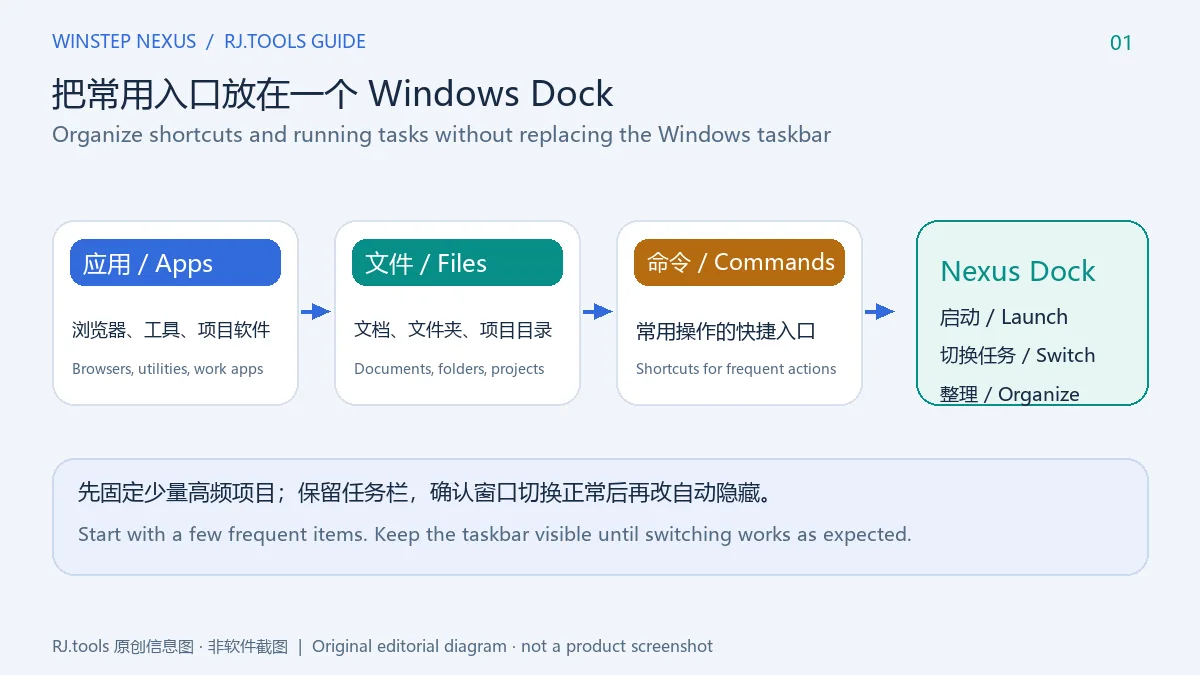
WinStep Nexus(也称 Nexus Dock)是在 Windows 桌面上使用的 Dock 与应用启动器。常用软件、项目文件夹和文档可以放在同一条 Dock 中;需要时把文件拖到对应应用图标上打开。Dock 也能显示正在运行的窗口,因此可用于启动和切换任务,而不只是桌面装饰。免费版提供一个 Dock,适合希望减少开始菜单往返、但仍保留标准任务栏的用户。建议先把少量高频项目固定到 Dock,确认习惯后再决定是否隐藏任务栏或启用自动隐藏。
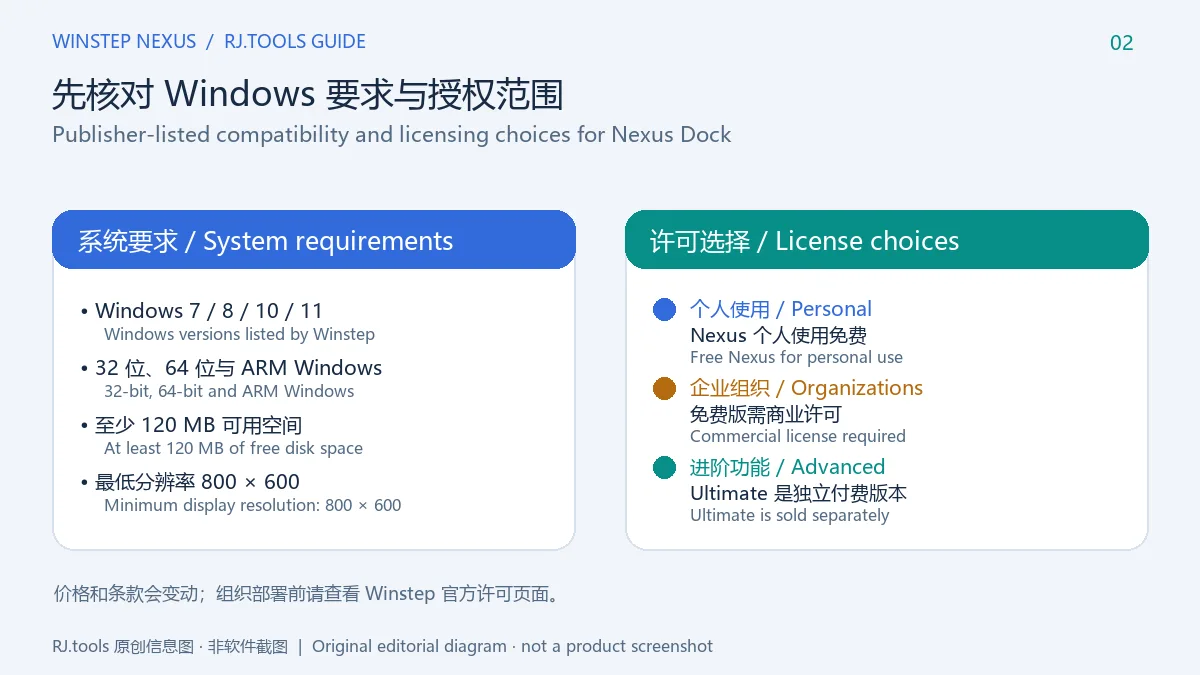
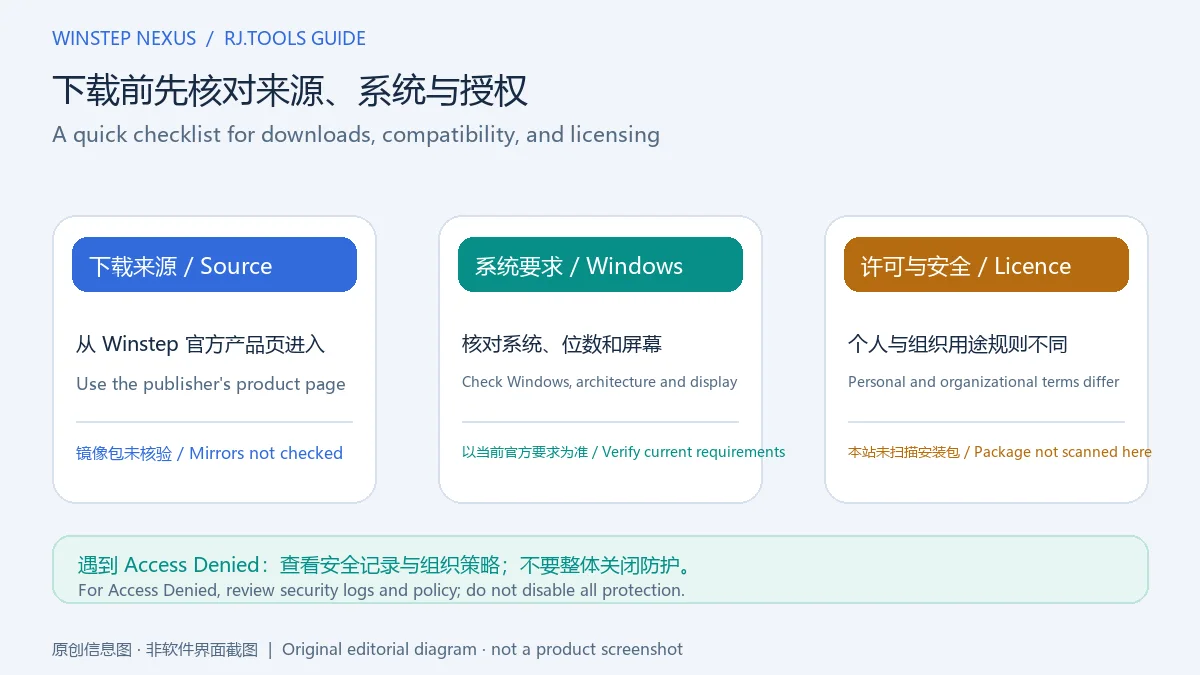
Winstep 官网列出的系统包括 Windows 7、8、10 和 11,覆盖 32 位、64 位与 ARM Windows 设备;页面还要求至少 120 MB 可用磁盘空间和 800×600 屏幕分辨率。它是 Windows 软件,不应按 Windows 桌面程序下载到 macOS 或 Linux。官网说明 Nexus 个人使用免费;企业或组织使用免费版需购买商业许可。商店核对时商业许可显示 US$12.95/用户。Nexus Ultimate 是另一款付费产品,核对时显示 US$29.95,并增加多 Dock、Shelf、Drawer、Grid Stack 等组织功能。购买前请在官网核对当前价格与许可范围。
soft.wsyhn.com 的旧版 EXE;该链接不是官网,未下载或核验,不作为本站推荐包。Nexus.zip。本次没有检查压缩包内容,因此不要预设内部文件名;如果浏览器将它保存为 ZIP,先在本地解压,再按包内说明运行 setup。若包提供安装向导,按其步骤选择安装选项。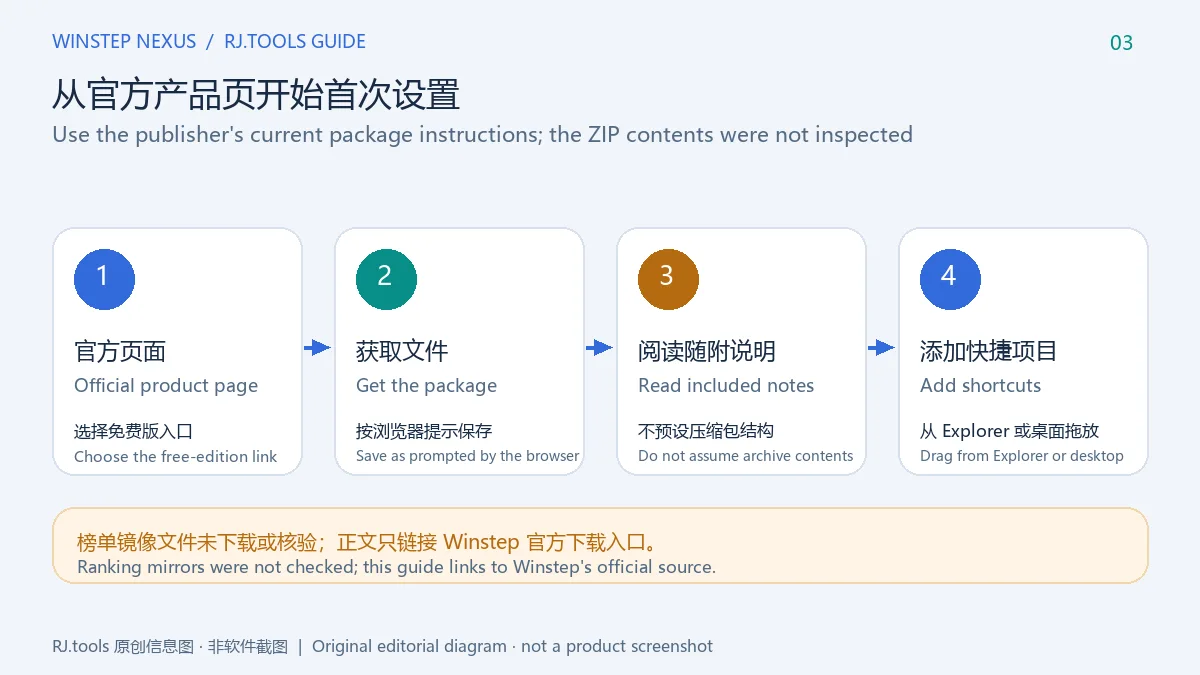
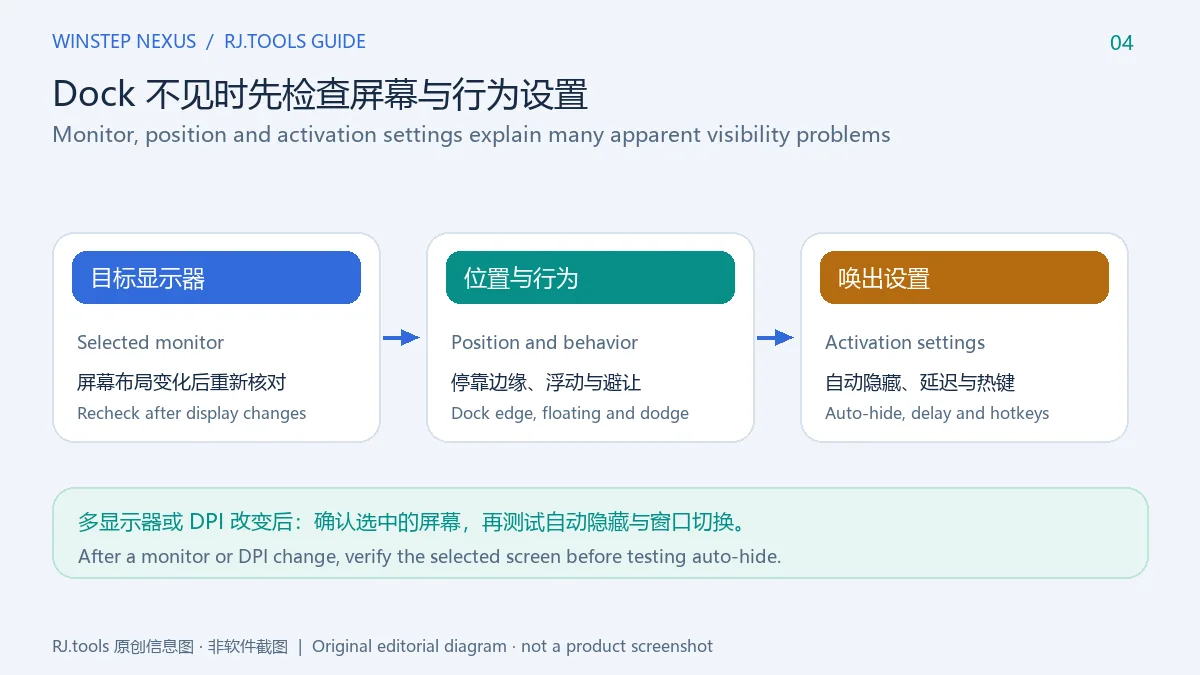
遇到 Dock 太占空间时,可在 Preferences 的 Position 和 Behavior 设置中调整停靠边缘、屏幕、浮动位置、自动隐藏和窗口避让。显示器配置改变后,先检查 Dock 是否留在另一块屏幕,再考虑改位置;官网说明 Nexus 支持多显示器及每屏 DPI。喜欢键盘操作的用户可以给单项设置热键。若把 Dock 当任务栏使用,先验证运行任务图标、全屏应用和系统托盘行为,再考虑隐藏 Windows 任务栏。全屏应用或游戏运行时,Nexus 会停用 Dock 激活方式,避免鼠标碰边干扰;这时先退出全屏再测试。
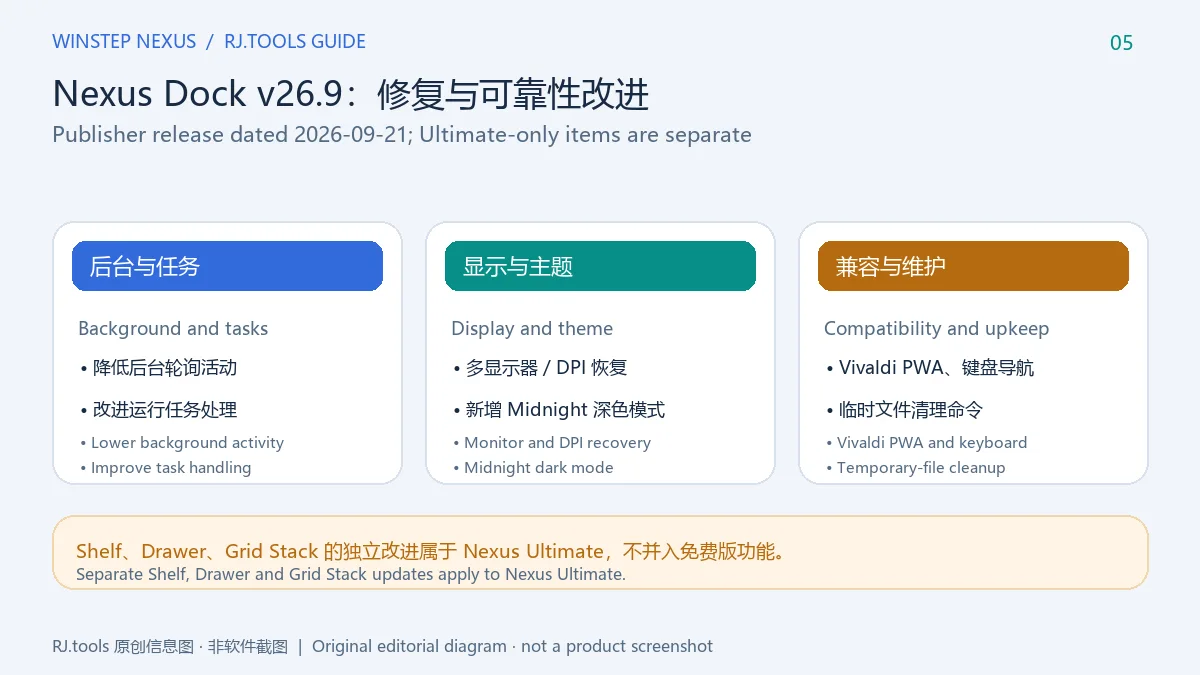
Winstep 于 2026-09-21 发布 Nexus Dock v26.9。官方把它描述为以修复和可靠性改进为主的版本:优化后台轮询与运行任务处理,改进多显示器布局和 DPI 变化后的恢复,增加 Midnight 深色模式、Vivaldi PWA 支持、任务缩略图和键盘导航选项,并补充临时文件清理等维护工具。系统托盘与网络模块也增加了每连接带宽信息,并在 Windows 隐私设置允许时显示 Wi-Fi 信号。Ultimate 公告另列 Shelf、Drawer 与 Grid Stack 改进,这些专属功能不应算成免费 Nexus 功能。完整项目请查看官方 v26.9 更新日志。
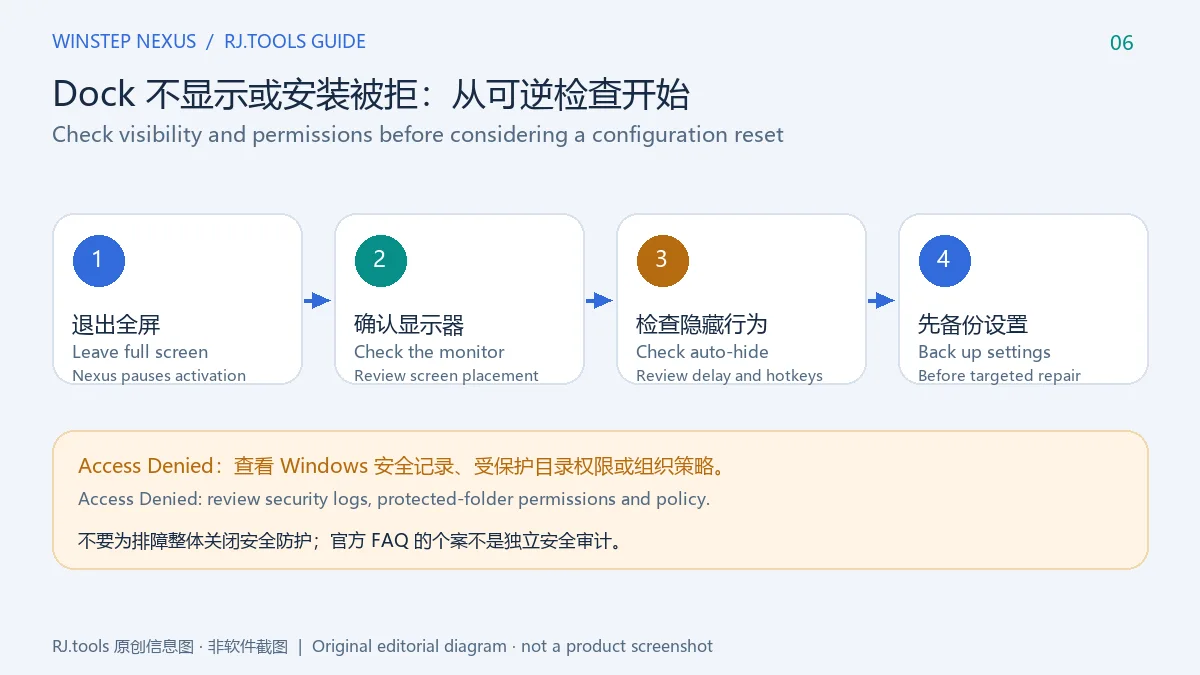
如果 Nexus Dock 没出现,先检查当前是否在全屏程序中;再确认 Preferences 的自动隐藏、激活方式、延迟和目标显示器设置。显示器或缩放改变后,可重新打开 Nexus 并检查 Dock 的停靠屏幕。若安装时提示 Access Denied,检查 Windows 安全中心或公司管理的安全软件是否阻止写入 Winstep 数据目录;官方 FAQ 提到受保护的公共文档目录可能造成此类错误。不要为测试而整体关闭安全防护。若配置异常,先通过 Advanced 里的 Backup 保存当前设置,再使用 Troubleshooting Options 的针对性检查;全面重置应作为最后选择。
WinStep Nexus 24.4.0 还是最新版吗? 不是。榜单文件名包含 24.4.0,但发布者当前 Nexus 页面和新闻页列出 v26.9;官网旧版目录写作 v24.4,并标注其发布日期为 2024-04-28。镜像文件的实际内部版本未核验,建议查看官网当前版本。
Nexus 对个人免费吗?公司可以免费使用吗? 发布者说明个人用途免费;企业或组织需购买 Nexus Dock Commercial License。官网价格会变化,组织采购前应查看许可页面。
Windows 11 或 ARM 设备能运行 Nexus 吗? 发布者列出 Windows 11 和 ARM Windows 支持,同时列出 Windows 7/8/10/11、32/64 位、120 MB 空间与 800×600 分辨率要求。本次未在设备上安装测试,需结合官网当前安装包和设备实际情况确认。
Dock 全屏时不弹出是故障吗? 不一定。用户指南说明全屏程序运行期间会暂停 Dock 激活方式,以避免游戏或播放器被误触;退出全屏后再检查唤出设置。
安装提示 Access Denied 怎么处理? 检查安全软件的拦截记录、受保护文件夹权限和组织设备策略。不要关闭全部防护;若确认是安全策略阻止,按管理员流程放行或联系 Winstep 支持。
下载文件是否已通过安全检测? 本页只核对公开发布者页面与更新资料,没有下载、验签、扫描或运行任何安装包。应从 Winstep 官方入口获取文件;这份说明不是对单个文件的安全审计。
WinStep Nexus adds a customizable Windows dock for apps, files, and commands. Find the official download, setup steps, v26.9 updates, licensing, and dock fixes.
WinStep Nexus, also called Nexus Dock, is a desktop dock and app launcher for Windows. Pin frequently used applications, folders, documents, and commands so they stay close to the workspace. The same dock can show running applications, which makes it a launcher and a task view rather than only a visual strip. The free Nexus edition provides one dock. A practical starting point is to pin a small group of daily tools while keeping the Windows taskbar visible; after testing window switching and full-screen behavior, decide whether to change taskbar or auto-hide settings.
Winstep lists Windows 7, 8, 10, and 11, with 32-bit, 64-bit, and ARM Windows support. Its product page specifies 120 MB of free disk space and a minimum 800×600 display resolution. Nexus is for Windows; these requirements do not imply a macOS or Linux version. The publisher says Nexus is free for personal use. A business or organization must obtain a Nexus Dock Commercial License to use the free edition; the store displayed US$12.95 per user when checked. Nexus Ultimate is a separate paid product, listed at US$29.95 at that time, with additional organization features such as multiple docks, Shelves, Drawers, and Grid Stacks. Confirm current terms and prices on the publisher’s store before buying.
soft.wsyhn.com; that is not the publisher’s site, and the file was not downloaded or checked.Nexus.zip. Its contents were not inspected for this review, so no internal filename is assumed. If the browser saves an archive, extract it locally and follow the included setup instructions; if it presents an installer, follow that installer’s prompts.
Use the Position and Behavior preferences to adjust the docked screen edge, monitor, floating placement, auto-hide, and window-dodge behavior. If the dock seems to disappear after changing displays, check the selected monitor before rebuilding the layout; Winstep lists multi-monitor and per-monitor DPI support. Hotkeys can make individual tools easier to reach. If you plan to use Nexus for task switching, test running-task icons, tray behavior, and full-screen applications before hiding the Windows taskbar. Nexus pauses dock activation while a full-screen application or game is active, which is intended to avoid accidental edge activation; leave full-screen mode before testing the dock again.
Winstep released Nexus Dock v26.9 on 2026-09-21. The publisher describes it primarily as a bug-fix and reliability release. The notes cover lower background activity, more dependable task handling, better recovery from monitor and DPI changes, a Midnight dark mode, Vivaldi PWA support, additional keyboard navigation, and maintenance tools including a temporary-file cleanup command. Network and tray updates include per-connection bandwidth details and Wi-Fi signal display when Windows privacy settings allow it. The Ultimate changelog separately lists Shelf, Drawer, and Grid Stack changes; those are not free Nexus features. Read the complete official v26.9 release notes for the full list.
If Nexus does not appear, first check whether a full-screen application is active; then review auto-hide, activation method, delay, and the selected monitor in Preferences. After changing display layout or scaling, reopen Nexus and check where its dock is attached. For an “Access Denied” installation error, review Windows Security or managed endpoint-protection logs for a blocked write to the Winstep data folder. The publisher’s FAQ notes that a protected Public Documents folder can cause this issue. Do not disable all protection as a troubleshooting shortcut. If settings are damaged, create a backup from the Advanced preferences before using targeted Troubleshooting Options; reserve a full reset for last.
Is WinStep Nexus 24.4.0 the latest version? No. The ranking filename contains 24.4.0, but the publisher’s current Nexus page and release news list v26.9. Its archive lists Nexus Dock v24.4, dated 2024-04-28. The mirror’s actual file version was not verified; use the publisher page to check the current release.
Is Nexus free for a business? The publisher says Nexus is free for personal use. An organization needs a Nexus Dock Commercial License for the free edition. Check the current official license page before deployment.
Does it support Windows 11 and ARM? Winstep lists Windows 7/8/10/11 and 32-bit, 64-bit, and ARM Windows, with 120 MB free space and 800×600 minimum resolution. This review did not install the package on a device, so confirm requirements against the current publisher download.
Why does the dock not open over a full-screen game? The user guide says Nexus suspends dock activation while a full-screen application is active to avoid accidental interruptions. Exit full-screen mode and then review the activation settings.
What should I do after an “Access Denied” error? Check security-product logs, protected-folder permissions, and any organization policy. Do not turn off all protections. If a policy blocks the installer, follow the administrator’s allow-list process or contact Winstep support.
Has the download been security-tested here? No. This review checked public publisher pages and release information only; no installer was downloaded, signature-checked, scanned, or run. Use the publisher’s official download link. This page is not a security audit of a specific file.
Informações verificadas em: 18 de out. de 2026
Publicado pela primeira vez: 17 de out. de 2026· Revisão editorial: 18 de out. de 2026

鼠大侠电脑端与安卓端官方入口指南,说明 Windows 安装、Android 无障碍权限、版本来源差异、更新记录与 FAQ。 / Shudaxia Windows and Android download, installation, permission and update guide.

WakeGPT 是一款 macOS 本地优先的桌面速记工具,可把文字、Markdown、链接和图片收集到工作区笔记,并将选定内容放入 ChatGPT 输入框供发送前检查。v0.1.1 为早期原型版本;官方说明已在 Apple silicon macOS 验证运行,Intel Mac 实机尚未验证,应用未经过 Apple 公证。

KiwiDesk 是面向 Apple silicon Mac 的窗口平铺工具,可自动排列应用窗口,并通过图形设置、配置档与快捷操作调整布局。官方 README 标注 macOS 14+;当前 v2.3.1 修复 macOS 27 上 Spotlight 搜索面板被误管理的问题。软件在家庭与工作场景可免费使用,BSL 1.1 对将软件作为产品或服务销售、捆绑或托管另有许可要求。

AeroSpace 是面向 macOS 的 i3 风格平铺窗口管理器,通过键盘快捷键、虚拟工作区和可编辑配置整理多个应用窗口。当前官方版本为 v0.21.3-Beta;支持 macOS 13 及更新版本,仍处公开 Beta 阶段。
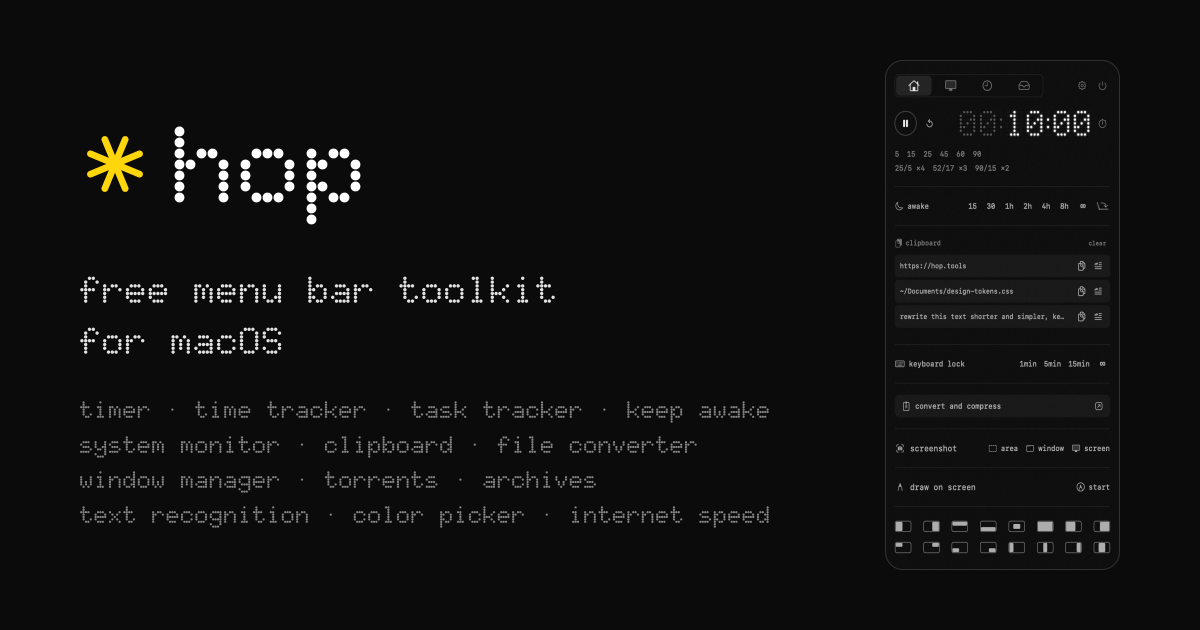
Hop 是 Anton Shakirov 为 macOS 制作的菜单栏工具箱,整合计时与任务记录、剪贴板历史、窗口布局、文件转换、截图、文字识别等日常工具;官网列出 macOS 14+,并提供 Apple silicon 与 Intel 下载。

Desk Tidy 是面向 Windows 11 64 位的桌面整理与快捷启动工具,支持拼音模糊搜索、全局快捷键、桌面文件管理和收纳盒。Windows 10 仅为项目说明中的理论兼容,未经详细测试。

Ant Renamer 经典版:Windows 批量改名、规则预览、2.13 更新与日期区别、高DPI设置及格式排查。 / Classic Windows batch renamer with rule previews, v2.13 notes, distinct program/package dates and display troubleshooting.

DeepSeek 安卓版是 DeepSeek 官方 AI 助手,支持文字对话、联网搜索与推理等商店展示功能。本文整理包名、Android 安装步骤、2.6.3 更新提示和连接排查;功能开放、响应速度与可用性可能受地区、网络、账号和服务状态影响,敏感资料提交前请先确认你的隐私需求。请以当前商店显示为准。 / DeepSeek for Android is an official AI assistant. Check its package, 2.6.3 update and setup; search and reasoning access vary by region and service status.
鼠大侠电脑端与安卓端官方入口指南,说明 Windows 安装、Android 无障碍权限、版本来源差异、更新记录与 FAQ。 / Shudaxia Windows and Android download, installation, permission and update guide.
搜狗五笔输入法提供五笔输入、词库同步和皮肤与配置定制。官网页面列出 V5.5(更新日 2025-12-31),兼容范围列为 XP/7/8/10;安装包构建未核验。
Pointofix 是屏幕虚拟荧光笔/标注工具。官方页面列出的版本为 1.8.0,日期为 2018-05-11,并提供安装版和免安装版;该官方列表较旧。

KeymouseGo 开源鼠标键盘录制工具:Windows 5.2.1 发行文件、有限次数重放、更新说明与脚本兼容排查。 / Open-source input recorder with packaged Windows setup, finite replay counts, release notes and script compatibility guidance.