TrafficMonitor Windows 网速与资源监控:1.86 Lite 架构选择、任务栏设置、版本变更和零读数排查。 / TrafficMonitor v1.86 Lite package selection, taskbar setup, release changes and troubleshooting for network readings.
中文
TrafficMonitor 是 Windows 网速监控工具,可用悬浮窗或任务栏显示网络速率、CPU 和内存占用。本文整理 TrafficMonitor 下载与运行步骤,说明 1.86 副屏显示、Lite 变化和更新日志,并提供网速为零、缺少运行库及任务栏设置的排查建议,帮助你按处理器选择文件、核对连接与显示单位。
TrafficMonitor 下载前:看懂实时网速与网络连接
TrafficMonitor 是 zhongyang219 发布的 Windows 监控工具,可通过桌面悬浮窗或任务栏查看当前网络传输速率、CPU 与内存利用率,并提供历史流量、网络详细信息、皮肤和插件。它适合观察文件传输期间的网络变化,以及某个程序运行时的资源占用;当前传输速率不等于宽带套餐速率,也不能代替在固定条件下进行的网络测速。多网卡、虚拟网卡或 VPN 并存时,先确认它正在观察哪条连接,再比较数值。
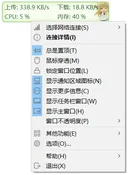
作者在仓库声明该项目没有独立官网,特定同名域名与作者无关。本文以作者的 GitHub 仓库和稳定发行页为来源,不使用工作表中的旧第三方安装文件。界面示例来自官方 README,用于解释布局,不是 RJ 对 1.86 的运行截图。
TrafficMonitor 安装步骤:选择 Lite 文件并启用任务栏
- 打开 TrafficMonitor 1.86 官方发行页,在 Windows 系统信息中检查处理器架构。作者分别提供 x86、x64 与 Arm64EC 文件,不应只根据电脑品牌选择。
- 若主要需要网速、CPU、内存或显卡与硬盘利用率,可先选文件名含
Lite 的 ZIP。1.86 Lite 已加入显卡、硬盘利用率;它与标准版的主要功能差别是温度监控。README 说明标准版需要管理员权限,Lite 版不需要;不要因为程序可以显示资源占用,就假定必须提升权限。
- 将整个 ZIP 解压到可写的独立文件夹,再启动
TrafficMonitor.exe。保留包中的配套文件,避免只复制主程序后产生依赖缺失。若提示找不到 MSVC*.dll,按 README 链接获取微软 Visual C++ 可再发行程序包,并核对对应架构。
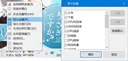
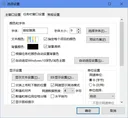
- 程序默认显示主悬浮窗。右键选择“显示任务栏窗口”,再到任务栏窗口的“显示设置”勾选所需项目;先确认所选连接有实际传输,再调整字体、宽度和颜色。
本页渠道提供三种架构的 Lite ZIP。1.86 发行页仍保留标准版附件;若确实需要温度信息,应先阅读作者的硬件监控说明,再决定采用何种版本或插件。安装检查不应从随机 DLL 下载站补文件。
TrafficMonitor 1.86 更新日志:副屏、皮肤与恢复连接
官方将 V1.86 标为 Latest,发布时间为 2026 年 3 月 29 日。具体新增包括:任务栏窗口可显示到副显示器;多语言字符串改由外部 INI 配置,并增加德语、意大利语等语言;每个皮肤可分别保存字体、颜色和显示文本;Lite 版新增显卡与硬盘利用率。选项对话框的动态布局、任务栏项目宽度和崩溃日志也有调整。

修复部分涉及混合 DPI 屏幕中的字体预览、悬浮窗跨屏后的 DPI、修改字号后应用不生效,以及睡眠恢复后偶尔无法获取网速。它们对应明确触发条件,不能扩写为“支持所有多屏设备”或“解决全部断网问题”。README 还说明后续标准版内置温度监控不再维护,相关能力转向硬件监控插件;因此 1.86 的现有附件与未来版本规划应分开理解。
TrafficMonitor 常见问题 FAQ:零网速、单位与显示
网速一直为零,应该先检查什么? 先发起一个可确认的正常网络传输,并在右键“选择网络连接”中检查自动或手动选择的网卡。虚拟适配器、断开的连接和实际承载流量的连接不是一回事;选错连接时,重新安装未必能改变读数。
软件数值与下载器不一样,是否不准确? 先对齐比较的连接、时间段和单位。“B”是字节,“b”是比特,两者不能直接按相同数值比较;单个下载器的任务速率与整条连接的传输统计也可能不同。可在选项里核对单位、刷新间隔和显示项目,避免只凭瞬时数字作结论。
为什么 Lite 找不到温度? 1.86 Lite 自带显卡、硬盘利用率,但不包含标准版内置温度监控。利用率和温度是不同指标,不能因看到 GPU 百分比就期待有温度值;需要温度时应查看作者当前插件文档及其要求。
任务栏里只有网速,CPU 或内存没有显示? 默认项目可能只有网速。打开任务栏窗口的“显示设置”,确认勾选所需项目,再调整项目宽度。多屏或显示缩放问题还应核对是否仍在使用旧版;1.86 的相关修复有明确范围,并不保证所有第三方任务栏修改工具兼容。
TrafficMonitor 是无条件授权的软件吗? 仓库提供公开源代码并附 Anti 996 License,使用和再分发仍应遵循该许可证条件。公开源码和作者渠道不能代替程序签名或独立安全检测;本页未下载、运行或扫描 ZIP 内的程序。
完成 TrafficMonitor 下载后,先选择合适的 Lite 架构、确认网络连接和单位,再开启需要的任务栏项目。保留可用配置,按实际用途逐项增加显示内容,比同时开启全部监控更容易发现读数和布局问题。
English
TrafficMonitor download and setup guide: show network speed on Windows, choose a Lite package, review version 1.86 changes, and fix common display problems.
Before downloading TrafficMonitor: rates and network adapters
TrafficMonitor, published by zhongyang219, displays current network transfer rates plus CPU and memory utilization in a Windows floating window or taskbar. It also offers traffic history, connection details, skins, and plugins. Use it to observe activity during a transfer or while an application is running. Current throughput is different from a broadband subscription speed and does not replace a controlled network speed test. With several physical or virtual adapters, or a VPN, identify the connection being observed before comparing values.
The author says the project has no separate official website and disclaims a particular same-name domain. This guide uses the author's GitHub repository and stable release rather than the legacy third-party file in the source spreadsheet. The README image explains the layout and is not an RJ runtime capture of v1.86.
How to install TrafficMonitor Lite and enable its taskbar view
- Open the official TrafficMonitor 1.86 release and check the processor architecture in Windows system information. The author supplies separate x86, x64, and Arm64EC files; a PC brand alone does not identify the correct package.
- For network speed, CPU, memory, or GPU and disk utilization, start by considering a ZIP with
Lite in its name. Version 1.86 adds GPU and disk utilization to Lite; its main built-in feature difference from the standard build is temperature monitoring. The README says standard needs administrator privileges and Lite does not. Resource displays alone do not mean elevation is required.
- Extract the whole ZIP to a separate writable folder, then start
TrafficMonitor.exe. Keep the accompanying files instead of moving only the executable. If startup reports a missing MSVC*.dll, follow the README link to Microsoft's Visual C++ Redistributable and check its architecture.
- The floating main window is shown by default. Right-click it and select Show Taskbar Window, then open the taskbar view's Display Settings to select items. Confirm an active transfer on the selected connection before changing font, width, and colors.
The channels on this page provide the three Lite architectures. The v1.86 release still includes standard-build assets; read the author's hardware-monitoring guidance if you need temperature data before choosing a build or plugin. Do not fill dependency gaps with files from random DLL sites.
TrafficMonitor 1.86 release notes: secondary screens and recovery
The official project marks V1.86 as Latest, published March 29, 2026. Changes include a taskbar window on secondary monitors; external INI localization with additional languages such as German and Italian; per-skin font, color, and display-text settings; and GPU and disk utilization in Lite. Options-dialog resizing, dynamic taskbar item widths, and crash logging also changed.
Fixes cover font previews on displays with different DPI settings, the floating window's DPI after moving between displays, font-size changes not applying, and network speed sometimes becoming unavailable after sleep. These notes describe specific conditions, not guaranteed support for every multi-monitor setup or a cure for every network problem. The README also says built-in temperature monitoring in future standard builds will no longer be maintained and points to a hardware-monitoring plugin. Keep the existing v1.86 assets separate from that future direction.
TrafficMonitor FAQ: zero readings, units, and missing items
What should I check when network speed stays at zero? Start a normal transfer you can observe, then check the automatic or manual choice under Select Network Connection. A virtual adapter, a disconnected adapter, and the one carrying traffic may be different. Reinstalling the program may not change a reading from the wrong connection.
Why does its number differ from my downloader? Align the connection, time interval, and units. B means bytes and b means bits, so equal numerical values do not represent the same rate. A downloader's individual task and the total connection can also count different activity. Review units, refresh interval, and selected items before judging one instant reading.
Why is temperature missing from Lite? Lite v1.86 includes GPU and disk utilization but not the standard build's built-in temperature monitoring. Utilization and temperature are separate measurements; a GPU percentage does not establish that a temperature value is available. Read the current plugin instructions and requirements if you need it.
Why does the taskbar show only network speed? The default selection may contain only network items. Open Display Settings, select CPU or memory as needed, and adjust item widths. For screen-scaling or multi-monitor problems, also check whether you are running an older build. The v1.86 fixes have specific scope and do not guarantee compatibility with every third-party taskbar modification.
Does publicly available source mean unrestricted licensing? The repository supplies source under the Anti 996 License; its conditions still apply to use and redistribution. Public source and an author-controlled channel do not replace signature checks or independent security review. No application inside the ZIP was downloaded, run, or scanned for this guide.
After choosing a TrafficMonitor download, confirm the Lite architecture, adapter, and units, then enable the taskbar items you need. Keep a working configuration and add displays gradually to make reading and layout problems easier to isolate.