使用目录联接迁移独立Windows文件夹,说明2.1.0权限检查、系统目录限制、目标盘依赖与恢复顺序。 / Relocate individual Windows folders with junctions; understand v2.1.0 prechecks, system-directory exclusions, destination dependencies and rollback.
中文
FreeMove 是用 NTFS 目录联接迁移文件夹的 Windows 工具,可把程序目录迁至别处,并在原路径保留入口。本文整理 FreeMove 下载与使用步骤、2.1.0 更新、权限预检查及恢复原位方法,说明系统目录不可随意搬动、目标磁盘需要持续可用等条件,帮助你先备份再迁移,减少快捷方式或卸载流程受到影响的可能。
FreeMove 下载前:理解目录联接与目标磁盘依赖
FreeMove 是 imDema 发布的 Windows 目录迁移工具。它将文件移到新位置,并在旧位置建立目录联接,把访问旧路径的请求重定向至新位置。这样可在不逐一修改快捷方式的情况下调整特定程序文件夹的存储位置,但实际数据已经依赖目标盘;目标盘掉线、盘符变化或权限不匹配时,原入口也可能无法正常访问。
作者明确提醒不要迁移 C:\Users、C:\Documents and Settings、C:\Program Files 或 C:\Program Files (x86) 整体。这类系统目录关系到更新和商店应用。本文只讨论独立程序文件夹的评估流程;优先使用程序自带的迁移功能或重新安装到目标盘,不能把目录联接当成所有软件的通用兼容保证。
FreeMove 使用与安装步骤:先备份一个非关键目录
- 在 作者稳定版发布页 选择
FreeMove.exe 附件。源代码 ZIP 不是运行程序;版本号更大的 2.99.0 被标为预发布,不能默认替代 2.1.0 稳定版。
- 将 EXE 保存到方便管理的位置并运行,核心迁移操作需要管理员权限。2.1.0 标签的项目文件以 .NET Framework 4.7.2 为目标;这不是后续 2.99.0 预发布采用的 .NET 6。
- 关闭目标程序及其后台进程,做好独立备份。先选择一个非关键的小目录,确认源位置、目标完整路径、目标可用空间和文件系统条件;不要选整个系统目录或与源互相嵌套的路径。
- 在 Move From 与 To 核对路径,保留权限预检查,确认后执行。完成后分别检查新位置文件、旧路径入口、快捷方式和程序启动;重要数据的备份要在确认全部正常后继续保留。

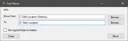
截图中的“将原文件夹设为隐藏”只是显示属性选项,不会让真实数据同时保留在两个磁盘,也不等于备份。迁移时的权限检查能提前发现部分问题,却无法证明该程序未来更新、服务和卸载都一定适应新的存储位置。
FreeMove 2.1.0 更新日志:可选权限预检查
官方 GitHub 发布页将稳定版 2.1.0 记为 2020 年 1 月 30 日。此版在设置中增加源目录文件权限的 None、Fast、Full 三种预检查方式,并修复预检查偶发未处理异常。None 表示不做这项提前检查,不能解读成自动获得所需权限;先解决占用、权限或路径问题,通常比跳过检查更容易定位原因。

2.0.0 的取消与恢复处理、异步模型和默认请求管理员权限属于更早版本。2022 年的 2.99.0 明确标注为迁移到 .NET 6 的测试发布。README 还说明项目目前侧重修复,没有计划新增功能;本页不把它描述成持续推出新功能的现代迁移套件。
FreeMove 常见问题 FAQ:卸载、恢复与空间
移动成功,为什么原路径还在? 旧路径保留的是重定向入口,而不是第二份完整数据。应检查它是否为联接以及真正的数据位置,不要仅凭资源管理器中看到同名目录,就判断迁移没有生效或获得了双份备份。
迁移后怎样卸载程序? 作者建议保留旧联接,按原来的卸载流程执行。卸载结束后,目标位置可能留下空目录,原位置也可能留下联接。先确认卸载完成和两端状态,再处理残留;不要提前删除入口导致卸载器找不到路径。

想恢复原位,需要删除哪一个? README 的方法是移除旧位置的联接,再把实际文件夹移回原位置。关键是先确认“联接”和“真实目录”的区别,以及旧位置有足够空间。若无法辨认或已经产生同名文件,应先停止操作并保留备份,不能直接递归删除某一端。
能把程序移到随时拔出的 U 盘吗? 目录联接依赖目标可访问。目标脱机后使用旧路径的程序也会受影响;常用程序应选择长期在线、盘符稳定且权限合适的存储位置。迁移不会减少程序本身占用的数据总量。
使用 FreeMove 下载包进行目录迁移前,先判断软件是否适合这种方式,明确备份和回退路径。先处理一个非关键目录,确认启动、更新与卸载流程,再考虑其他目录。
English
FreeMove download guide: move Windows folders using junctions, review v2.1.0 permission checks, retain backups, and plan rollback before changing program paths.
Before downloading FreeMove: understand junctions and disk dependencies
FreeMove by imDema relocates Windows directories and creates a junction at the old location so requests to the original path reach the new one. This can preserve existing shortcuts for a particular program folder, but its real data now depends on the destination. An offline disk, changed drive letter, or unsuitable permissions can make the original entry stop working.
The author explicitly warns against moving the entire C:\Users, C:\Documents and Settings, C:\Program Files, or C:\Program Files (x86) directories because core Windows functions, updates, and Store applications may break. This guide discusses evaluating an individual program folder. Prefer the program's supported relocation feature or installation to the desired disk where available; junctions do not guarantee compatibility for every application.
How to install and use FreeMove: back up one nonessential directory
- Select the
FreeMove.exe asset on the author's stable v2.1.0 release. Automatic source ZIPs are not application binaries. The numerically higher v2.99.0 is marked prerelease and is not a default replacement for the stable version.
- Save the EXE to a convenient location and run it. Core migration functionality requires administrator rights. The project file at the v2.1.0 tag targets .NET Framework 4.7.2, not the .NET 6 used by the later test release.
- Close the target application and its background processes, and retain an independent backup. Start with a small, nonessential directory. Confirm source and full destination paths, free space, and file-system conditions. Do not select an entire system directory or paths nested inside one another.
- Review Move From and To, keep permission prechecking, then proceed. After completion, verify real files at the destination, access through the old entry, shortcuts, and application startup. Retain the backup after initial checks rather than treating one successful launch as complete validation.
The option to hide the original folder changes visibility; it does not retain a full copy on both disks or create a backup. Permission checks can detect some conditions beforehand but cannot establish that every future updater, service, or uninstaller will tolerate relocation.
FreeMove v2.1.0 release notes: permission precheck settings
The GitHub release dates stable v2.1.0 to January 30, 2020. It adds None, Fast, and Full preliminary permission checks for files in the source directory and fixes an occasional unhandled exception during that check. None skips this preliminary work; it does not obtain missing permissions. Investigating file use, access, or path problems is more informative than simply bypassing prechecking.
Cancellation and recovery handling, the asynchronous model, and administrator prompting at startup belong to v2.0.0. The 2022 v2.99.0 release is explicitly a test for moving to .NET 6. The README also says maintenance focuses on fixes with no planned new features. It should not be presented as a suite receiving continual new migration capabilities.
FreeMove FAQ: old entries, uninstalling, rollback, and space
Why does the original folder still appear after moving? It is a redirection entry rather than a second complete copy. Identify the junction and the real data location instead of assuming a visible folder means migration failed or created an additional backup.
How should a relocated application be uninstalled? The author recommends keeping the junction and using its ordinary uninstaller. Afterward an empty destination folder and an original junction may remain. Verify uninstall completion and both locations before removing leftovers; deleting the entry first can prevent the uninstaller from finding its paths.
What should be removed when returning to the old location? The README describes removing the original junction and moving the real directory back. First distinguish the link from the actual directory and verify space at the old location. If either is unclear or duplicate files have appeared, stop and retain backups rather than recursively deleting one side.
Can I move an everyday application to a frequently unplugged USB disk? The destination must remain accessible. If it is offline, software using the old path is affected too. Choose stable storage and appropriate permissions for regularly used programs. Relocation does not reduce the application's total data size.
Before using a FreeMove download, decide whether the application suits this method and define backups and rollback. Start with one nonessential directory, then review startup, updating, and uninstall behavior before planning other moves.