JoyToKey 手柄映射工具:Windows 安装与 ZIP 设置、7.4 命令输入、配置迁移和共享软件许可说明。 / Windows controller mapping guide covering setup, version 7.4 commands, profile migration and shareware licensing.
中文
JoyToKey 是把游戏手柄输入映射为键盘和鼠标操作的 Windows 工具,可按应用保存不同配置。本文整理 JoyToKey 下载、安装与首次按键设置,说明 7.4 命令模式和更新日志,并解答配置丢失、映射无效及授权问题,帮助你先用记事本检查按键,再为常用程序建立配置,避免把共享软件误认成永久免费的工具。
JoyToKey 下载前:手柄映射与应用配置
JoyToKey 由 Free Colors, Ltd.(JTK software)提供,用于将 Windows 识别到的手柄按钮、摇杆输入转换为键盘和鼠标操作。你可以把一个按钮分配为字母、组合键或鼠标点击,也可以用摇杆控制鼠标;左侧配置列表则用于保存不同程序的操作方案。例如,阅读器与绘图软件可能需要不同快捷键,先分别建立配置,再考虑自动切换,比把所有动作塞进一个方案更容易维护。
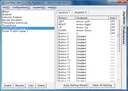
官网功能页仍使用这张 4.5.3 图片介绍基本布局。下面的安装说明以当前公开文档为依据;控件位置和外观应以你安装的版本为准。下载页列出 Windows 11、10、8、7 与 Vista,但系统列表并不保证每种手柄、驱动或目标应用均能配合使用。
JoyToKey 安装步骤:先在记事本检查一个按键
- 打开 JoyToKey 官方下载页,确认当前版本号。页面提供安装向导和 ZIP 两种形式;前者运行安装器并按向导完成,后者解压到可写文件夹后运行
JoyToKey.exe,不要在压缩包内部直接启动。
- 连接手柄,先确认 Windows 能识别该设备,再启动 JoyToKey。程序的普通下载链接会随版本更新,不应把文件名中未带版本号的链接当作永久固定的 7.4 文件。
- 按官方入门方法,双击右侧的 Button 1,分配字母 A 并保存。先不要启用自动连发或复杂命令,以便明确判断一次按下产生了什么输入。
- 打开并聚焦记事本,让 JoyToKey 保持运行或最小化到托盘,按手柄 Button 1;如果出现字母 a,再逐步添加其他按键,最后保存自己的配置。
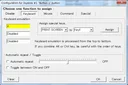
映射通常需要 JoyToKey 在后台运行。用普通文本检查成功以后,再切换到目标程序;这样可以区分手柄识别、映射配置与目标程序接收输入三个环节,避免直接在复杂工作流中排查。
JoyToKey 7.4 更新日志:逐行控制命令时长
官网在 2026 年 10 月 4 日发布 7.4。更新记录列出:新增 Command 命令输入,扩展原有顺序输入;代码签名证书从 Sectigo 调整为 Microsoft Azure Artifact Signing;修复顺序执行过程中的按钮释放问题;以及日志等细节修复。签名方式的变化属于发行信息,不能据此推导软件经过独立安全审计。
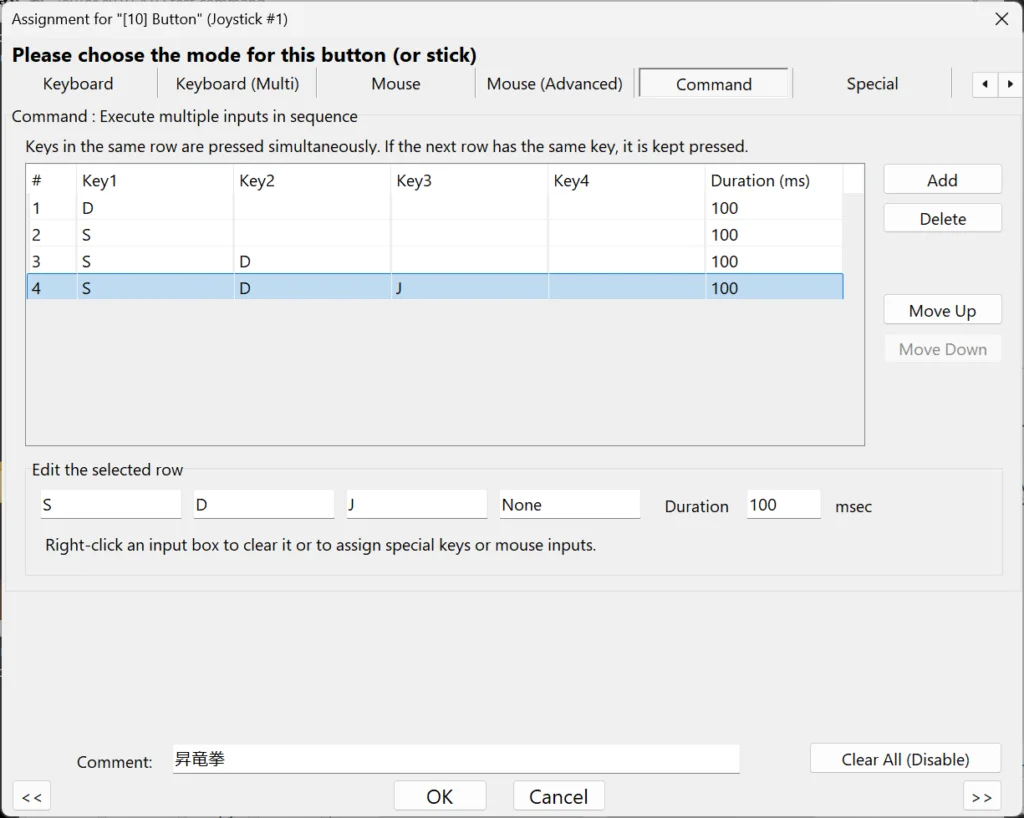
官方教程说明,Command 每行可设置最多四项键盘或鼠标输入,各行按顺序执行,并使用各自的保持时长;没有按键的行可以作为等待步骤。同一个键连续出现在下一行时会保持按下。一个容易忽略的行为是:松开手柄按钮后,命令仍会执行到结尾;运行中再次按下会释放当前按键并从第一行重新开始。首次配置应使用短序列,在可撤销的环境中检查时序,不能假定“松手就停”。
JoyToKey 常见问题 FAQ:配置丢失、无效与许可
升级后配置不见了怎么办? 官方说明从 6.3 起默认把配置放到“文档/JoyToKey”。从 6.2 或更早版本升级时,可先备份旧文件,再把 JoyToKey.ini 和 *.cfg 复制到该文件夹。命令行参数、注册表或与程序同目录的旧配置会影响读取位置,需按官方 FAQ 核对,不能只重新下载程序。
记事本正常,目标应用里没反应怎么办? 先确认目标窗口处于前台、选中了正确配置,并检查应用关联是否指向实际程序路径。若目标程序自带手柄支持,还应检查是否同时收到了原生手柄和模拟键盘输入。部分程序对模拟输入有限制,不能保证通过映射兼容所有应用。
JoyToKey 免费吗,需要寻找激活补丁吗? 官方将其定义为共享软件,可免费下载并进行不限制功能的评估;在试用后继续使用,官方请用户考虑购买许可。它不能被描述为永久免费的开源工具,也不需要借助来历不明的补丁作为正常下载步骤。
如何核对下载来源? 使用本文列出的官方域名,核对下载页和签名发布者信息;官方当前提示的签名发布者为 FREE COLORS, LTD.。本页只核实公开网页与图片,没有下载、扫描或执行安装文件,也不会将来源或签名等同于没有风险。
完成 JoyToKey 下载后,从记事本的单键检查开始,再增加应用配置和命令序列。保留可用配置的备份,并在升级时核对读取位置,有助于快速区分安装、映射和配置迁移问题。
English
JoyToKey download and setup guide: map a controller to keyboard and mouse, review version 7.4 changes, back up profiles, and solve common configuration issues.
Before downloading JoyToKey: controller mapping and profiles
JoyToKey, provided by Free Colors, Ltd. (JTK software), converts controller buttons and stick input recognized by Windows into keyboard and mouse actions. A button can send a letter, key combination, or mouse click, while a stick can control the pointer. Profiles in the left panel keep different application layouts separate. A reader and a drawing program may need different shortcuts; create and check those profiles individually before setting up automatic switching.
The publisher feature page still uses this v4.5.3 image to explain the basic layout. The instructions below follow current public documentation; use the controls and appearance in your installed version. The download page lists Windows 11, 10, 8, 7, and Vista. That list does not establish compatibility with every controller, driver, or target application.
How to install JoyToKey and check the first button in Notepad
- Open the official JoyToKey download page and check the current version. Choose the setup installer and follow its wizard, or extract the ZIP into a writable folder and start
JoyToKey.exe. Do not start it from inside the archive.
- Connect the controller and confirm that Windows recognizes it before starting JoyToKey. The ordinary official download URLs can change with later releases; a filename without a version number is not an immutable v7.4 asset.
- Follow the publisher first-use example: double-click Button 1 on the right, assign the letter A, and save it. Leave automatic repeat and complex commands off initially so you can tell what one press produces.
- Open Notepad, focus its document, and keep JoyToKey running or minimized to the tray. Press controller Button 1. If a lowercase a appears, add other assignments gradually and save your profile.
Mappings normally require JoyToKey to keep running in the background. A plain-text check separates controller recognition, mapping settings, and the target program's handling of simulated input before you troubleshoot a more complicated workflow.
JoyToKey 7.4 release notes: per-row command timing
The publisher announced v7.4 on October 4, 2026. Its change history lists Command input as an extension of sequence input; a signing-certificate change from Sectigo to Microsoft Azure Artifact Signing; a fix for button release in the middle of sequence execution; and minor fixes including logging. The signing change describes release packaging and does not establish an independent security audit.
The official tutorial explains that each Command row can contain up to four keyboard or mouse inputs. Rows run in order with individual hold durations, and an empty row can act as a wait. A key present in consecutive rows stays held. One behavior deserves attention: releasing the controller button does not stop a command; it runs to the end. Pressing the button again while it runs releases the currently held keys and restarts from the first row. Begin with a short sequence in a reversible setting instead of assuming that release means stop.
JoyToKey FAQ: missing profiles, input failures, and licensing
Where did my settings go after an upgrade? The publisher says v6.3 and later use Documents/JoyToKey by default. When upgrading from v6.2 or earlier, back up the old files, then copy JoyToKey.ini and the *.cfg files into that folder. Command-line arguments, registry settings, or legacy files beside the executable can affect the location; check the official FAQ rather than simply downloading the program again.
Why does a mapping work in Notepad but not in another app? Check that the target window has focus and the correct profile is active. For application associations, check the actual executable path. If a program already supports controllers, check whether it is receiving both native controller and simulated keyboard input. Some programs restrict simulated input, so compatibility with every application cannot be promised.
Is JoyToKey free, and is an activation patch needed? The publisher calls it shareware. It is free to download and evaluate without functional limits; after the trial, users who continue using it are asked to consider purchasing a license. Do not describe it as permanently free or open source. An unknown activation patch is not a normal setup requirement.
How can I check the download source? Use the official domain and check the download page and signing-publisher information. The publisher currently identifies FREE COLORS, LTD. as the signer. Only public web information and images were reviewed for this guide; no installer was downloaded, scanned, or run, and neither a source nor a signature guarantees the absence of risk.
After choosing a JoyToKey download, start with the single-button Notepad check, then add application profiles and command sequences. Keep a working configuration backup and check the configuration location after upgrades to separate installation, mapping, and migration issues.