
Armoury Crate
Windows v6.4.7
Armoury Crate 设备管理与 Aura Sync 下载指南:核对华硕机型、Windows 安装要求、应用6.4.7及不同安装包版本。 ASUS device controls, lighting, official setup and version checks.
Windows
AI 辅助内容
信息资料
了解软件的基本信息与来源
软件概览
- 开发者
- ASUSTeK Computer Inc.
- 更新时间
- 2026年10月21日
- 支持语言
- 未提供
- 系统要求
- Online installer: Windows 10 version 1903 or later, or Windows 11; compatible ASUS/ROG/TUF hardware required, feature availability varies by model. / 在线安装器要求 Windows 10 1903 或以上或 Windows 11;功能依赖兼容设备。
- 文件大小
- 未提供
- 游览
- 6
许可协议
The cited ASUS pages do not state a software license; check the publisher terms before use.
来源与校验
- 资源类型
- software
- 价格
- No price is listed on the cited official product or support pages.
- 资料核验日期
- 2026年10月21日
- 隐私政策
- 未提供
更多软件信息查看软件包名、校验和与 SHA-256
- 软件包名
- 未提供
- 校验和
- 未提供
- SHA-256
- 未提供
Armoury Crate 设备管理与 Aura Sync 下载指南:核对华硕机型、Windows 安装要求、应用6.4.7及不同安装包版本。 ASUS device controls, lighting, official setup and version checks.
中文
Armoury Crate 是华硕面向兼容 Windows 电脑与外设的设备管理软件,整合 Aura Sync 灯效、场景配置和更新中心。本文说明 Armoury Crate 下载与安装方法,区分应用、在线安装器及离线包版本,介绍机型核对、灯效同步和安装失败排查,帮助你按实际设备选择组件,避免混用不同安装包。
Armoury Crate 下载前:确认华硕设备与功能支持
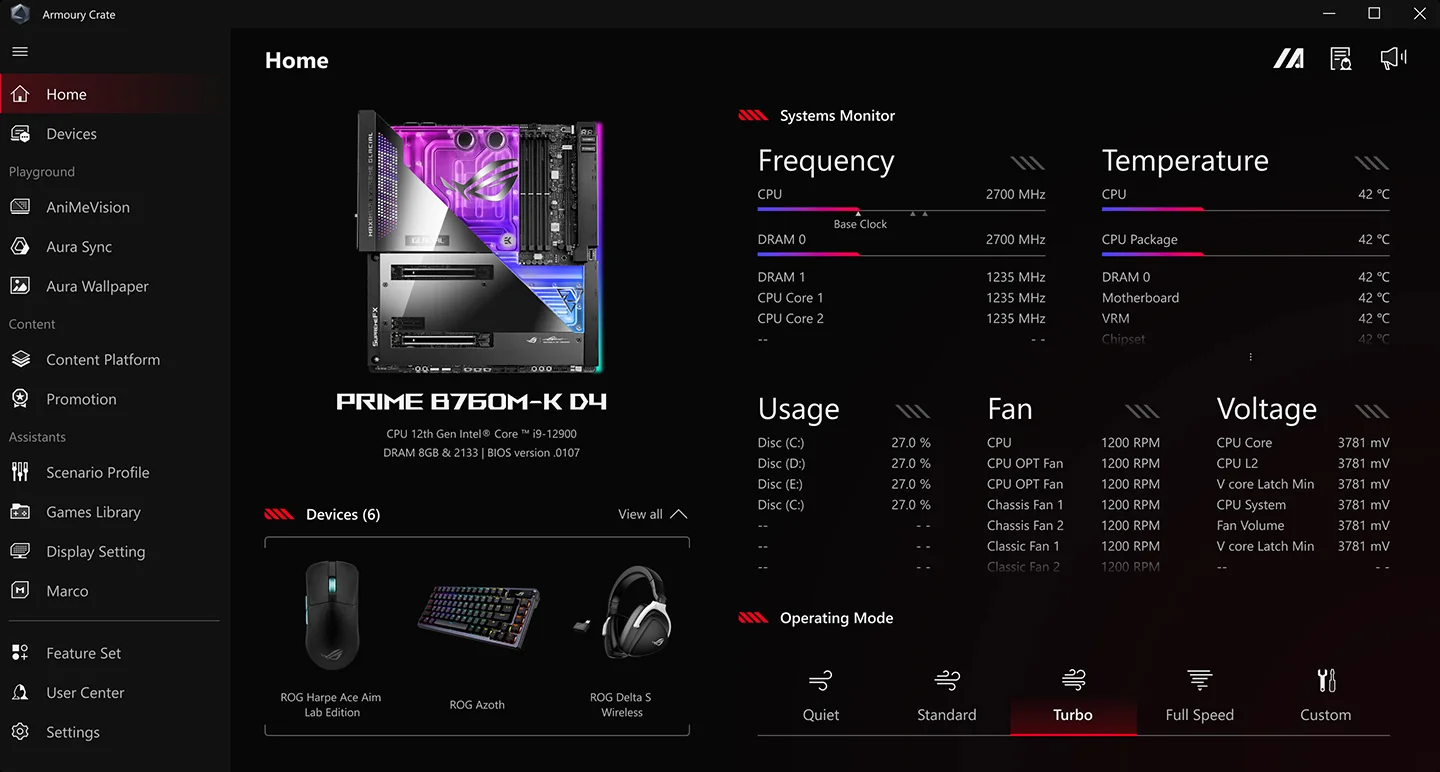
Armoury Crate 为兼容的 ASUS、ROG 和 TUF Gaming 设备集中提供设置入口,但功能并不在所有型号上一致。主板、笔记本和外设可能显示不同面板;缺少某项风扇、性能或灯光选项时,先按完整型号查看官方支持页,确认该设备是否支持此功能。它也不是所有品牌电脑通用的硬件控制中心。
安装前记录电脑型号、Windows 版本和现有控制软件。官网下载页给在线安装器的要求是 Windows 10 1903 或更高版本,或 Windows 11;单个设备和组件仍可能有额外限制。官方宣传截图用于说明功能布局,不能据此认定自己的机型会显示相同选项。
Aura Sync 与场景配置:先识别设备,再设置联动
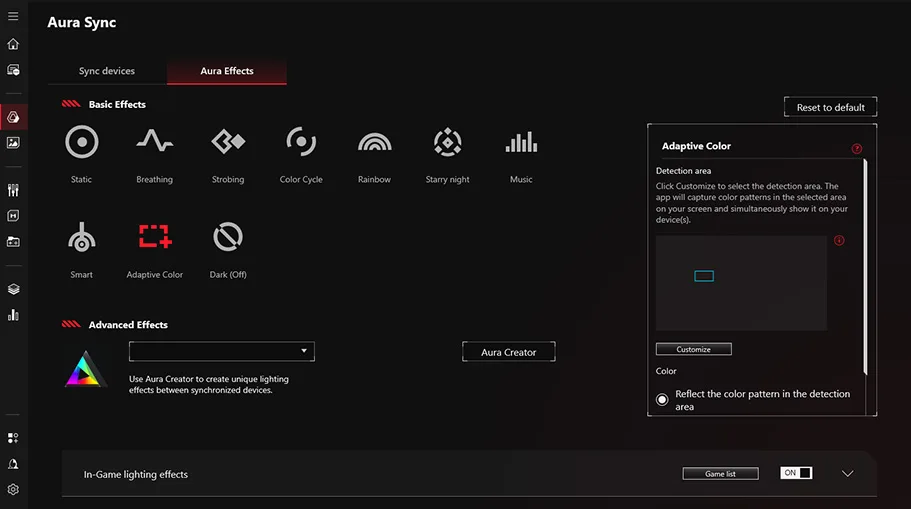
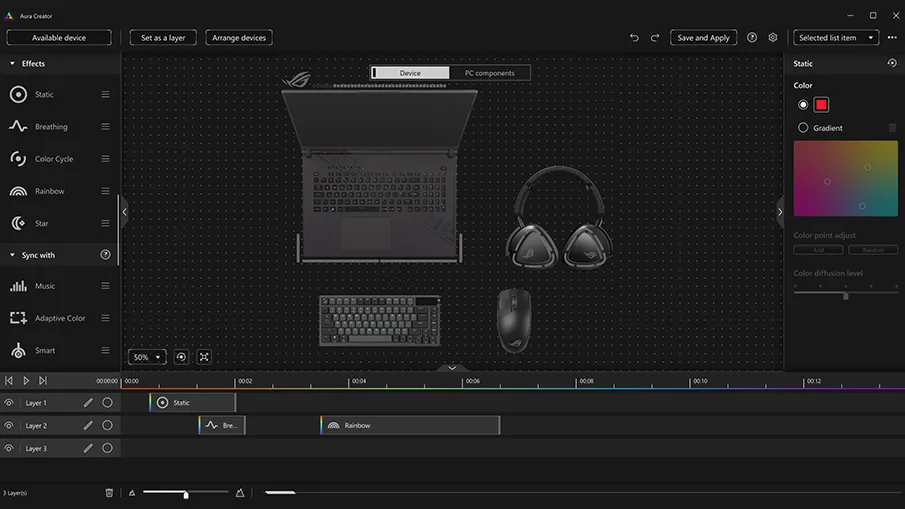
Aura Sync 用来同步兼容设备的灯效;需要分层编辑时,Aura Creator 是另一项可选组件。首次使用可先让一个设备显示简单灯效,再逐个加入同步,检查是否有其他灯光软件同时控制相同设备。不要把灯效不同步直接等同于硬件损坏;先核对兼容列表、连接方式和组件更新。
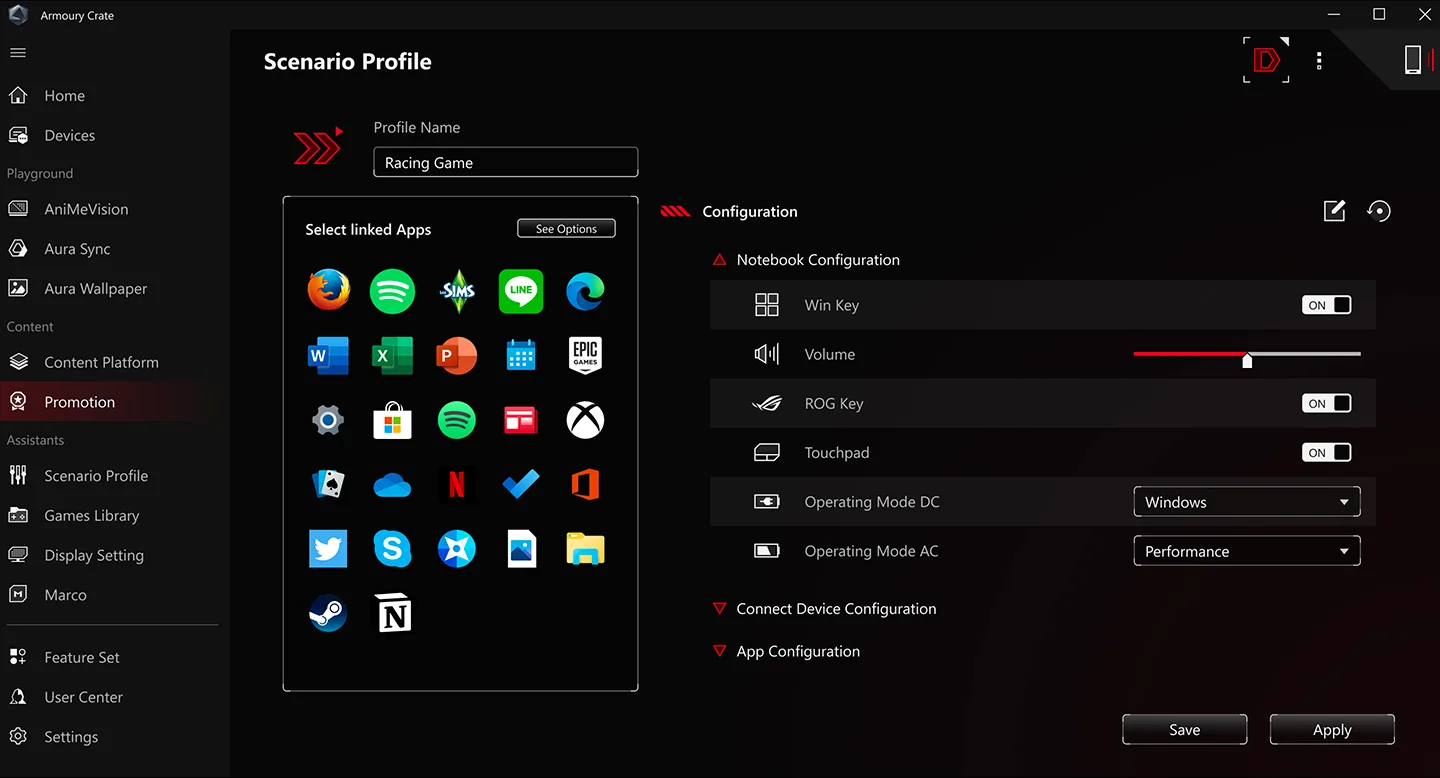
Scenario Profiles 支持为应用或游戏指定工作模式及系统设置。建议先建立一个容易辨认的测试配置,切换目标应用并观察它是否生效,再增加更多配置。性能和散热选项依赖具体机型,应从官方默认值开始调整,保存原设置以便比较和恢复。
Armoury Crate 安装步骤与在线、离线包选择
- 打开 ASUS 官方支持下载页,核对 Armoury Crate 条目及目标系统;ROG Ally 的 Armoury Crate SE 是单独产品条目,不要混用。
- 通常使用 Armoury Crate & Aura Creator Installer 在线安装器。按官方 FAQ,解压压缩包后运行其中的安装程序,选择 Armoury Crate、Aura Creator 或所需组合,并保持网络连接以获取组件。具体文件名以所下载的官方包及 FAQ 为准。
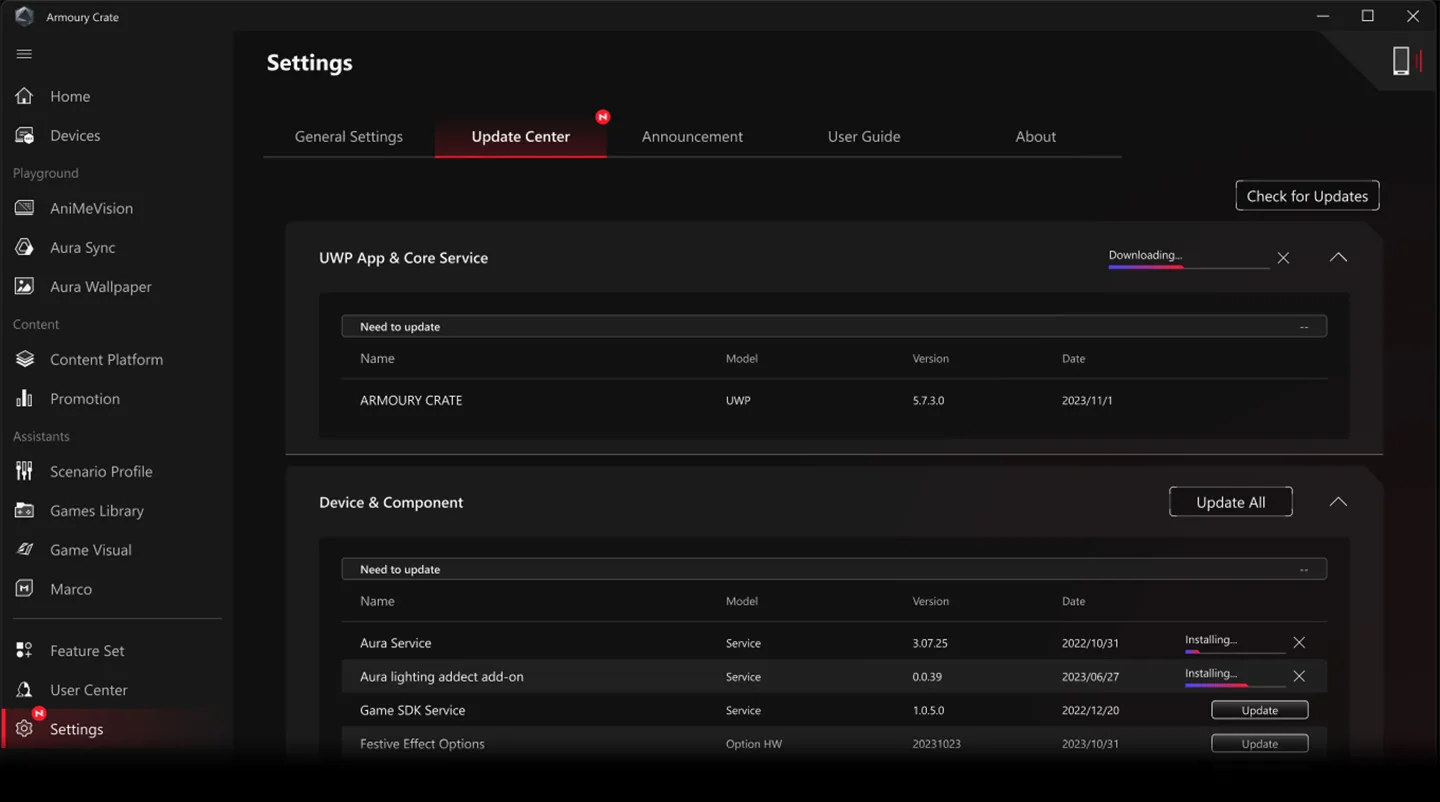
- 按向导完成安装;如果要求重启,保存工作后再重启。首次打开先检查设备是否识别,再在更新中心核对组件,最后设置灯效和应用配置。
- 官方同时提供 Full Installation Package。当前支持页列为 4.99 GB、包版本 1.5.0.7,内含应用 6.2.11,采用手动选设备的离线安装流程。它不等于在线渠道列出的应用 6.4.7;需要离线部署时逐项核对设备与版本。
本文提供官方支持落地页作为下载入口,未下载、执行或独立检测安装包。页面公布了对应文件的 SHA-256;获取文件后可按该条目核对摘要,注意不能把在线包的摘要用到离线包。
当前版本与更新日志:应用与组件分别核对
本次核对 ASUS 支持页,在线安装条目为安装器 3.3.6.0,日期 2025-11-04,列出的 Armoury Crate UWP 应用版本为 6.4.7。官方日志包括新增 AI Aura Lighting,修复部分笔记本的 Windows Dynamic Lighting 兼容问题,增加 ARM 笔记本支持,改善无障碍体验、会员流程、更新机制和界面问题,并修复 Aura Creator 对部分动态照明设备的识别。特定功能能否使用仍取决于硬件。
离线包 1.5.0.7 的日期是 2025-08-18,随包应用 6.2.11;其说明提到 6.0 界面和系统、组件优化。应用、服务、安装器及离线包的版本号含义不同,不能仅按数字大小比较新旧。更新前记下已安装组件版本,出现故障时可向官方支持准确描述哪个组件发生变化。
常见问题 FAQ:安装失败、安全与灯效故障
Armoury Crate 安装失败或打不开怎么办?
先保存报错信息、系统版本和机型,查看官方 安装与故障说明。在线安装依赖组件下载;可先检查网络和剩余空间。需要重装时按官方步骤使用专用卸载工具,避免只删除目录而留下服务。不要为了安装而关闭系统防护。
网上的旧版和“免安装版”能直接代替吗?
优先选择 ASUS 对应型号支持页。该程序包含设备服务和组件,文件名相似不代表适配相同;从来源、产品条目和包版本核对,再检查下载文件属性及官方摘要。本文不作无条件的安全保证。
为什么离线包安装后的版本较旧?
当前离线包列出 6.2.11,在线条目列出 6.4.7,这是不同分发内容。联网后是否更新、如何更新,应以软件更新中心和官方设备支持为准,不应把安装器号当作应用号。
只有部分灯具能够同步,如何排查?
先核对 Aura Sync 兼容性和连接,再检查更新中心及其他灯效软件的控制冲突。进行 Armoury Crate 下载与安装前确认型号,安装后先测试单个设备,再扩大同步范围,能更容易定位问题。
English
Armoury Crate download guide: manage ASUS devices and Aura Sync, check Windows support, compare installer versions, follow setup steps and troubleshoot issues.
Armoury Crate download: check ASUS device support first
Armoury Crate centralizes controls for compatible ASUS, ROG and TUF Gaming hardware. A motherboard, laptop and peripheral may expose different panels. If a fan, performance or lighting control is missing, check the support page for the exact model before treating that absence as a fault. This utility is designed around supported hardware rather than a universal set of controls for every PC.
Record your model, Windows version and existing control utilities before setup. The online installer listing requires Windows 10 version 1903 or later, or Windows 11; individual devices and components can impose additional limits. Official promotional screenshots illustrate the layout and do not establish which controls your model will have.
Configure Aura Sync and application scenarios
Aura Sync coordinates lighting on compatible devices. Aura Creator is a separate optional component for layered lighting effects. Begin with a simple effect on one device, then add others to the synchronized group. Check whether another utility is controlling the same lighting. A synchronization problem alone does not establish a hardware failure; compatibility, connections and component updates are useful first checks.
Scenario Profiles can associate operating modes and settings with individual apps or games. Start with one recognizable test profile, switch to its target application and check the result before adding more profiles. Performance and cooling controls depend on the device. Begin with vendor defaults and retain a record of previous settings so changes can be compared and reversed.
Installation steps and online versus offline packages
- Open the ASUS support downloads page, confirm Armoury Crate and the target OS. Armoury Crate SE for the ROG Ally series has a separate entry.
- For ordinary online setup, choose Armoury Crate & Aura Creator Installer. Following the official FAQ, extract the archive, run its setup program and select the required app or combination. Keep the connection available while setup obtains components; use the actual package and FAQ for the executable name.
- Complete the wizard and restart if requested after saving your work. Check detected devices and the Update Center before configuring lighting and profiles.
- For offline setup, ASUS lists a Full Installation Package: 4.99 GB, package version 1.5.0.7, containing app version 6.2.11. It uses manual device selection. This package is distinct from the online entry that lists app 6.4.7; check both model support and included versions.
This guide links to the official support landing page. No installer was downloaded, executed or independently scanned. ASUS publishes SHA-256 values for the listed files; compare the downloaded file with its own entry, rather than using the online installer's digest for the offline package.
Current version and release notes: distinguish each component
At this check, ASUS lists online installer 3.3.6.0 dated November 4, 2025, with Armoury Crate UWP app 6.4.7. Its notes include AI Aura Lighting, fixes for Windows Dynamic Lighting on certain laptops, ARM laptop support, accessibility improvements, refined membership flows, update-mechanism and interface fixes, and an Aura Creator detection fix for some Dynamic Lighting devices. Hardware support still determines availability.
Offline package 1.5.0.7 is dated August 18, 2025 and contains app 6.2.11; its notes describe the 6.0 interface and system/component optimizations. App, service, installer and offline-package version numbers identify different things. Record the installed components before updating so a support report can identify the component that changed.
FAQ: installation failures, download checks and lighting
What if installation fails or the app will not open?
Record the error, Windows version and model, then follow the official installation and troubleshooting FAQ. Check connectivity and free space for online component downloads. When reinstalling, follow the vendor procedure and dedicated uninstall tool instead of deleting folders and leaving services behind. Keep system protection enabled.
Can an old or portable copy replace the official installer?
Use ASUS support for the correct device. Armoury Crate includes device services and components; similar filenames do not establish compatibility. Check the source, product entry, package version, file properties and matching vendor digest. This guide provides no unconditional safety guarantee.
Why is the app in the offline package older?
The reviewed offline entry lists 6.2.11 while the online entry lists 6.4.7. They contain different distribution content. Follow the Update Center and device support guidance for subsequent updates; do not interpret the installer version as the app version.
What if only some lighting devices synchronize?
Check Aura Sync support, connections, component updates and competing lighting utilities. Confirm the model before Armoury Crate download and installation, then test one device before expanding the synchronized group to help isolate the issue.
平台与系统要求
- Windows
- Online installer: Windows 10 version 1903 or later, or Windows 11; compatible ASUS/ROG/TUF hardware required, feature availability varies by model. / 在线安装器要求 Windows 10 1903 或以上或 Windows 11;功能依赖兼容设备。
来源与核验
资料核验日期:2026年10月21日
首次发布:2026年10月20日· 编辑修订:2026年10月21日
同分类热门
查看全部
X-Mouse Button Control
XMBC 鼠标映射:Windows安装、应用配置与层、2.20.5修复、五键限制和重复输入排查。 / XMBC setup, application profiles and layers, v2.20.5 fixes, five-button limits and repeat troubleshooting.

DS4Windows
DS4Windows 是 Windows 手柄映射与虚拟控制器工具。本页整理 DS4Windows 3.5 社区延续版、DualShock/DualSense 配置、安装依赖和双输入排查。 / DS4Windows maps gamepad input and creates virtual controllers on Windows. This guide covers the v3.5 community continuation, setup, profiles, and duplicate-input troubleshooting.
JoyToKey
JoyToKey 手柄映射工具:Windows 安装与 ZIP 设置、7.4 命令输入、配置迁移和共享软件许可说明。 / Windows controller mapping guide covering setup, version 7.4 commands, profile migration and shareware licensing.

FurMark
FurMark 显卡压力测试与基准工具指南,介绍官方下载和平台选择、安装准备、测试条件记录、版本更新,以及打不开、画面异常和分数差异的排查思路。 FurMark GPU stress test guide with official setup, version notes, controlled comparisons and practical FAQs.

驱动总裁(SysCeo Windows 驱动管理工具)
SysCeo 驱动总裁 Windows 在线版本 2.21.0.0,官方页面日期为 2026-09-15,列出桌面与 PE 驱动安装、在线和离线驱动库及 Boot Camp 匹配。本页整理页面更新说明、安装前硬件核对、系统还原准备和 MD5 的用途;下载入口只链接官方产品页,不提供站外文件直链。 / SysCeo lists Windows 2.21.0.0, desktop and PE use, online/offline libraries and Boot Camp matching. This guide explains release notes and cautious setup; the download entry links only to official product information.
CamInfo Windows
CamInfo Windows 相机信息与快门次数查询指南,核对官方 4.2.6 页面、Canon/Nikon 等机型要求、USB 付费与照片免费查询方式,并提供安装步骤和相机无法识别时的核对建议。 | A Windows guide to CamInfo camera details and shutter counts, official version evidence, model support, query fees, installation and connection checks.
发现资料错误或链接问题?帮助我们完善