
显卡监控、压力测试与性能比较
查看显卡状态,并按需要进行稳定性观察与性能比较。收录3DMark、FurMark、GPU-Z等站内已有工具,按实际用途选择适合自己的应用。
FurMark 显卡压力测试与基准工具指南,介绍官方下载和平台选择、安装准备、测试条件记录、版本更新,以及打不开、画面异常和分数差异的排查思路。 FurMark GPU stress test guide with official setup, version notes, controlled comparisons and practical FAQs.
Alias: Furmark、FurMark 2
Autor: RJ.tools Editorial
Contenido asistido por IA
Consulta la información básica del software y sus fuentes
Free according to Geeks3D; detailed commercial-use and third-party redistribution terms unconfirmed in reviewed pages. Consult current license.
FurMark 显卡压力测试与基准工具指南,介绍官方下载和平台选择、安装准备、测试条件记录、版本更新,以及打不开、画面异常和分数差异的排查思路。 FurMark GPU stress test guide with official setup, version notes, controlled comparisons and practical FAQs.
FurMark下载与安装指南:了解显卡压力测试、版本更新、测试设置和结果记录,查阅打不开与温度异常时的常见问题及基准分数解读方法。 FurMark download guide: GPU stress testing, setup, release notes and practical FAQs.
FurMark 是 Geeks3D 的显卡压力测试与基准工具。本页整理 FurMark 下载、安装和测试前准备,介绍图形接口、分辨率与结果记录的选择,帮助理解温度、画面异常及程序退出等现象。另列官方版本更新与常见问题,说明不同配置的分数为什么不能直接对比,以及如何在观察到异常时结束测试并保留排查资料。
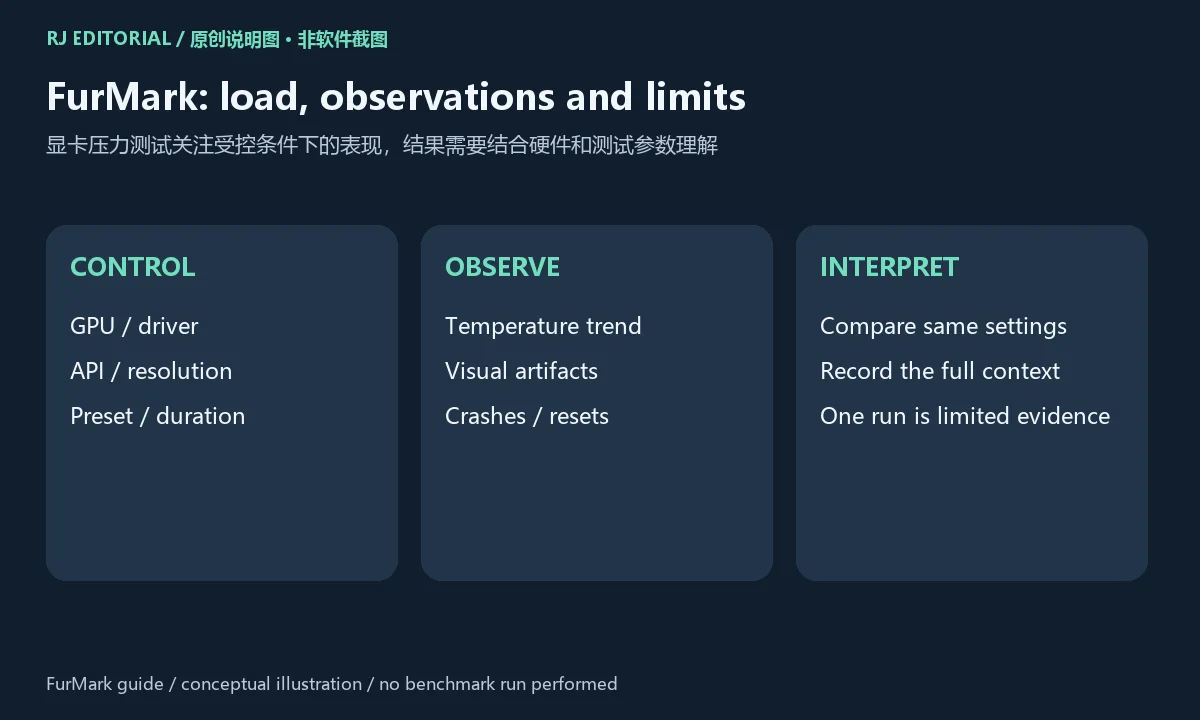
Geeks3D 官方产品页将 FurMark 用于 GPU 压力测试和基准测试。官网将 FurMark 2 描述为负载很高的 GPU 测试,提供 OpenGL/Vulkan 基准测试、改进的命令行支持,并基于 GeeXLab 构建。 压力测试与日常游戏的负载模式可以不同,适合观察特定测试条件下的运行情况;基准结果则要连同预设和硬件背景一起阅读。准备排查显卡问题时,把“测试能否完成”“是否出现画面异常”和“具体分数”分别记录,会比只保存一个最终数字更有参考价值。
FurMark 并不替代整机诊断,也不能单凭一次运行证明所有游戏都稳定。若要比较调整前后表现,应尽量只改变一项条件,同时保留驱动、分辨率和图形接口等信息。这里的比较建议属于编辑使用建议,不是对某个硬件型号的兼容承诺。
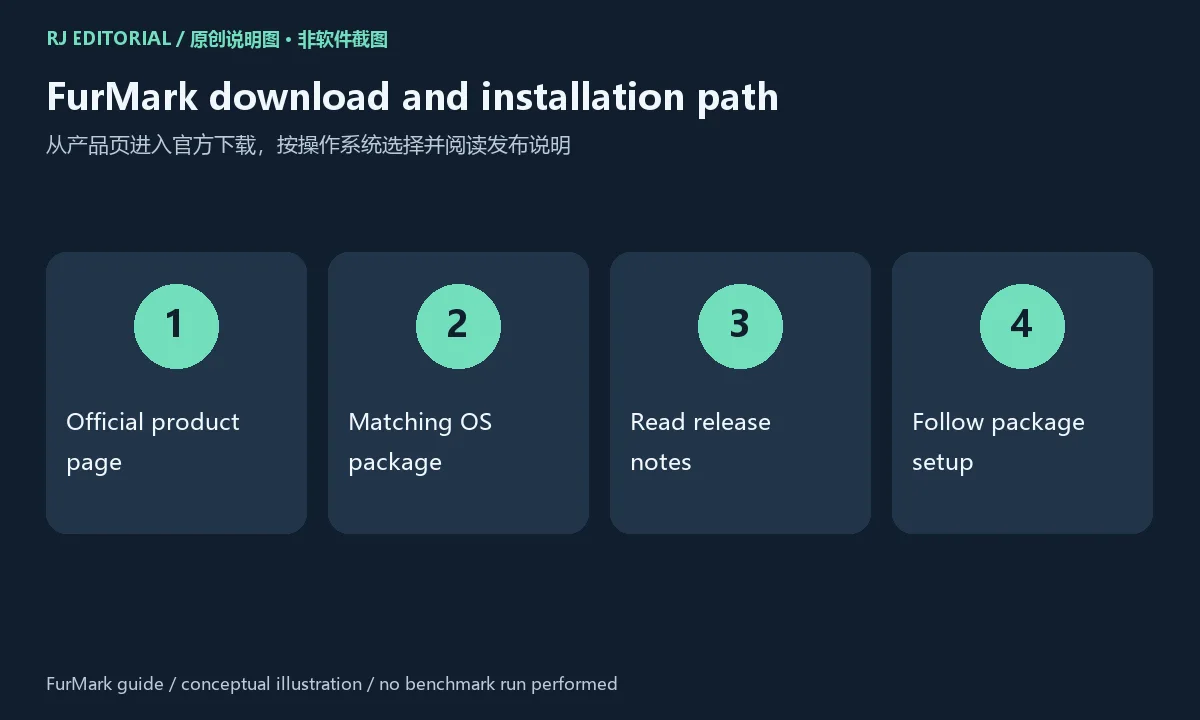
官网介绍 FurMark 2 支持 Windows 与 Linux,并分别说明 32/64 位平台;当前下载列表具体提供 Windows x64 的 ZIP(33 MB)与 SETUP(32 MB)、Windows x86 ZIP(32 MB)和 Linux x86_64 7z(16 MB)。Linux ARM64 文件仍列为 2.10.1(2025-10-23),不能当成 2.10.2。 这些页面未给出最低操作系统版本、内存或通用硬件门槛;图形接口、监控项目和具体设备支持仍应以当期程序与硬件环境为准。 下载前先核对当前页面的平台说明和发布记录,不要从旧榜单文件名推断新版本要求。笔记本还应记录当前电源模式和供电状态,因为不同运行条件可能使同一块 GPU 的表现发生变化。
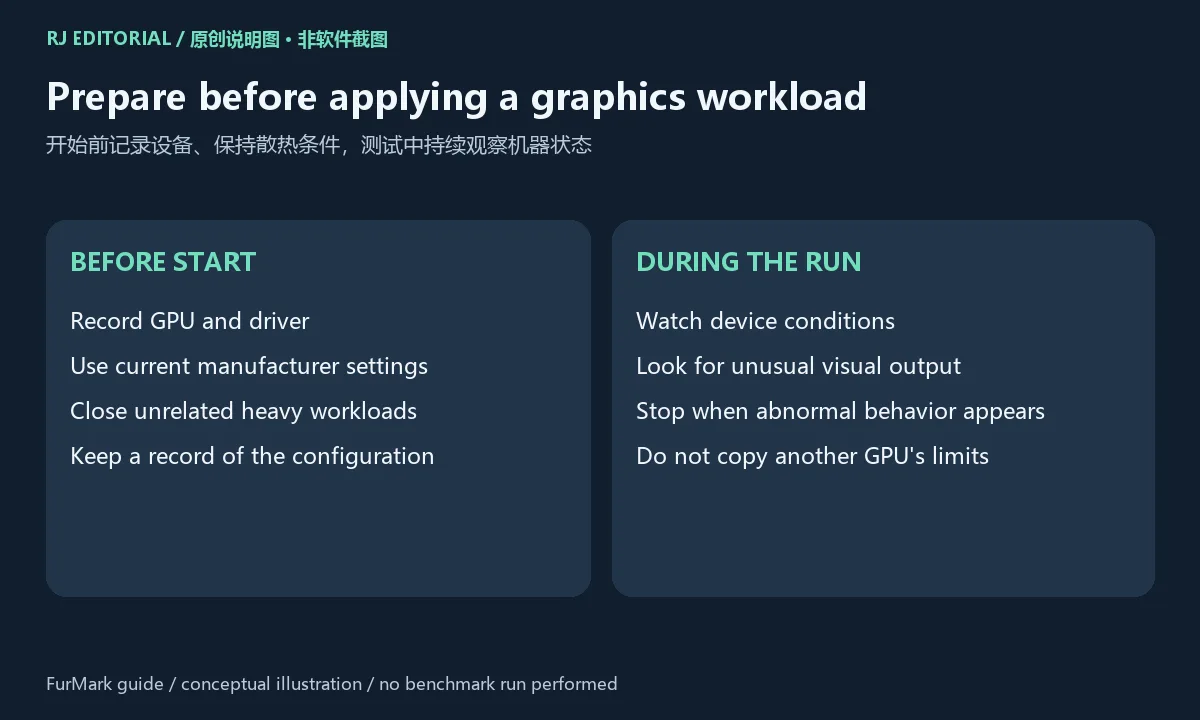
首次尝试前,保存正在编辑的文件,关闭无关的高负载任务,并记录显卡和驱动版本;若之前手动调整过显卡参数,先记下设置并按设备厂商说明恢复适合排查的基准状态。保持进出风口通畅,测试时观察机器状态。出现明显花屏、异常气味、系统不稳定或其他不寻常现象时结束测试,再查明原因;可接受温度与功耗应查对应设备资料,本页不给所有显卡套用同一个阈值。
Geeks3D 将 FurMark 描述为免费工具;这些页面没有列出详细商业使用或再分发条款。 本页提供官网路径和安装准备信息,没有下载、执行、托管或扫描安装文件。若官方入口暂时不可用,可稍后重试;相同软件名并不能证明第三方文件具有相同来源。
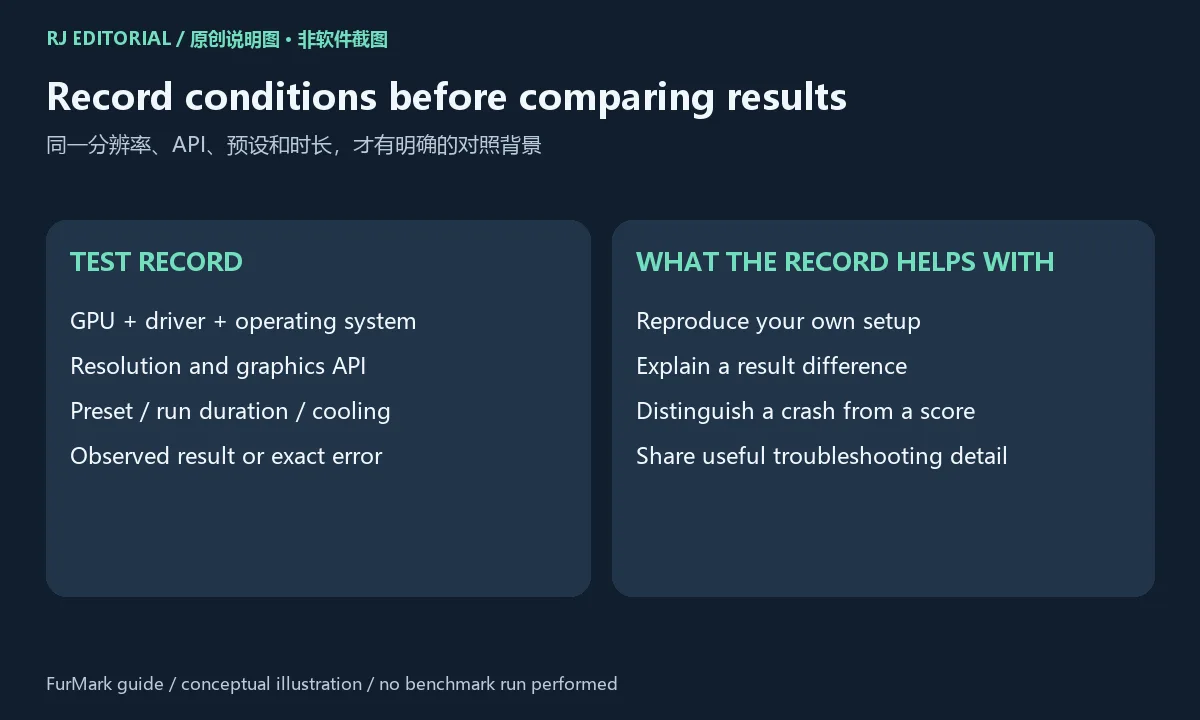
记录时至少包括 GPU 型号、驱动和操作系统版本、所选图形接口、分辨率、预设、运行时长及散热条件。对同一台电脑做前后对比,还应保持电源设置和后台负载尽量一致。若改变了两三个条件,结果变化通常无法明确归因到某一项设置。
分数、温度趋势和稳定性现象回答的问题不同:分数用于描述指定测试配置下的结果;温度需要结合设备规格、散热和负载过程理解;黑屏、退出或画面错误是进一步排查的线索,不能单凭现象就认定显卡损坏。向厂商或技术支持求助时,提供完整测试背景、错误信息和可重复步骤,通常比一句“跑分低”更便于定位问题。
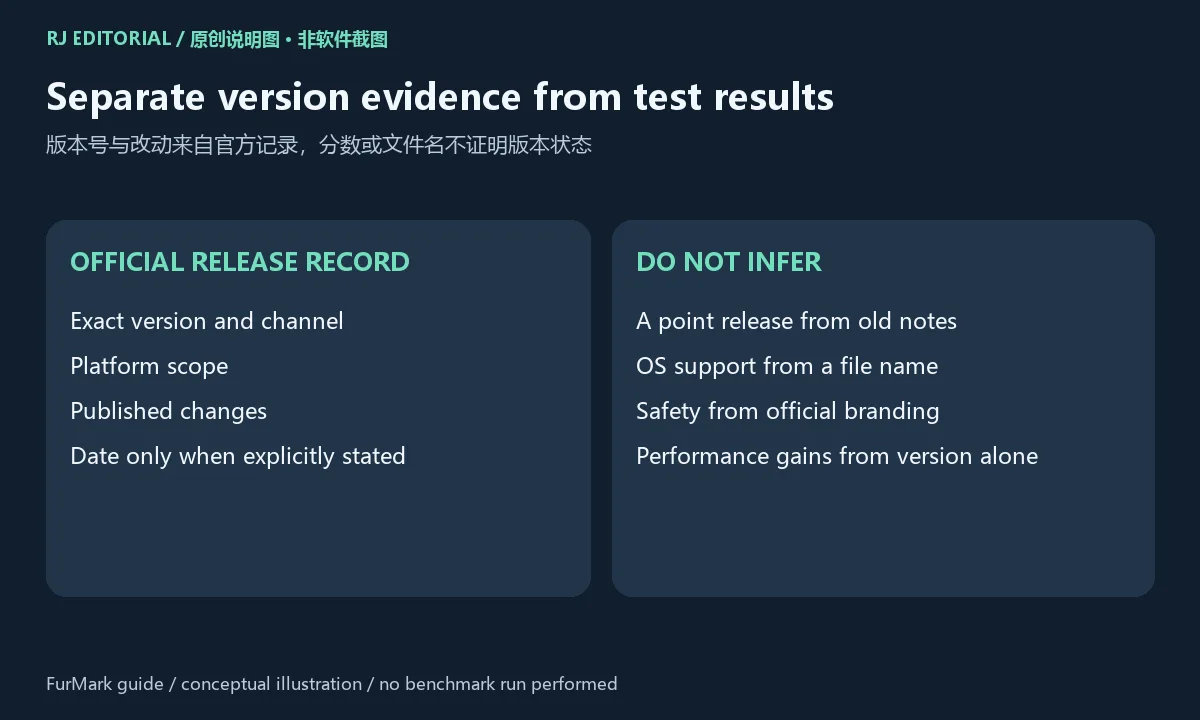
本次从官方页面核验到 FurMark 2.10.2,下载页给出的该版本日期为 2025-10-26。 对应的官方更新记录说明:2.10.2 修复一个影响 Radeon RX 7000/6000 系列的 Vulkan 插件问题;官方注明 RX 5000 也可能受影响但未测试,RX 9070/9060 不受该问题影响。对应分支说明还分别列出:2.10.1 修复多项 Vulkan 渲染器问题;2.10.0 新增 3440×1440 预设、Raspberry Pi 5 GPU 监控,并改进 Linux kernel 6.16+ 的 Intel Arc 监控。这些分支旧版改动并非全部首次加入 2.10.2。 这些改动按原发布记录归属,不把旧版功能概览当作本次更新,也不从旧下载表中的文件名补写日期。
下载页还单独列出 FurMark 1 v1.39.3(2025-10-08)。本页当前版本字段对应 FurMark 2 主分支;FurMark 1 的版本、FurMark 2 的版本及 Linux ARM64 较早文件分别记录,不能混为同一次发行。更新文章侧栏的旧内容不覆盖当前下载列表。
更新前后若要比较测试表现,先保存原版本号与完整设置,再阅读新版本对测试项目、依赖或兼容性的说明。版本变化本身不能保证设备跑分提高;当测试实现或默认设置变化时,应先确认结果是否具有相同对照条件。
FurMark 免费吗,能直接转载安装文件吗?
Geeks3D 将 FurMark 描述为免费工具;这些页面没有列出详细商业使用或再分发条款。 价格信息与第三方转载授权是两个问题。本页未确认安装文件的再分发许可,因此通过官方入口获取;详细使用条件请阅读当前许可文本。
FurMark 打不开怎么办?
先核对下载平台、官网当前要求和实际文件是否完整,再记录系统错误信息;如果此前修改过驱动或调校设置,也记录这些变化。不要为了启动程序而忽略系统警告。遇到不支持的设备或图形接口,应先查当前官方说明。
测试花屏、黑屏或退出就代表显卡坏了吗?
不能仅凭这个现象下结论。结束测试,保存发生时的设置、运行时长和系统信息,检查硬件厂商建议及驱动问题。供电、散热、驱动、设置和设备故障都可能需要分别排查。
能拿别人的分数直接判断自己的显卡是否正常吗?
先比较硬件、版本、图形接口、分辨率、预设和运行条件是否一致。条件不明的数字不适合作为单一判断标准,同一设备在不同供电或散热条件下也可能表现不同。
本页图片是实际运行截图或安全检测证明吗?
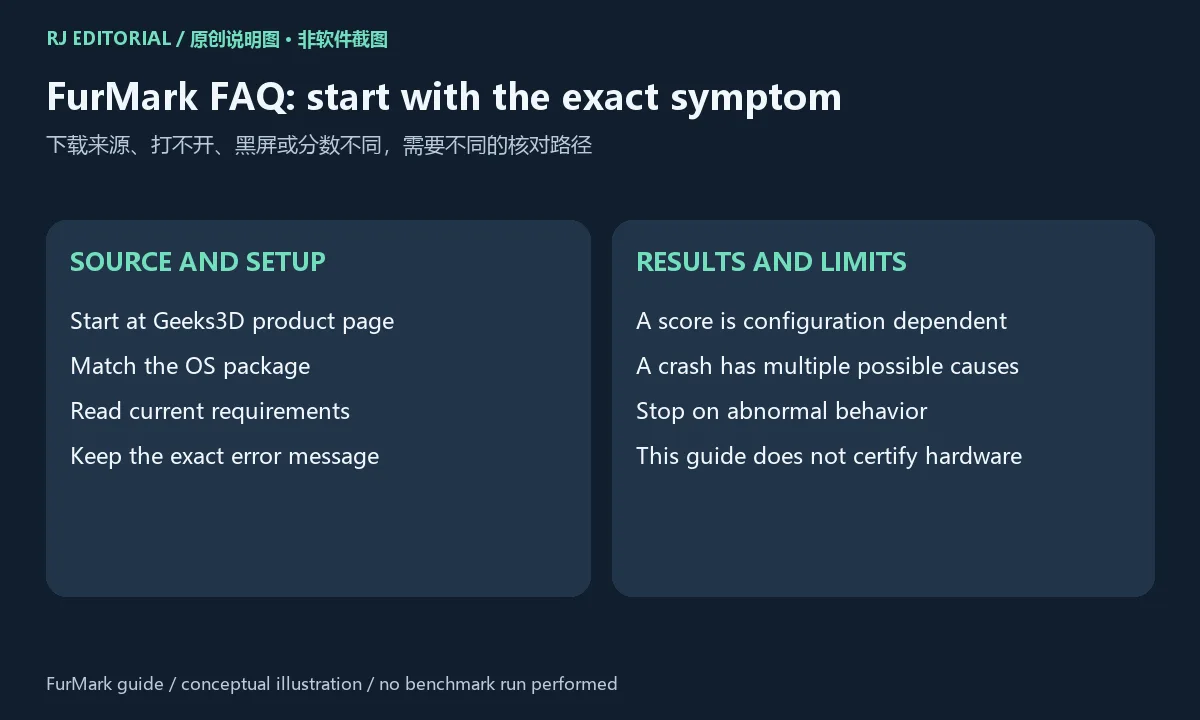
图片是原创编辑说明图,用于展示测试记录和下载步骤;本次没有运行基准,也没有验证安装文件或硬件。使用 FurMark 下载入口前,核对官网和匹配平台,按当前说明完成安装,并保留每次测试的条件记录。
FurMark download guide: find the official GPU stress test, check setup and version notes, record test conditions, and understand results and common problems.
The Geeks3D product page presents FurMark as a GPU stress test and benchmark. Geeks3D describes FurMark 2 as a very intensive GPU workload with OpenGL/Vulkan benchmarking and improved command-line support, built with GeeXLab. A stress workload can differ from a particular game, so use it to observe behavior under the selected test conditions. Read a benchmark result alongside its preset and hardware context. When investigating a graphics problem, record whether the run completes, whether visual anomalies appear, and the numerical result as separate observations.
One completed run does not establish stability in every game or replace a full computer diagnosis. For a useful before-and-after comparison, change one condition at a time and keep the driver, resolution and graphics API in your record. These are editorial comparison suggestions, not a compatibility promise for a particular GPU.
The product page describes Windows and Linux support in 32/64-bit forms. The current file list specifically offers Windows x64 ZIP (33 MB) and SETUP (32 MB), Windows x86 ZIP (32 MB), and Linux x86_64 7z (16 MB). The Linux ARM64 file remains 2.10.1 (2025-10-23), rather than 2.10.2. The reviewed pages do not specify minimum OS versions, memory or a universal hardware baseline. Graphics API availability, monitoring capabilities and specific-device support still depend on the current program and hardware environment. Check the current platform notes and release record before obtaining a file; a legacy filename does not establish current requirements. On a laptop, also record the power mode and whether external power is connected, because operating conditions can change the behavior of the same GPU.
Save your work, close unrelated heavy workloads, and record the GPU and driver version. If you previously adjusted graphics settings, keep a copy and follow the hardware manufacturer's guidance for a suitable troubleshooting baseline. Keep ventilation clear and watch the computer while testing. End the run if you observe artifacts, unusual smells, instability or other abnormal behavior. Temperature and power limits belong to the specific device's documentation; this guide supplies no universal threshold.
Geeks3D describes FurMark as free; these pages do not provide detailed commercial-use or redistribution terms. This review supplies the official route and setup preparation; no installer was downloaded, executed, hosted or scanned. If the official route is temporarily unavailable, retry later. A matching product name alone does not establish the origin of another file.
Keep the GPU model, driver and OS versions, graphics API, resolution, preset, duration and cooling conditions with the result. For comparisons on the same machine, keep power settings and background load as consistent as practical. If several conditions change at once, a result difference cannot be confidently assigned to one setting.
A score, temperature trend and stability observation answer different questions. A score describes a particular test configuration; a temperature reading needs the device specification, cooling context and workload history. A black screen, exit or visual error is a troubleshooting clue, not a standalone diagnosis of a broken GPU. Full configuration details, exact errors and repeatable steps are more useful to support staff than a score without context.
The official page reviewed here lists FurMark 2.10.2. The downloads page dates that version 2025-10-26. Its official release record reports: 2.10.2 fixes a Vulkan plugin bug affecting Radeon RX 7000/6000 cards. Geeks3D says RX 5000 may also be affected but was untested, while RX 9070/9060 are not affected by that issue. The branch record separately attributes several Vulkan renderer fixes to 2.10.1, and the 3440×1440 preset, Raspberry Pi 5 GPU monitoring and improved Intel Arc monitoring on Linux kernel 6.16+ to 2.10.0; those earlier changes are not all new in 2.10.2. Changes are attributed to that record; an older feature overview or legacy download filename is not substituted for the current release notes.
The download list separately shows FurMark 1 v1.39.3 (2025-10-08). This page's main version field describes the FurMark 2 branch. FurMark 1, FurMark 2 and the earlier Linux ARM64 file are distinct release records; older article-sidebar content does not override the current download list.
Before updating, keep the previous version number and full test configuration. Read changes affecting test implementation, dependencies or compatibility before comparing results across releases. A newer version does not promise a higher score. If the implementation or defaults changed, first establish whether the two runs provide a comparable basis.
Is FurMark free, and can I redistribute the installation file?
Geeks3D describes FurMark as free; these pages do not provide detailed commercial-use or redistribution terms. Price and third-party redistribution rights are separate matters. This review has not established redistribution permission; use the official route and read the current license for detailed conditions.
What if FurMark will not open?
Check the OS package, the current official requirements and whether file handling completed. Preserve the exact system message and any recent driver or tuning changes. Do not ignore system warnings merely to start the application. Check publisher guidance if the device or graphics API is unsupported.
Does a black screen, artifact or exit prove the GPU is faulty?
No single symptom provides that conclusion. End the run and keep the configuration, duration and system information from the incident. Follow hardware-vendor guidance and investigate drivers, power, cooling, settings and hardware as appropriate.
Can another person's score tell me whether my GPU is normal?
First compare the hardware, version, API, resolution, preset and operating conditions. A number without those details is a poor standalone standard. The same GPU can behave differently with different power or cooling conditions.
Are the illustrations screenshots or safety-test evidence?
They are original editorial diagrams explaining setup and record keeping. No benchmark or binary assessment was performed for this guide. Before using the FurMark download route, confirm the official source and matching platform, follow current installation guidance, and retain the conditions of each run.
Información verificada: 18 oct 2026
Publicado por primera vez: 18 oct 2026· Revisión editorial: 18 oct 2026
Use the Geeks3D product page, choose the current OS package, read its release notes and follow its setup instructions. / 从Geeks3D产品页选择当前平台文件,阅读发布说明并按包内步骤安装。
Check the selected OS package and official requirements, then retain the exact error and recent driver changes. / 核对平台和官网要求,保留准确错误信息与近期驱动变化。
A symptom alone is not a diagnosis. End the run and investigate the device, driver, cooling, power and settings with vendor guidance. / 单个现象不能定性,结束测试并按厂商建议检查驱动、散热、供电、设置和设备。
Compare the same hardware context, version, API, resolution, preset and operating conditions. / 先确认硬件背景、版本、API、分辨率、预设与运行条件一致。

XMBC 鼠标映射:Windows安装、应用配置与层、2.20.5修复、五键限制和重复输入排查。 / XMBC setup, application profiles and layers, v2.20.5 fixes, five-button limits and repeat troubleshooting.

Armoury Crate 设备管理与 Aura Sync 下载指南:核对华硕机型、Windows 安装要求、应用6.4.7及不同安装包版本。 ASUS device controls, lighting, official setup and version checks.

DS4Windows 是 Windows 手柄映射与虚拟控制器工具。本页整理 DS4Windows 3.5 社区延续版、DualShock/DualSense 配置、安装依赖和双输入排查。 / DS4Windows maps gamepad input and creates virtual controllers on Windows. This guide covers the v3.5 community continuation, setup, profiles, and duplicate-input troubleshooting.
JoyToKey 手柄映射工具:Windows 安装与 ZIP 设置、7.4 命令输入、配置迁移和共享软件许可说明。 / Windows controller mapping guide covering setup, version 7.4 commands, profile migration and shareware licensing.
SysCeo 驱动总裁 Windows 在线版本 2.21.0.0,官方页面日期为 2026-09-15,列出桌面与 PE 驱动安装、在线和离线驱动库及 Boot Camp 匹配。本页整理页面更新说明、安装前硬件核对、系统还原准备和 MD5 的用途;下载入口只链接官方产品页,不提供站外文件直链。 / SysCeo lists Windows 2.21.0.0, desktop and PE use, online/offline libraries and Boot Camp matching. This guide explains release notes and cautious setup; the download entry links only to official product information.
CamInfo Windows 相机信息与快门次数查询指南,核对官方 4.2.6 页面、Canon/Nikon 等机型要求、USB 付费与照片免费查询方式,并提供安装步骤和相机无法识别时的核对建议。 | A Windows guide to CamInfo camera details and shutter counts, official version evidence, model support, query fees, installation and connection checks.