DS4Windows 是 Windows 手柄映射与虚拟控制器工具。本页整理 DS4Windows 3.5 社区延续版、DualShock/DualSense 配置、安装依赖和双输入排查。 / DS4Windows maps gamepad input and creates virtual controllers on Windows. This guide covers the v3.5 community continuation, setup, profiles, and duplicate-input troubleshooting.
中文
DS4Windows 下载可帮助 Windows 10 及以上用户连接 DualShock 4、DualSense 等手柄并设置虚拟 Xbox 控制器。本页整理 PS4 手柄连接电脑、PS5 手柄映射、3.5 版本来源和依赖安装步骤,也说明配置档、双输入排查及社区延续版的维护边界,便于下载前核对系统条件。
DS4Windows 支持哪些手柄和连接方式
开发者网站将 DS4Windows 定位为 Windows 手柄映射与虚拟控制器工具,列出 DualShock 3、DualShock 4 和 DualSense 5。当前 GitHub README 还提到 Nintendo Switch Pro 与 Joy-Con(仅一方生产的设备),具体兼容范围会随版本和设备而变,购买或排障前应再核对官网的支持列表。手柄可通过 USB 连接;官网指南也介绍蓝牙配对。启用 Xbox 虚拟手柄后,游戏会收到映射后的控制器输入。
用配置档映射按键并按游戏切换
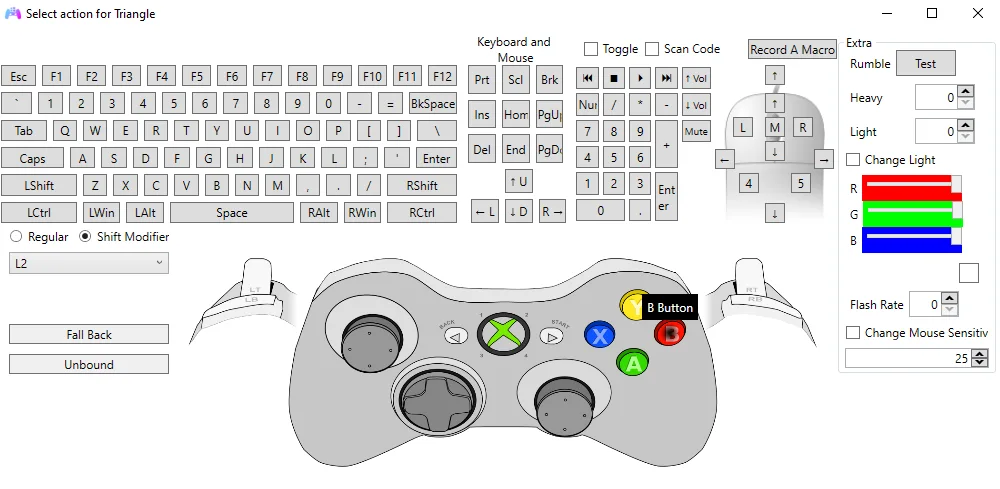
DS4Windows 可把实体手柄按键映射到虚拟手柄,也能配置键盘与鼠标输入、触摸板和其他控制动作。配置档让不同游戏使用不同映射,Auto Profiles 页可把配置与程序关联;宏、灯条、震动等选项是否可用取决于具体设备和输出模式。初次设置时先复制或新建配置档,再逐项测试摇杆、扳机与快捷操作,避免覆盖原有手柄配置。
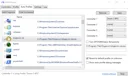
DS4Windows 安装与首次连接步骤
- 从 DS4-Windows.com 安装指南 或 GitHub 3.5 发布页核对并获取发布者提供的压缩包;不要使用榜单中的第三方旧下载链接。
- 安装 Microsoft .NET 8 Desktop Runtime(选择与程序匹配的架构)。官网安装指南建议把压缩包解压到用户可写目录,避免放入需要提升权限的 Windows 或 Program Files 文件夹。
- 运行 DS4Windows.exe。首次启动时可将配置与用户数据保存到 AppData;如果程序提示安装驱动,先读清驱动用途再确认。
- ViGEmBus 用于创建虚拟 Xbox/DS4 控制器,是虚拟输出所需驱动;HidHide 用来隐藏实体手柄,减少游戏同时看到实体和虚拟设备造成的双输入。FakerInput 仅在需要改善键鼠模拟兼容性时考虑。
- 用 USB 或官网支持的蓝牙方式连接手柄,确认它出现在 Controllers 页面,再用默认配置档测试游戏输入。蓝牙不稳定时先按官方配对指南核对适配器和 Windows 蓝牙栈。
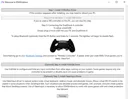
3.5 版本与更新记录
GitHub 的 Official 发布记录将 DS4Windows 3.5 标为 2026-02-09 发布的稳定版本,并称其为 Ryochan7 项目的延续。该发布说明没有逐项列出修复或新增功能;官网 Changelog 页面也没有 3.5 条目。因此本页只记录可核实的版本号、日期和项目关系,不推测性能提升或兼容性变更。新版本由社区仓库发布,不能据此称原作者仍在维护,也不代表 Sony 或 Microsoft 的官方产品。
常见问题 FAQ
为什么游戏里会出现两个手柄或重复输入? DS4Windows 可能同时保留实体输入并创建虚拟控制器。先检查游戏是否只接收虚拟输出,再按官方指南配置 HidHide 隐藏实体设备;若问题只在 Steam 游戏中出现,逐项检查 Steam 的手柄支持设置后重新启动游戏。
电脑没有识别手柄怎么办? 确认 DS4Windows 正在运行、手柄处于配对状态,换用 USB 线复测,并核对设备是否出现在 Controllers 页面。虚拟手柄不能创建时,再检查 ViGEmBus;蓝牙连接失败则按官网配对页核对 Windows 蓝牙栈和适配器兼容性。
DS4Windows 是 Sony 或 Microsoft 的官方软件吗? 不是。当前 v3.5 来自 ds4windowsapp 社区仓库,发布说明把它称作原项目的延续;GitHub 标注 GPL-3.0。不要把“Official”发布标签理解为 Sony 或 Microsoft 背书。
下载包是否需要传统安装程序? 官网指南把它描述为可解压运行的应用;首次启动仍可能要求安装虚拟控制器驱动。卸载前先备份配置,并确认其他软件没有依赖 ViGEmBus,再按驱动方说明移除。
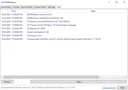
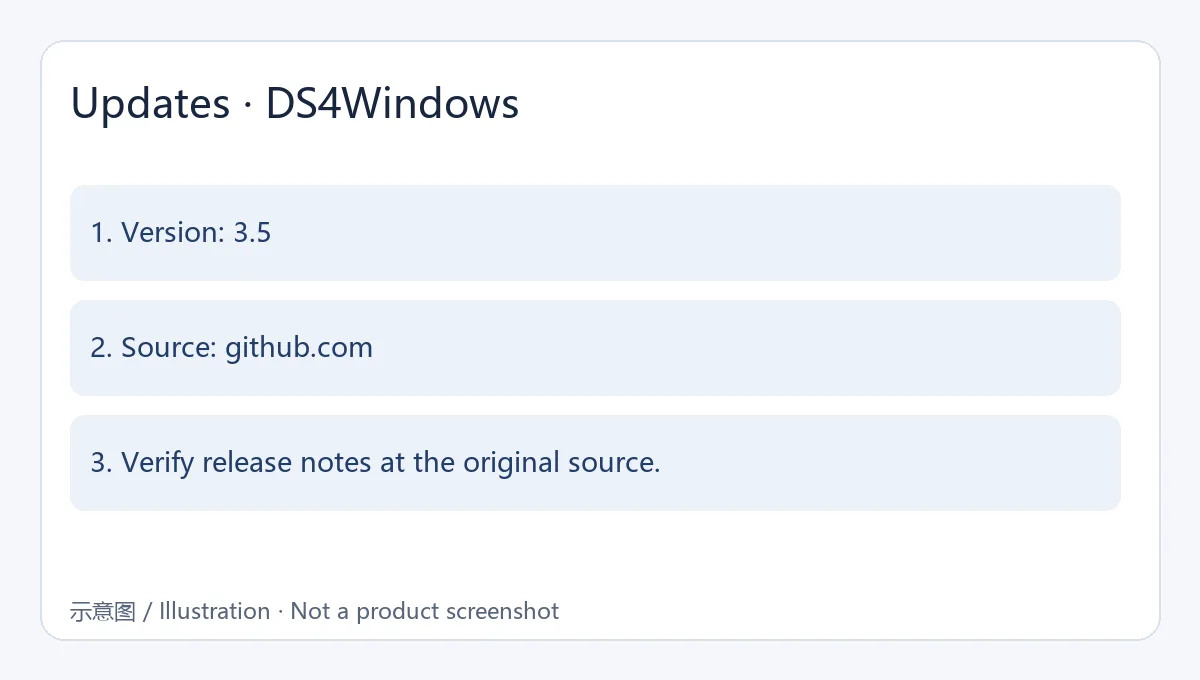
资料来源:开发者网站、安装指南、更新页、GitHub 仓库与 3.5 发布记录。官网配图来自历史页面;日志截图显示 3.0.18,仅用于说明界面位置,不代表当前版本。
English
Download DS4Windows to connect PS4 and DualSense controllers to Windows 10+, with remapping and Xbox emulation. Check v3.5, setup needs, and double-input fixes.
Supported controllers and connection options
The project website describes DS4Windows as a Windows input mapper and virtual-controller tool, listing DualShock 3, DualShock 4, and DualSense 5. The current GitHub README also mentions first-party Nintendo Switch Pro and Joy-Con devices; compatibility depends on the device and release, so check the supported-controller list before troubleshooting. Use USB or follow the site's Bluetooth pairing guide. With virtual Xbox output enabled, games receive the mapped controller input.
Map controls and switch profiles by game
DS4Windows can map physical controls to a virtual gamepad and configure keyboard or mouse actions, touchpad behavior, and other controls. Profiles let different games use different mappings, and Auto Profiles can associate a profile with a program. Macros, lightbar, and rumble options depend on the device and output mode. Start by copying or creating a profile, then test sticks, triggers, and shortcuts one at a time.
DS4Windows installation and first connection
- Check the DS4-Windows.com setup guide or the GitHub 3.5 release page for the publisher's package. Avoid the legacy third-party ranking link.
- Install Microsoft .NET 8 Desktop Runtime for the matching application architecture. The setup guide recommends extracting the archive to a user-writable folder instead of Windows or Program Files, which may require elevated permissions.
- Run DS4Windows.exe. On first launch, AppData is the recommended location for user settings and profiles. Read any driver prompt before confirming installation.
- ViGEmBus is required for virtual Xbox/DS4 output. HidHide is recommended to hide the physical controller and reduce duplicate input. Consider optional FakerInput only when you need its keyboard/mouse compatibility behavior.
- Connect by USB or a supported Bluetooth method. Confirm the controller appears on the Controllers tab, then test a game with the default profile. For Bluetooth problems, check the official pairing guide and adapter/Windows Bluetooth compatibility.
Version 3.5 and update notes
GitHub lists the Official DS4Windows 3.5 release as published on 2026-02-09 and describes it as a continuation of Ryochan7's project. The release note does not itemize fixes or new features, and the developer site's changelog page has no 3.5 entry. This page therefore reports the verifiable version, date, and project relationship without claiming specific performance or compatibility changes. The current build comes from the community repository; this does not establish that the original author maintains it or that Sony or Microsoft endorses it.
FAQ
Why do I see two controllers or duplicate input in a game? DS4Windows may leave the physical input visible while creating a virtual controller. Check that the game uses the intended virtual output, then follow the official HidHide instructions to hide the physical device. If the issue appears only in Steam, review Steam's controller-support settings and restart the game.
What should I check when Windows does not detect my controller? Confirm DS4Windows is running and the controller is paired, try USB, and check the Controllers tab. If virtual output cannot be created, inspect ViGEmBus. For Bluetooth failures, consult the official pairing page for Windows Bluetooth stack and adapter compatibility.
Is DS4Windows an official Sony or Microsoft application? No. The current v3.5 build is published by the ds4windowsapp community repository, whose release note calls it a continuation of the earlier project. GitHub lists GPL-3.0. The release label “Official” is not a Sony or Microsoft endorsement.
Do I need a traditional installer? The publisher's guide describes an extract-and-run application, though first launch may prompt for a virtual-controller driver. Back up profiles before removal and check whether another application depends on ViGEmBus before uninstalling that driver.
Sources: publisher site, setup guide, changelog, GitHub repository, and v3.5 release. The site images are historical examples; the log screenshot shows 3.0.18 and does not represent the current version.