
网络连不上时的 DNS 与连接诊断
从 DNS、hosts、网络配置和 NAT 类型等角度检查连接问题。收录Complete Internet Repair、DNS Jumper(DNS 切换工具)、NatTypeTester等站内已有工具,按实际用途选择适合自己的应用。

DNS Jumper 是 Sordum 发布的免费便携 Windows DNS 切换工具。本文核对 v2.3、IPv4/IPv6、恢复默认解析器、版本修复和文件校验方法,并说明切换 DNS 对隐私与网络策略的影响。 DNS Jumper v2.3 setup and troubleshooting guide.
별칭: DNS Jumper、Dns Jumper、DNS Jumper v2.3、DNS 切换工具、DnsJumper
작성자: RJ.tools Editorial
AI 지원 콘텐츠
소프트웨어의 기본 정보와 출처를 확인하세요
Freeware under Sordum's EULA; unmodified redistribution must link to the original download or home page and include a copy of the EULA.
DNS Jumper 是 Sordum 发布的免费便携 Windows DNS 切换工具。本文核对 v2.3、IPv4/IPv6、恢复默认解析器、版本修复和文件校验方法,并说明切换 DNS 对隐私与网络策略的影响。 DNS Jumper v2.3 setup and troubleshooting guide.
DNS Jumper 下载与安装:查看 Windows DNS 切换、IPv4/IPv6 恢复、v2.3 更新与隐私提示。 DNS Jumper v2.3 setup guide: choose a resolver, restore DNS, and fix lookup issues on Windows.
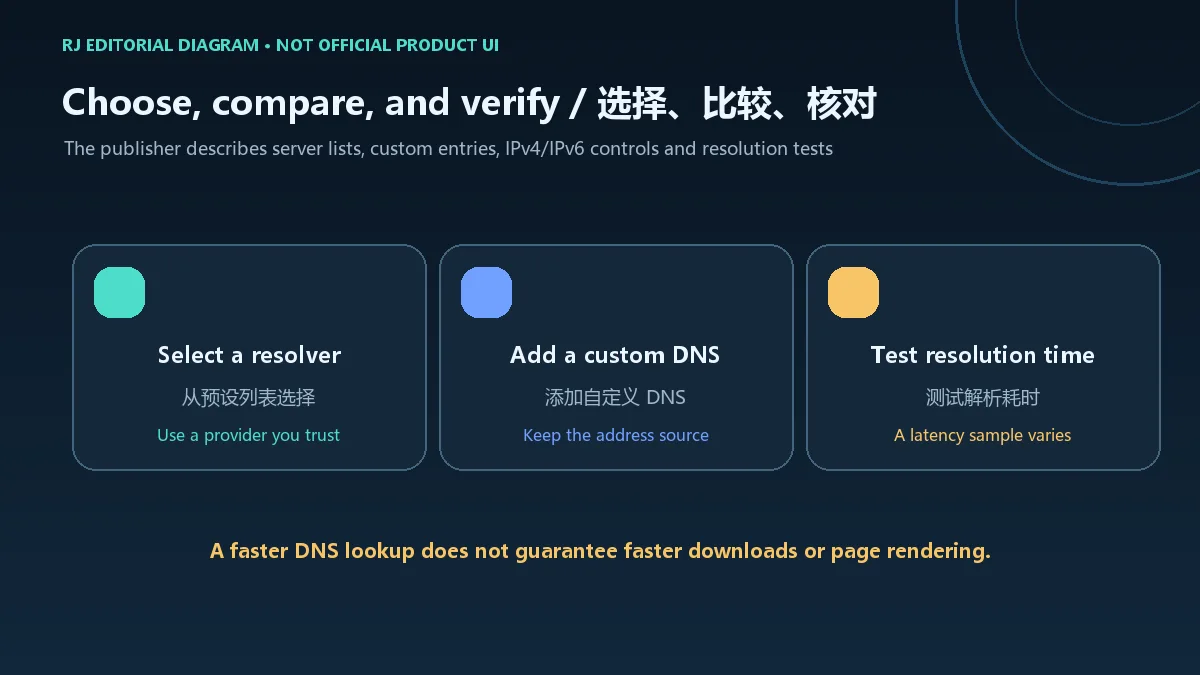
DNS Jumper 是一款适用于 Windows 的免费便携 DNS 切换工具,可从预设列表选择解析服务器、添加自定义地址并比较解析耗时。本文说明 v2.3 的更新、官网下载与解压步骤、恢复 ISP 默认 DNS 的方法,以及 IPv4/IPv6、隐私和网络故障排查要点,帮助你在修改网络设置前核对来源、版本与风险。
DNS(域名系统)负责把网站域名解析成 IP 地址。DNS Jumper 为 Windows 网卡选择解析服务器,并可对所选服务器进行解析耗时测试,适合希望更换运营商默认 DNS 或临时验证解析问题的用户。
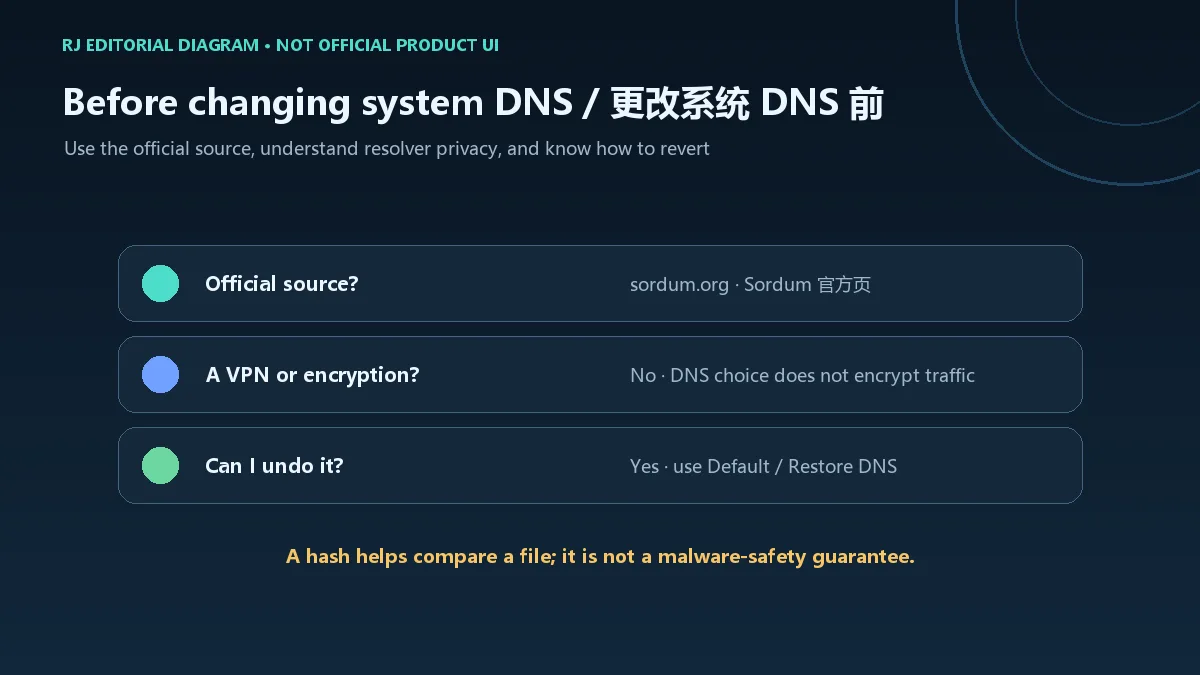
它不是 VPN、代理或防火墙,也不会加密网页流量、提高带宽或保证更低延迟。更改 DNS 会影响系统的域名解析;企业内网、校园网、VPN、家长控制和本地服务可能依赖原解析器。修改前先记录当前设置,并确认你有权更改这台电脑的网络配置。
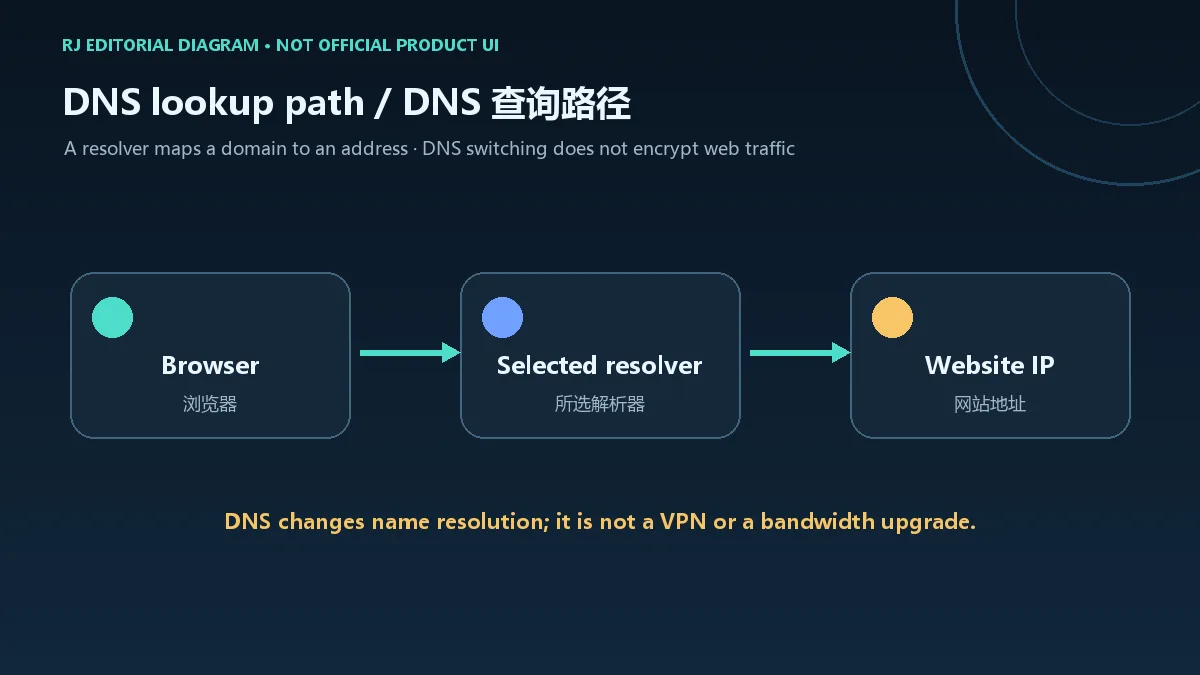
Sordum 的 DNS Jumper v2.3 页面介绍了预设 DNS 列表、自定义服务器、IPv4/IPv6 选项和解析速度测试。较早版本新增的 Turbo Resolve 可在启动时应用最快 DNS;自动选择结果取决于测试域名、线路和当时网络状态,不能视作全网速度排名。
切换前检查当前选中的网络适配器;官网的 v2.3 更新记录专门修复过 DNS 改动后适配器显示会自动变化的问题。公共 DNS 的过滤、日志保留和隐私政策由其运营者决定,选择前请核对服务提供方,不要盲用来源不明的服务器清单。
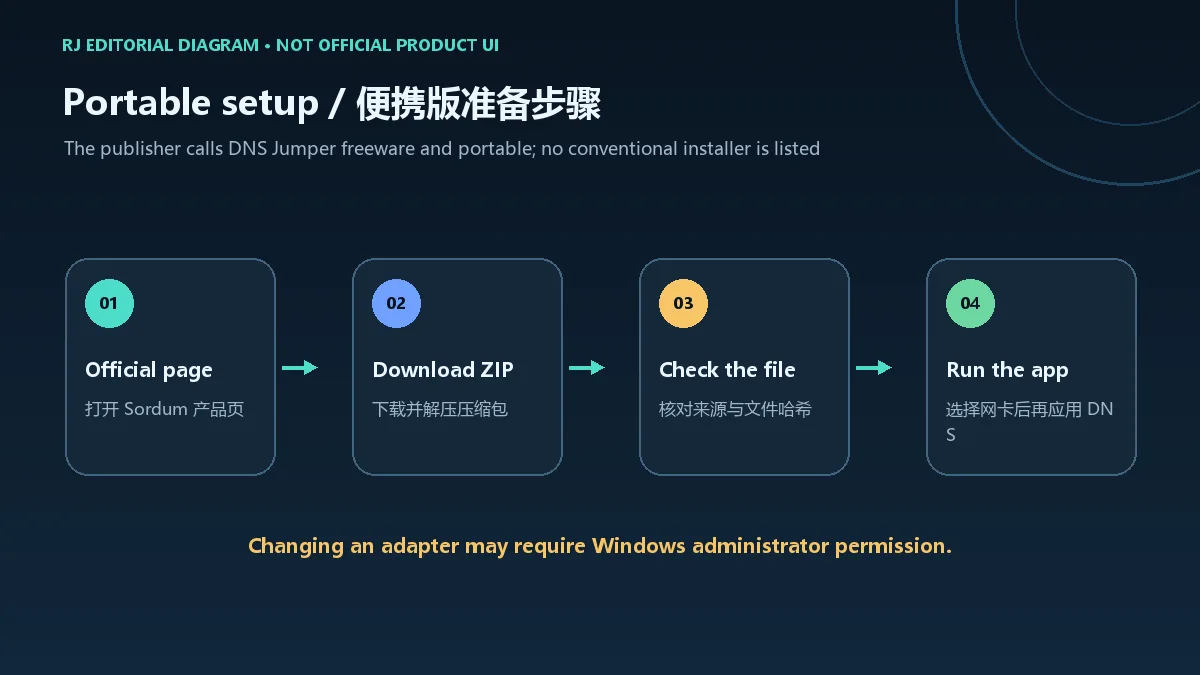
DNS Jumper 被发布者标为 freeware 和 portable,官方页提供的是压缩包而非传统安装向导。建议从 Sordum 产品页进入下载区,不要使用榜单表格中的旧镜像地址。
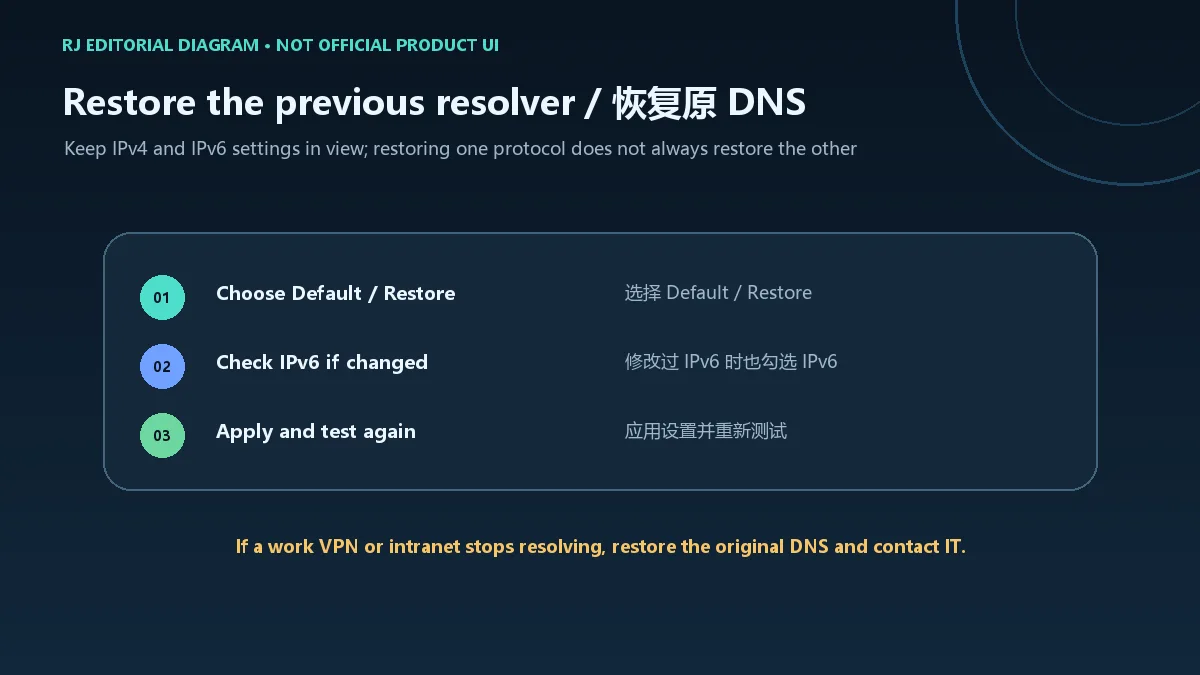
官方说明给出两种恢复方式:点击 Quick Configuration(星形图标)并选择默认项,或在 Choose a DNS Server 菜单中选 Default(或 Restore)DNS,再点击 Apply DNS。若之前更改了 IPv6,也要勾选 IPv6 并单独应用对应设置。
应用后仍无法上网时,先检查是否选错网卡,再确认 VPN、代理、安全软件或路由器没有覆盖设置;可在 Windows 命令提示符运行 ipconfig /flushdns 清除本机缓存后重试。若公司内网域名、打印机或 NAS 无法解析,恢复原 DNS 并联系网络管理员。
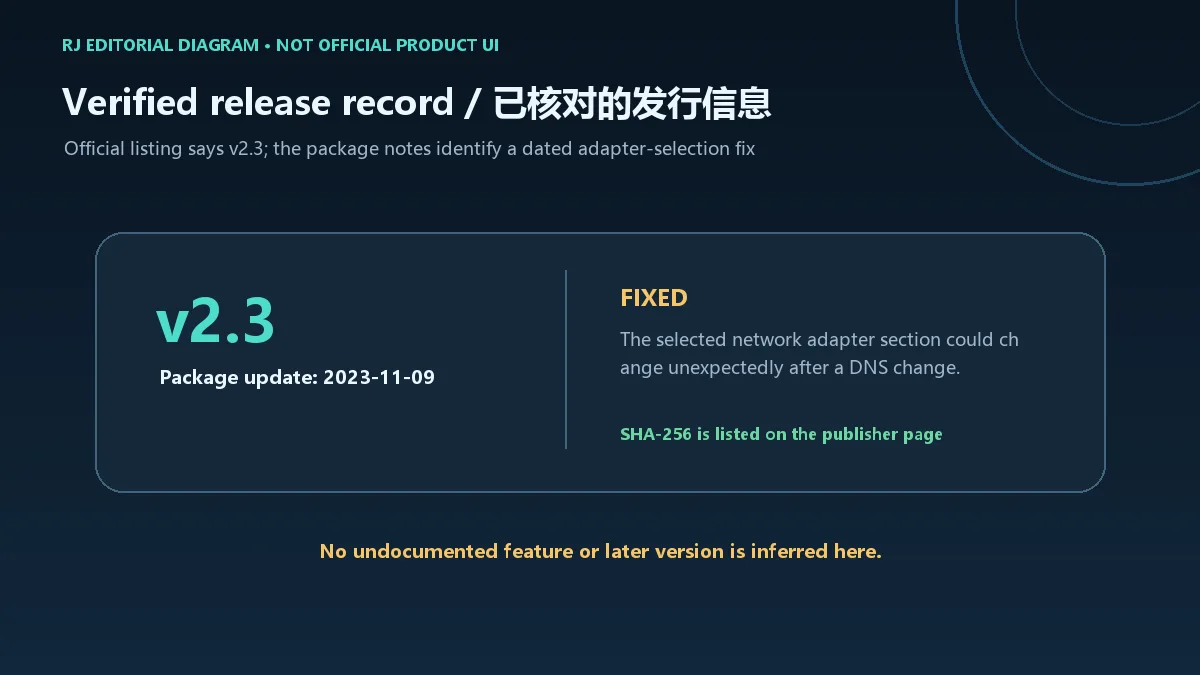
发布者产品页列出的当前版本为 v2.3,软件更新说明日期为 2023-11-09。该条目的修复内容是:在部分系统上,更改 DNS 后“Selected Network Adapter”区域会自动切换。页面未列出更新日期之后的逐项版本记录;本文不推测未公布的功能。
发布页公布 DnsJumper.exe 的 SHA-256:6fe6bac71a82a58abcb06b0df4a836116543302efe6e076402fa518dfa455baa。该值用于将解压出的可执行文件与发布者记录比对;校验值匹配不等于独立恶意软件检测,也不代表任何 DNS 服务的隐私保证。
DNS Jumper 安全吗? 只能确认来源与文件是否匹配发布者公布的哈希;这不是无恶意软件或“绝对安全”的证明。请从官方页获取文件,并查看所选 DNS 服务商的隐私说明。
DNS Jumper 是 VPN 吗? 不是。切换解析器不会加密应用流量,也不会隐藏公网 IP。
为什么 Apply DNS 失败? 检查适配器、IPv4/IPv6 选项和 Windows 权限;被 VPN 或组织策略管理的设备应先咨询管理员。
如何完整卸载? 它是便携程序,退出后删除解压目录即可;若要撤销网络改动,先在程序里恢复 Default/Restore DNS。
DNS Jumper v2.3 is a free, portable Windows DNS changer. Learn setup, resolver selection, IPv4/IPv6 restore, privacy limits, and the official update notes.
The Domain Name System resolves a website name to an IP address. DNS Jumper lets a Windows network adapter use a selected resolver and can measure lookup time, which is useful when testing a different DNS provider or investigating a name-resolution issue.
It is not a VPN, proxy, firewall, bandwidth upgrade, or latency guarantee. Changing DNS affects name lookups across the system. Company networks, school networks, VPNs, parental controls, and local services may depend on the current resolver, so record the existing setting and confirm you are allowed to change it.
Sordum's DNS Jumper v2.3 page describes a preset DNS list, custom server entries, IPv4/IPv6 options, and resolution-time tests. Turbo Resolve, introduced in an earlier release, can apply the fastest tested DNS at startup; its result depends on the test domain, route, and current network conditions, so it is not a general internet-speed ranking.
Check the selected network adapter before applying a change. The v2.3 notes address a case where that section could change automatically after DNS was changed. Filtering, query logging, and privacy depend on the resolver operator; verify the provider instead of trusting an unknown server list.
The publisher labels DNS Jumper freeware and portable; the official page presents an archive rather than a conventional installer. Start from the Sordum product page instead of an old mirror URL copied from a ranking sheet.
The publisher gives two restore routes: choose an entry from Quick Configuration (the star icon), or select Default (or Restore) DNS from Choose a DNS Server and click Apply DNS. If you changed IPv6, tick IPv6 and apply that setting as well.
If sites still fail to resolve, check that the right adapter is selected and that a VPN, proxy, security product, or router is not overriding the setting. You can run ipconfig /flushdns in Windows Command Prompt to clear the local cache and retry. If a work intranet, printer, or NAS name stops resolving, restore the previous DNS and contact the network administrator.
The publisher's product listing identifies v2.3 and dates its software update note to 9 November 2023. The listed fix addresses the Selected Network Adapter section changing automatically on some systems after DNS was changed. The page does not provide itemized later-version notes, so this guide does not infer undocumented features.
The page publishes this SHA-256 for DnsJumper.exe: 6fe6bac71a82a58abcb06b0df4a836116543302efe6e076402fa518dfa455baa. It can help compare the extracted executable with the publisher's record; a matching hash is not an independent malware scan and says nothing about a resolver's privacy practices.
Is DNS Jumper safe? You can check the source and compare the file with the publisher's hash, but neither proves that a file is malware-free. Use the official page and review the chosen DNS provider's privacy policy.
Is DNS Jumper a VPN? No. Changing resolvers does not encrypt app traffic or hide your public IP.
Why does Apply DNS fail? Check the adapter, IPv4/IPv6 option, Windows permission, and any VPN or organization policy. Ask your administrator before changing a managed device.
How do I uninstall it? It is portable: close the program and remove its extracted folder. Restore Default/Restore DNS first if you want to undo network changes.
정보 검증일: 2026년 10월 18일
최초 게시: 2026년 10월 18일· 편집 수정: 2026년 10월 18일
Use the official Sordum product page at https://www.sordum.org/7952/dns-jumper-v2-3/ and confirm the v2.3 product identity.
No. It changes the DNS resolver selected for a Windows adapter; it does not encrypt ordinary app traffic or hide your public IP.
Use Quick Configuration or select Default (or Restore) DNS, click Apply DNS, and include IPv6 if you changed its DNS settings.
No. A matching hash helps compare a file with the publisher's listed executable, but it is not an independent malware scan.
The 2023-11-09 note fixes a selected-network-adapter section that could change automatically after a DNS change on some systems.

HxD 下载适合需要查看文件字节、比较二进制差异或检查磁盘结构的 Windows 用户。这款十六进制编辑器提供搜索、校验和与数据解释功能,并分别提供安装包和便携包。本页说明官方版本、部署步骤及编辑前的备份方法,帮助你区分插入与覆盖、理解校验值的用途,在文件副本上完成检查,避免把磁盘写入操作当作普通文本修改。 HxD download guide for Windows hex editing: choose installer or portable packages, inspect bytes, compare files, and review backup steps before making changes.

NewFileTime 是 SoftwareOK 提供的 Windows 免费便携文件时间修改工具。本文介绍批量设置创建、修改、访问时间,绝对日期与相对偏移、8.31 更新、备份与核对方法。 NewFileTime portable timestamp editor guide.

Windows 便携卸载工具,官网当前为 1.6.0.200。介绍个人免费授权、解压运行、残留判断、ARM64 与更新日志,区分付费 Uninstall Tool。 A bilingual guide to personal-use terms, portable setup, leftover review and uninstall troubleshooting.

NatTypeTester 是用于检测 STUN NAT 映射与过滤行为的开源工具,10.0.10 提供 Android、Windows、macOS 和 Linux 发行包。 | NatTypeTester checks STUN NAT mapping and filtering, with 10.0.10 packages for Android, Windows, macOS and Linux.

Watt Toolkit(原 Steam++)是面向 Steam 相关任务的开源跨平台工具箱,包含网络、账号、库存和令牌功能。 / Formerly Steam++, Watt Toolkit is an open-source cross-platform toolbox for Steam-related network, account, library, and token tasks.
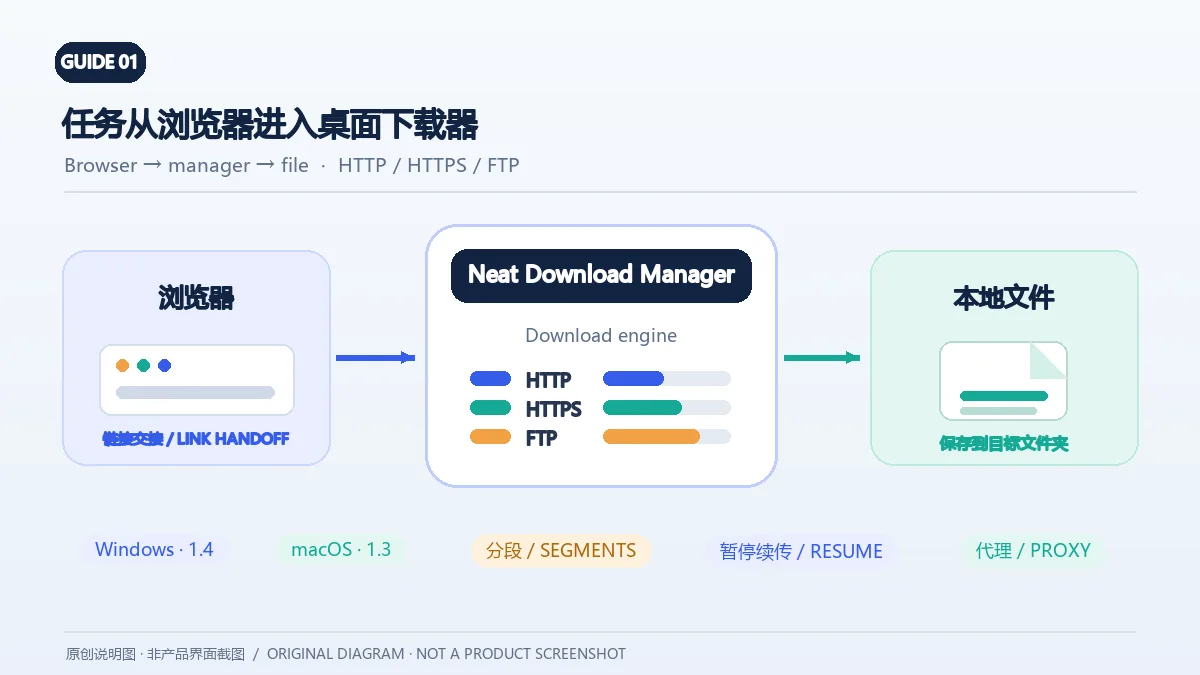
Neat Download Manager(NeatDM)是 Windows 与 macOS 桌面下载管理器,可管理链接任务、分段连接、代理、暂停续传和浏览器扩展。本文核对官网列出的 Windows 1.4 与 macOS 1.3,并说明版本日志、系统要求和安装包仍有哪些信息未公开。 / Neat Download Manager (NeatDM) is a Windows and macOS desktop download manager for browser handoff, segmented transfers, proxies, and pause/resume. This guide checks the publisher-listed versions and explains installation, compatibility, and missing desktop release notes.

qBittorrent 是开源 BitTorrent 客户端,支持磁力链接、RSS、搜索和 Web UI。本页整理 Windows 10+ 稳定版 5.2.4、macOS/Linux 平台差异、安装核对与版权提醒。 / qBittorrent is an open-source BitTorrent client with magnet, RSS, search and Web UI features. Review stable v5.2.4, platform differences, setup checks and lawful use.
腾讯手游加速器由深圳市腾讯计算机系统有限公司开发和运营。应用宝详情介绍网络加速、游戏相关辅助信息、预约与战绩数据等功能;支持情况以当前应用详情为准。

奇游 Windows 官方下载、安装步骤、区服选择与会员条件,保留7.3.0文件标识和官网页脚差异。 / Official Windows download, installation, route checks and membership terms with explicit version-evidence limits.