DiskGenius 6.2:官方安装器与便携版、免费和专业版权限、当前更新及数据恢复位置检查。 / Official v6.2 package choices, Free/Professional differences, release notes and recovery-destination guidance.
中文
DiskGenius 是 Windows 磁盘管理与数据恢复工具,可扫描丢失文件、管理分区、克隆磁盘及迁移系统。本文整理 DiskGenius 下载与安装步骤、6.2.0.1829 更新日志和免费版限制,并说明恢复文件的保存位置、安装包与便携版区别,以及新测速功能的写盘影响,帮助你先明确任务和目标磁盘,再选择合适操作。
DiskGenius 下载前:先区分恢复、克隆与分区管理
DiskGenius 面向 Windows,结合文件恢复、分区管理、磁盘克隆、系统迁移与磁盘工具。选择功能前先明确目的:想找回误删文件时,应减少向原磁盘写入;迁移系统时,需要准确区分源盘和目标盘;调整分区之前,应先备份重要文件。界面能列出磁盘,并不意味着每项操作都适合故障设备,也不能保证被覆盖的数据仍可恢复。
官网区分 Free 与 Professional:免费版可进行基本分区管理、克隆和系统迁移,并扫描、预览丢失文件;较大文件恢复、保存找回的分区及其他高级能力有专业版限制。应按官方版本对照确认具体功能,不能把“免费下载”写成所有恢复功能无限制免费。
DiskGenius 安装步骤:安装器与便携版分别选择
- 打开 DiskGenius 官方下载中心,确认当前编号 6.2.0.1829、日期 2026-06-08。下载页提供安装器,以及分别标注 64 位和 32 位的便携 ZIP;按 Windows 系统类型选择,不要依赖网页自动识别的推荐文字代替检查。
- 使用安装器时,核对来源后按向导选择安装位置。若任务是找回某块盘上的文件,不应把安装包或程序写进待恢复的磁盘;准备独立的保存位置。
- 使用便携版时,完整解压 ZIP 到可写文件夹,再启动其中程序,保留配套文件。本页记录英文站公开文件,不把英文安装包称作已核实的中文界面版本。
- 首次启动先查看磁盘列表,根据型号、容量、分区和盘符核对对象,再进入具体功能。Free 与 Professional 共用下载包,专业能力需要相应许可;打开软件不等于已经取得全部功能权限。
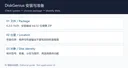
官方明确当前版本不再支持 Windows XP,下载页另列旧版入口。旧工作表中的 5.6.1 不作为本页当前版本;也不根据“便携”推断其可以在所有 Windows 版本运行。
DiskGenius 6.2.0.1829 更新日志:测速与具体修复
2026 年 6 月 8 日的版本新增 Disk Speed Test 磁盘测速、Windows Boot Repair and Conversion,以及擦除扇区中的 BMB21-2019 标准;同时支持从 PMFX 磁盘镜像还原单个分区。格式化窗口增加 TRIM Optimization,克隆分区和磁盘前会对目标执行 TRIM 优化;按类型找回文件时,也改进了部分 HIF、MP4 格式支持。
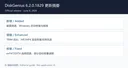
明确修复包括:Quick Partition 选择 exFAT 或 EXT4 后又回到 NTFS;克隆、备份或恢复时部分情况下误报目标空间不足;ReFS 文件复制未保留文件夹修改时间;部分情况下无法执行擦除扇区。以上是发行说明的范围,不应扩写成任何磁盘都能修好、任意容量都能迁移或恢复成功率保证。
DiskGenius 常见问题 FAQ:保存位置、测速与付费
找到文件后可以保存回原盘吗? 官方文件恢复流程是扫描、检查结果、预览,再用 Copy To 复制到其他位置。为了减少覆盖待恢复数据的机会,应预先准备另一块有足够空间的磁盘;扫描结果里出现文件名,也不等于文件内容完整可用。
文件名变成编号了,是不是找错了? 官方说明按已知文件类型深度扫描得到的结果可能不保留原始名称,而放在 Recovered Types 下。先使用预览检查内容,不能仅凭名字判断;目录关系损坏的文件还可能出现在 Orphaned Files。
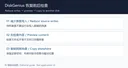
新磁盘测速功能适合待恢复的盘吗? 不适合。官方测速手册明确说明测试会写入数据,可能覆盖丢失文件;若仍有数据等待恢复,不要用它来尝试“先检测再恢复”。测速和数据救援是不同任务,不应混用操作顺序。
扫描免费就能恢复全部文件吗? 免费扫描与预览不代表无限制恢复。官网对较大文件恢复及其他高级功能设置 Professional 权限;先检查预览和版本对照,再决定是否需要许可。本文不提供激活补丁,也没有验证任何付费功能。
下载后能保证安全或恢复成功吗? 本页只核实官方公开资料、文件入口与产品图片,未下载、安装、扫描或测试程序。官方来源、磁盘可见和文件可预览,都不能分别等同于独立安全检测或恢复成功保证。
选择 DiskGenius 下载文件后,先确认系统、版本与许可,再按恢复、迁移或分区管理的真实目标选择功能。核对源盘、目标盘和输出位置,并保留备份,比只追求操作速度更有助于保护现有数据。
English
DiskGenius download and setup guide: compare Free and Professional, review version 6.2 changes, choose an installer or ZIP, and protect files during recovery.
Before downloading DiskGenius: recovery, cloning, or partition work
DiskGenius combines Windows file recovery, partition management, cloning, system migration, and disk utilities. Define the task before choosing a feature. For deleted files, reduce writes to the original disk; for migration, identify source and target accurately; before partition changes, back up important files. A disk appearing in the interface does not establish that every operation is suitable for a failing device or that overwritten data remains recoverable.
The publisher separates Free and Professional. Free covers basic partition management, cloning, system migration, and scanning and previewing lost files. Larger-file recovery, saving recovered partitions, and other advanced features have Professional restrictions. Check the edition comparison for the intended task rather than interpreting a free download as unlimited recovery.
How to install DiskGenius or use the portable package
- Open the official DiskGenius download center. Check v6.2.0.1829 and June 8, 2026. It offers a setup installer plus separate 64-bit and 32-bit portable ZIPs. Check the Windows system type instead of relying solely on the site's automatically suggested choice.
- For setup, review the source and follow the directory-selection wizard. If you are recovering files from a disk, do not write the installer or application onto that disk; prepare a separate output location.
- For a portable package, fully extract the ZIP to a writable folder before starting the program, keeping accompanying files together. These channels come from the English site and are not presented as verified Chinese-interface packages.
- On first start, check model, capacity, partitions, and drive letters before selecting a feature. Free and Professional share the download package; advanced features require the relevant license. Opening the application does not grant every feature.
The publisher explicitly says the latest version no longer supports Windows XP and links to an older build separately. The source spreadsheet's v5.6.1 is not the current version on this page. Portable packaging does not establish support for every Windows release.
DiskGenius 6.2.0.1829 release notes: tests and specific fixes
The June 8, 2026 release adds Disk Speed Test, Windows Boot Repair and Conversion, the BMB21-2019 standard for Erase Sectors, and restoration of one partition from a PMFX disk image. Formatting gains a TRIM Optimization option, and cloning performs TRIM optimization on the target before copying. Recovery by file type also improves support for some newer HIF and MP4 formats.
Specific fixes include Quick Partition reverting to NTFS after choosing exFAT or EXT4; incorrect target-space warnings during some cloning, backup, or restore tasks; folder modification times not being preserved when copying from ReFS; and Erase Sectors failing to run in some cases. These notes do not guarantee repair of every disk, migration to any capacity, or a recovery success rate.
DiskGenius FAQ: destinations, testing, and edition limits
Can I save found files back onto the original disk? The official recovery workflow scans, reviews results, previews content, and then uses Copy To for a different location. Prepare another disk with sufficient space to reduce the chance of overwriting data still awaiting recovery. A filename in results does not establish intact contents.
Why are recovered names just numbers? The manual explains that files found by deep scanning for known types may lose their original names and appear under Recovered Types. Check content with preview instead of judging by names alone. Files with damaged parent-directory relationships may appear under Orphaned Files.
Should I run the new speed test before recovering files? No. The official speed-test manual says it writes data and can overwrite lost files. Do not use it to inspect a disk first when files still need recovery. Benchmarking and data rescue are different tasks with different operation sequences.
Does free scanning mean all recovery is free? No. The publisher applies Professional restrictions to larger-file recovery and other advanced features. Review previews and the edition comparison before deciding on licensing. No activation patches are supplied here, and paid features were not tested.
Does an official download guarantee safety or successful recovery? Only public publisher information, file routes, and product images were checked for this page. No program was downloaded, installed, scanned, or tested. An official source, visible disk, or previewed file does not establish an independent security assessment or guaranteed recovery.
After choosing a DiskGenius download, confirm the system, version, and license, then choose a feature for recovery, migration, or partition work. Verify source, target, and output location and retain backups before performing changes.