CrystalDiskInfo 是 Windows 硬盘健康检测工具,可读取 S.M.A.R.T. 信息、温度和通电时间,介绍 9.9.3 更新、下载安装与故障排查。 CrystalDiskInfo monitors Windows drive health with S.M.A.R.T. data; see version 9.9.3, setup steps, and troubleshooting.
CrystalDiskInfo 下载与硬盘健康检测指南:查看 S.M.A.R.T. 状态、Windows 安装与 Caution 排查;Install CrystalDiskInfo, read S.M.A.R.T. drive health and troubleshoot missing disks.
中文
CrystalDiskInfo 是 Windows 硬盘健康检测工具,可读取 HDD、SSD 与部分 NVMe、USB 磁盘的 S.M.A.R.T. 信息、温度和通电时间。本文介绍 CrystalDiskInfo 下载、9.9.3 更新、兼容条件、安装及“Caution”排查,帮助你读懂指标并及时备份重要文件。
CrystalDiskInfo 能查看哪些硬盘信息
CrystalDiskInfo 从硬盘报告的 S.M.A.R.T. 属性及设备信息中整理型号、固件、温度、通电时间和健康状态,适合在出现卡顿、异常噪音或长期运行前后检查磁盘迹象。它读取的是设备与控制器能够提供的数据;不同厂商的属性定义和桥接芯片透传能力会影响结果。健康页显示“良好”不等于保证硬盘不会突然故障,重要数据仍应按计划备份。
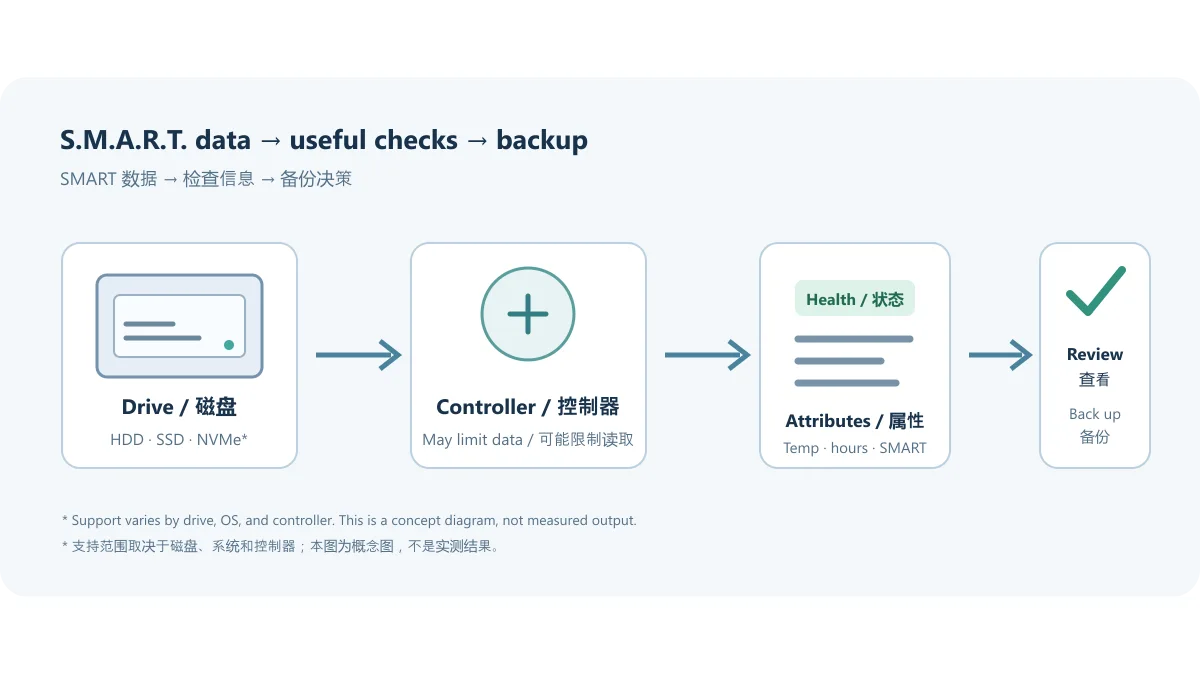
图示说明检测与决策关系,不是实测图或软件截图。想了解某一项属性,可从官方 S.M.A.R.T. 信息说明和一般信息手册核对定义。
“良好、注意、坏、未知”该怎么判断
官方健康状态说明将 HDD 的“注意”与若干 SMART 原始值超过用户配置阈值联系起来,示例包括重映射扇区、待定扇区和不可校正扇区;SSD 剩余寿命则依厂商属性与阈值判断。不同型号不一定以同一属性或算法给出寿命估计。因此,“注意”应作为立即备份、查看具体 SMART 项并观察变化的信号,而不能单凭颜色断言磁盘必然报废;“未知”也可能只是软件没有可用的判定属性。
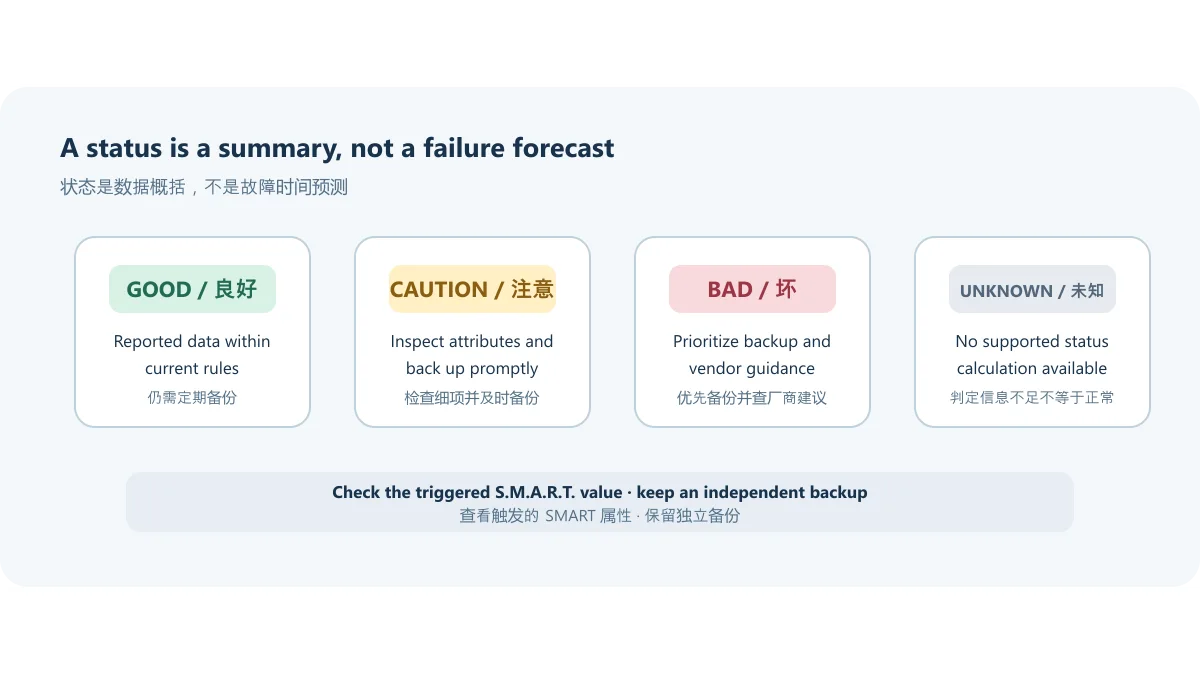
若读数突然变化,先复制无法替代的文件,再记录型号、固件和异常 SMART 属性。避免反复运行写入型压力测试来“确认”健康;CrystalDiskInfo 是监测工具,不是数据恢复程序,也不会修复坏扇区。
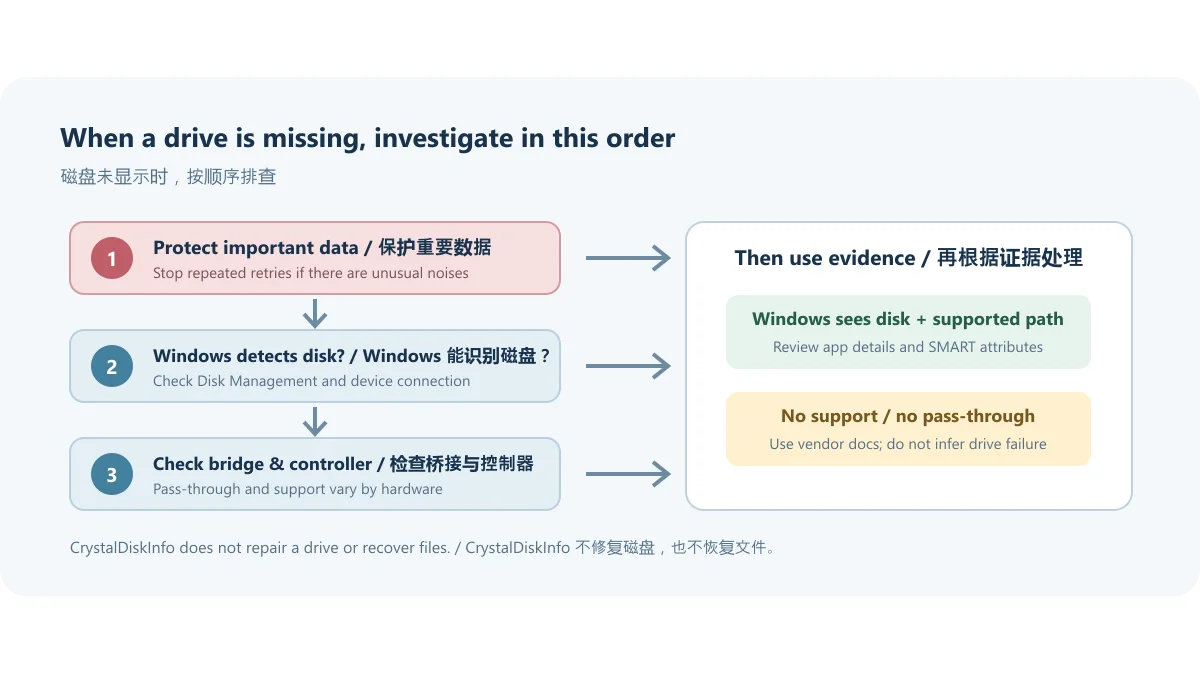
硬盘没有显示时,先核对连接与控制器
官网 FAQ 说明 CrystalDiskInfo 支持内部 ATA/SATA 控制器连接的 IDE/SATA 磁盘,以及部分 USB 硬盘;它不支持 RAID 磁盘,也不支持接在外置 ATA 控制器上的 IDE/SATA 磁盘。产品页提到部分 Intel RAID 与 NVMe 支持,但这不是所有阵列、主板和 USB 转接盒都能读取数据的承诺;官方说明 NVMe 支持要求 Windows 10 或 Server 2016 及更新版本。
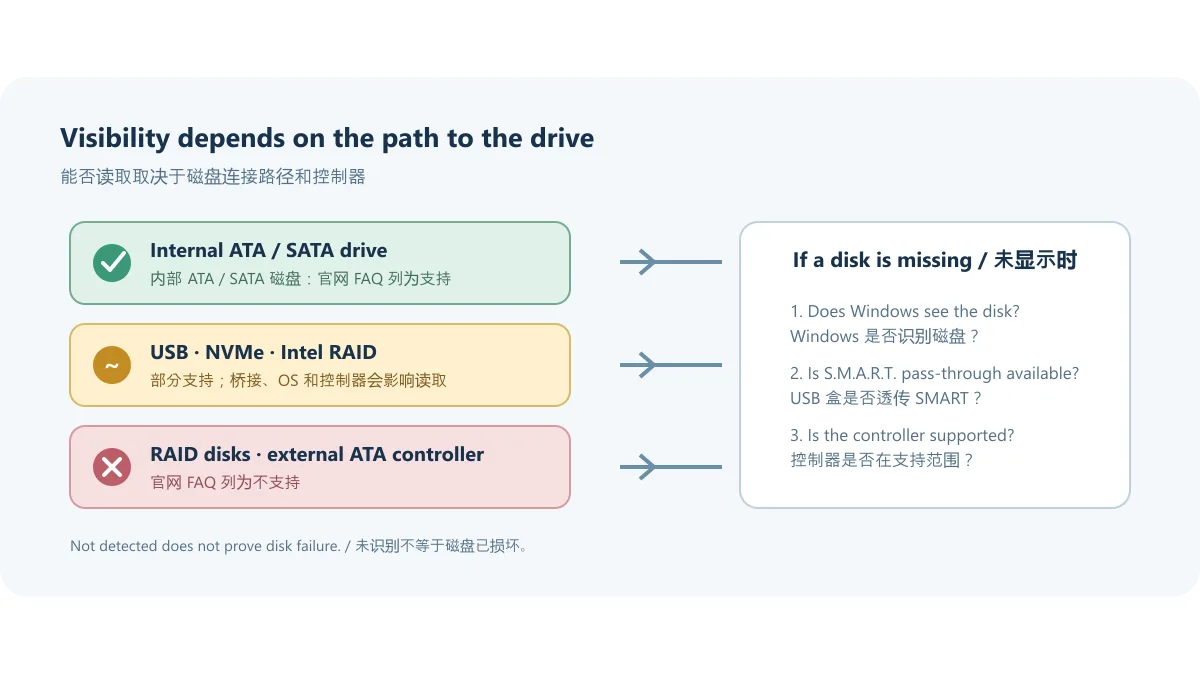
排查时可依次检查磁盘是否被 Windows 磁盘管理识别、连接线和供电是否稳定、USB 盒是否支持 SMART 透传,以及该设备是否经过不支持的 RAID/外置控制器。不要为追求显示状态随意开启调试选项;官方 FAQ 对无响应外接盘给出了专门设置路径,应先查看外接磁盘手册。如数据重要且磁盘出现异响或频繁掉线,应停止反复通电并优先备份或咨询专业恢复服务。
CrystalDiskInfo 下载、安装与升级步骤
在官方 CrystalDiskInfo 页面选择下载入口,再到官网下载页核对 Standard、Shizuku、Aoi 或其他版本及其安装器/ZIP 类型。需要普通监测界面时,Standard Edition 是最直接的选择;主题版本含有不同视觉素材,不改变“健康状态是 SMART 解读而非寿命保证”这一边界。
- 从上述官网页面进入下载区,确认标题对应 CrystalDiskInfo,不要误点同站的 CrystalDiskMark。
- 按设备架构和安装方式选择官方 Installer 或 ZIP。官网系统表列有 x86/x64/ARM64;Installer 不支持 Windows XP/Server 2003,这两类旧系统应核对 ZIP 选项及适用说明。
- 下载后先核对浏览器展示的来源与文件名;本稿没有下载文件,未验证文件哈希、签名、内容或安全扫描结果。
- ZIP 版解压到单独文件夹后运行程序;Installer 版按安装向导完成安装。首次启动若看不到磁盘,按上一节检查系统识别和控制器兼容性。
- 升级时从官网重新取得当前版本。官网说明 ZIP 版可解压覆盖到旧版本所在目录;Installer 版重新运行安装程序。若曾启用 Startup 或 Event Log 功能,卸载或删除文件前先关闭这些功能。
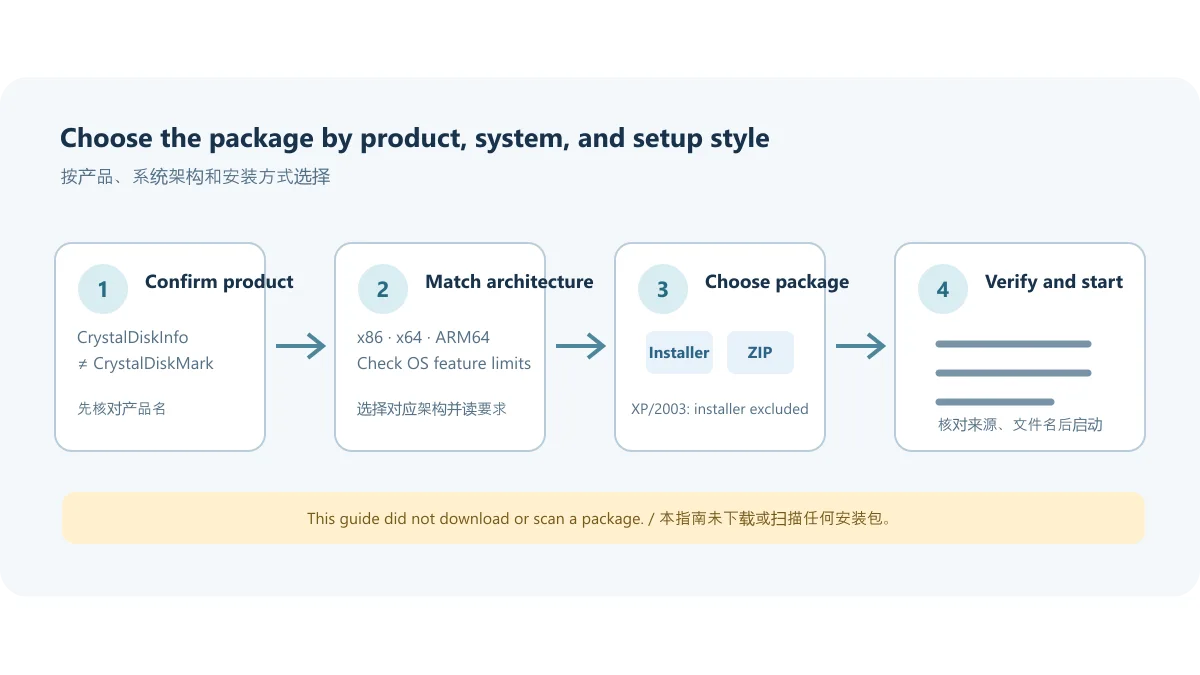
官网列出的系统包括 Windows XP 至 Windows 11 和所列 Windows Server 版本,架构为 x86/x64/ARM64;该列表不消除单项功能的系统限制。最新邮件通知功能需要 .NET Framework 4.8 或更新版本;NVMe 支持要求 Windows 10/Server 2016 或更新版本;Server Core 不支持。实际使用前请以当前产品要求及对应功能说明为准。
CrystalDiskInfo 9.9.3 更新日志
官网版本历史把 9.9.3 标为 2026-10-11。此次记录包含三项变化:修正 JMicron 外接控制器的传输模式显示;改进 SanDisk SSD 支持;更新繁体中文语言文件。它们分别关系到控制器信息呈现、特定 SSD 识别和本地化文本,不宜扩大解释为所有硬盘兼容性或通用性能提升。
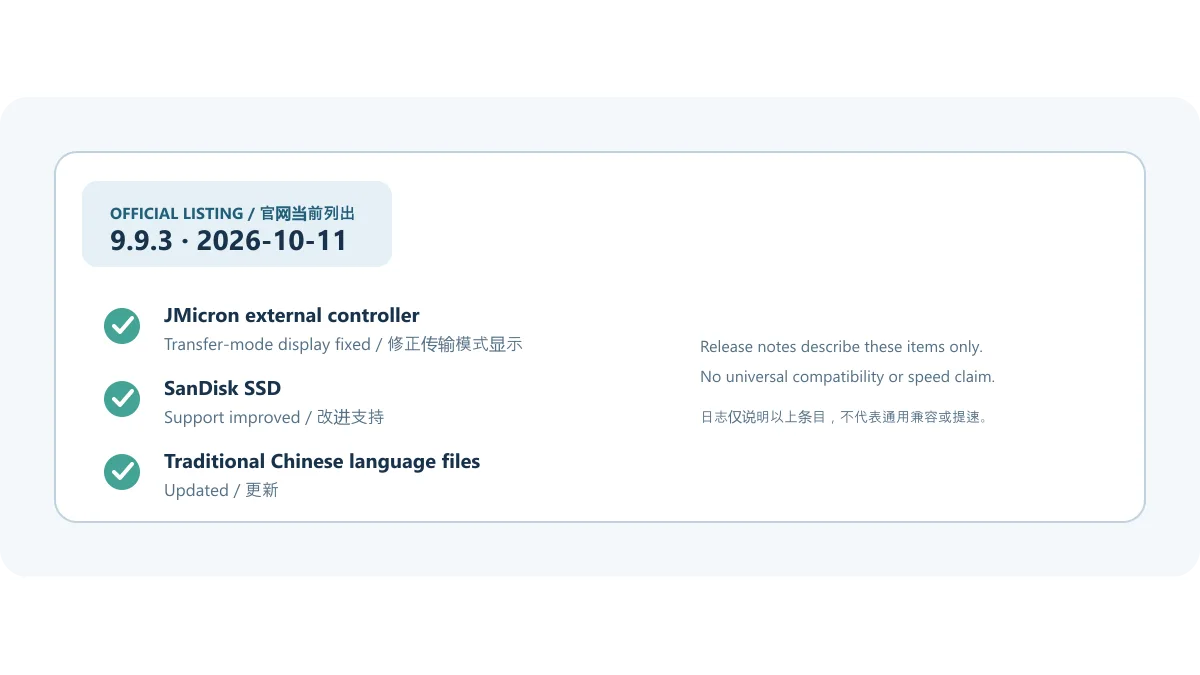
官网上一版 9.9.2(2026-07-25)修复 AMD RC2 RAID 上的 FAKE 标记问题,并改进 Samsung Enterprise SSD 与高 DPI 支持;9.9.1(2026-05-23)改进 TOSHIBA SATA SSD 支持。版本日期和日志均取自官方历史页。若你需要确认更新后特定型号的识别效果,仍应查对应控制器/磁盘手册并以本机实际读数为准。
常见问题(FAQ)
CrystalDiskInfo 显示“注意”怎么办? 先备份重要资料,再打开 SMART 细项查看触发属性及其原始值,记录变化并参考硬盘厂商说明。不要仅凭颜色判定剩余寿命;SMART 预警不能保证故障时间,也不能保证没有潜在问题。
CrystalDiskInfo 为什么读不到 USB 硬盘? 软件只支持部分 USB 磁盘。USB 转接桥、硬盘盒固件或权限路径可能不透传 SMART。先确认 Windows 能看到磁盘,再检查连接和盒子说明;需要时查官方外接盘手册。不要把“软件未识别”当成硬盘一定损坏。
它支持 RAID 和 NVMe 吗? 官网产品页描述了部分 Intel RAID 和 NVMe 支持,但 FAQ 也明确指出 RAID 磁盘不受支持,说明具体控制器/阵列类型会影响结果。NVMe 还要求 Windows 10/Server 2016 或更新版本。不能把有限支持解释为所有 RAID/NVMe 环境均可读取。
Windows XP 可以安装吗? 官网系统表仍列出 Windows XP;不过 Installer 不支持 Windows XP/Server 2003。旧系统需查看 ZIP 版本和官网说明;某些新功能可能另有更高要求。请勿将操作系统最低列项等同于每项功能都兼容。
CrystalDiskInfo 与 CrystalDiskMark 有什么区别? CrystalDiskInfo 用于读取磁盘健康与 SMART 信息;CrystalDiskMark 是存储性能基准测试工具。名称相近但用途不同,下载时要确认页面标题和文件名。
“良好”是否代表硬盘安全? 不能这样理解。软件依赖设备提供的 SMART 数据,无法预知所有故障,也没有替代备份。请保存至少一份独立副本,并针对重要数据定期验证备份可读。
下载前最后核对
如果你在搜索 CrystalDiskInfo 下载、硬盘健康检测或“Caution 怎么办”,请先确认下载页面属于 CrystalDiskInfo,并按 Windows 架构、Installer/ZIP 方式和控制器条件选择。9.9.3 的官方日志已列在上文;健康颜色只概括设备报告的数据,不能代替备份、厂商诊断或专业恢复意见。
English
CrystalDiskInfo checks Windows HDD/SSD health with S.M.A.R.T. and temperature data. See 9.9.3 changes, download steps, drive limits, and missing-disk checks.
What CrystalDiskInfo can read
CrystalDiskInfo presents drive and S.M.A.R.T. information such as model, firmware, temperature, power-on time, and a summarized health state. It is useful when you want to review a drive after a slowdown, unusual noise, or extended use. The result depends on data exposed by the drive and controller, and vendors do not define every attribute identically. A “Good” status is not a promise against sudden failure, so keep a separate backup of important files.
This diagram explains the monitoring path; it is not a benchmark, measurement, or product screenshot. See the official S.M.A.R.T. information guide and general information manual for attribute definitions.
How to interpret Good, Caution, Bad, and Unknown
The publisher's health-status guide ties an HDD “Caution” result to selected raw S.M.A.R.T. values crossing configured thresholds, including examples such as reallocated, pending, and uncorrectable sectors. SSD remaining-life estimates vary by vendor attributes and thresholds. Treat Caution as a prompt to back up, inspect the named attributes, and watch for changes—not as a prediction that a drive will fail on a particular date. “Unknown” can mean that the program has no supported attribute for a status calculation.
If a value changes sharply, copy irreplaceable data first and note the model, firmware, and affected attribute. Repeated write-heavy stress tests do not confirm that a disk is healthy. CrystalDiskInfo monitors reported state; it does not recover files or repair bad sectors.
When a drive is missing: check the interface and controller
The official FAQ says CrystalDiskInfo supports IDE and SATA disks connected to an internal ATA controller and some USB HDDs. It does not support RAID disks or IDE/SATA disks attached to external ATA controllers. The product page also describes support for some Intel RAID and NVMe devices, but this is not a promise that every array, motherboard, or USB enclosure will expose drive data. The vendor lists Windows 10/Server 2016 or later as the requirement for NVMe support.
For troubleshooting, check whether Windows Disk Management sees the drive, whether its cable and power are stable, whether the USB bridge passes S.M.A.R.T. data, and whether the device uses an unsupported RAID or external controller. Avoid enabling debug switches just to force a result. The publisher documents a separate settings path for unresponsive external disks in its external-drive manual. If a drive contains important data and makes unusual noises or repeatedly disconnects, stop cycling its power and prioritize a backup or professional recovery advice.
CrystalDiskInfo download and installation steps
Start from the official CrystalDiskInfo page and follow its download page. The site lists Standard, Shizuku, Aoi, and other editions alongside Installer and ZIP packages. Standard Edition is the straightforward choice for ordinary monitoring; themed editions change presentation, not the limitation that a health summary is an interpretation of reported S.M.A.R.T. data.
- Open the official download area and confirm the product heading says CrystalDiskInfo; CrystalDiskMark is a separate tool on the same site.
- Select an official Installer or ZIP that matches your system. The system table lists x86, x64, and ARM64; the Installer does not support Windows XP/Server 2003, so check the ZIP option and its notes for those older systems.
- After downloading, verify the browser's displayed source and the file name. This draft did not download the file and did not verify its hash, signature, contents, or scan status.
- Extract the ZIP to its own folder and run the program, or complete the Installer wizard. If no drive appears on first launch, check Windows detection and controller compatibility using the previous section.
- For an update, obtain the current build from the official page. The vendor says ZIP files can be extracted over the previous installation folder; for the Installer edition, run the installer again. If Startup or Event Log is enabled, turn it off before uninstalling or deleting program files.
The publisher's system table includes Windows XP through Windows 11 and its listed Windows Server releases, with x86/x64/ARM64 architectures; individual features can have narrower requirements. The latest email-notification features require .NET Framework 4.8 or later, NVMe support requires Windows 10/Server 2016 or later, and Server Core is not supported. Check the current product requirements and the manual for the feature you need.
CrystalDiskInfo 9.9.3 release notes
The official history lists version 9.9.3 on October 11, 2026. Its three notes are: a fix for transfer-mode display with JMicron external controllers; improved SanDisk SSD support; and updated Traditional Chinese language files. These changes concern controller reporting, support for certain SSDs, and localization; they should not be expanded into a claim of universal device compatibility or general performance gains.
The preceding 9.9.2 release, dated July 25, 2026, fixed a FAKE-label issue on AMD RC2 RAID and improved Samsung Enterprise SSD and high-DPI support. Version 9.9.1, dated May 23, 2026, improved TOSHIBA SATA SSD support. Dates and notes come from the official history page. For a specific drive model, consult its controller and drive manual and check the actual readings on your system.
FAQ: download, health status, and detection
What should I do when CrystalDiskInfo shows Caution? Back up important data first, inspect the S.M.A.R.T. attributes and raw values that triggered the status, and compare changes over time with the drive vendor's documentation. Color alone does not predict remaining lifetime or prove that a drive will fail soon.
Why does CrystalDiskInfo not detect my USB drive? The application supports only some USB drives. A USB bridge, enclosure firmware, or access path may not pass S.M.A.R.T. data through. First confirm that Windows sees the disk, then check the connection and enclosure specifications. “Not detected” does not by itself prove that the disk is damaged.
Does it support RAID and NVMe? The product page describes support for some Intel RAID and NVMe configurations, while the FAQ says RAID disks are unsupported. The controller and array type therefore matter. NVMe support also requires Windows 10/Server 2016 or later; do not assume every RAID or NVMe setup is covered.
Can I install it on Windows XP? The official system table still lists Windows XP, but the Installer does not support Windows XP/Server 2003. Check the ZIP option and current notes for older systems. Some features have newer requirements, so the OS list does not mean every feature works on every listed version.
How is CrystalDiskInfo different from CrystalDiskMark? CrystalDiskInfo reads drive-health and S.M.A.R.T. information. CrystalDiskMark is a storage benchmark. Confirm the product name before downloading; the similar names refer to different utilities.
Does a Good status guarantee that a drive is safe? No. The program depends on data exposed by the device and cannot predict every failure. Keep an independent backup and periodically confirm that important copies can be read.
Before you download
For a CrystalDiskInfo download or a Windows disk-health check, confirm that the page is for CrystalDiskInfo and match the package to your architecture, Installer/ZIP preference, and controller. The 9.9.3 changes are listed above. A health color summarizes reported data; it does not replace backups, manufacturer diagnostics, or professional recovery advice.