
团队会议、讨论与联系人管理
为团队安排线上会议、持续讨论和联系人资料管理。收录Element、KAddressBook、Zoom Workplace等站内已有工具,按实际用途选择适合自己的应用。

Zoom Workplace 安卓版整合视频会议、聊天、电话和文档,介绍官方身份核对、安装步骤、会议准备与问题排查。 / Zoom Workplace for Android combines meetings, chat, phone and docs, with identity checks, setup steps, meeting preparation and troubleshooting.
别名:Zoom、Zoom Meetings、Zoom Workplace
了解软件的基本信息与来源
Google Play listing reviewed did not establish the app licence. / 所查 Google Play 条目未明确应用许可。
us.zoom.videomeetings
Zoom Workplace 安卓版整合视频会议、聊天、电话和文档,介绍官方身份核对、安装步骤、会议准备与问题排查。 / Zoom Workplace for Android combines meetings, chat, phone and docs, with identity checks, setup steps, meeting preparation and troubleshooting.
Zoom Workplace 安卓版整合会议、聊天、电话和文档。本文依据 Google Play 官方条目说明应用身份、安装、会议准备与故障排查,并列出商店通用更新提示;其未公开可核实版本号或逐项更新内容,功能可用性还受方案、地区与网络影响。适用于核对 Zoom 安卓版下载与更新范围,以商店当前显示为准。
Google Play 官方条目使用名称 Zoom Workplace,包名为 us.zoom.videomeetings,开发者显示 Zoom Communications, Inc.。商店简介将会议、聊天、电话与文档列为同一协作应用中的功能。本页聚焦 Android 版本;“Zoom”品牌名相近的其他应用或会议链接不等于同一个安装包,下载前应比对开发者和包名。
图片来自 Google Play 官方条目;界面和功能会随版本及账户配置变化。 / Official store image; UI and features can vary by version and account configuration.
开始会议前,先确认邀请中的会议号或链接来自预期组织者,并检查时区、开始时间和加入方式。若工作或学校账户由管理员管理,会议、电话、聊天和文档是否可用可能取决于组织许可与配置;个人用户也应根据用途查看当前方案说明,不要仅凭应用宣传页推断所有功能都包含在免费服务中。
参加视频会议时,先选择正确的麦克风和摄像头,测试静音状态与扬声器音量。环境不适合开视频时,可按主持人和组织要求关闭摄像头;共享屏幕或文档前,关闭不相关窗口并检查屏幕上是否有私人信息。请勿在未获授权时录制他人会议或传播会议内容。
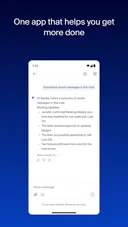 商店截图用于展示产品界面,不代表账户必定开通图中每项功能。 / Store image illustrates the product and does not guarantee each feature is enabled for every account.
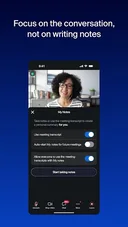 请以设备商店实际显示的安装与兼容提示为准。 / Follow the install and compatibility information shown by your device's store.
本次读取的 Google Play 条目标注 2026 年 9 月 21 日更新,“最新动态”仅写 Bug fixes and improvements(错误修复与改进);页面未显示可确认的版本号或逐项变更。因此本页如实列出这条通用说明,不据此推断具体功能、安全修复或版本变化。
更新时,请在 Play 商店重新查看当前版本与“最新动态”说明,确认网络稳定、电量和存储空间充足,再按系统提示完成更新。若更新后音视频设备异常,可先重启应用、检查系统权限和默认设备选择,并在 Zoom 官方支持渠道查看该版本的已知问题。不同地区或设备收到更新的时间可能不同。
 Google Play 条目的更新时间不等同于已独立确认的版本发布日期。 / A store listing update date is not independently verified as a package release date.
Zoom Workplace 安卓版的包名是什么? Google Play 官方页面对应 us.zoom.videomeetings,开发者为 Zoom Communications, Inc.;安装前请在应用详情中再次核对。
安装页没有“安装”按钮怎么办? 检查 Google 账户所在地区、设备兼容提示、网络和可用空间。如果商店提示设备不兼容,应以设备和商店提供的信息为准,不要用来源不明的 APK 绕过限制。
会议中听不到声音或别人听不到我说话怎么办? 先检查系统音量、会议内静音状态、麦克风权限及所选音频设备;退出蓝牙耳机后再测试也有助于定位设备路由问题。仍未解决时记录 Android 版本、应用版本与错误提示,再联系组织管理员或 Zoom 官方支持。
是否所有功能都无需账号或付费? 不能由应用名称或商店简介得出这一结论。会议功能和协作服务可能受主持人、组织许可、账户方案及所在地区影响,应查看组织或 Zoom 当前条款。
哪里能看到版本号和更新说明? 打开设备 Google Play 上的应用详情,查看当前版本和最新动态。当前网页摘录只显示“错误修复与改进”这一通用说明,未提供可核实版本号或逐项变更,因此这里不推测具体内容。
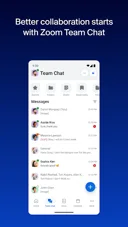 商店截图与产品条目配套;未提供会议内容或账户安全保证。 / Store screenshot accompanies the listing; it does not certify meeting content or account security.
下载 Zoom Workplace 前,核对 Google Play 页面、开发者和包名,再检查会议邀请、设备权限与组织方案。更新说明以商店当前展示为准;故障排查时保留准确错误信息,便于管理员或官方支持定位问题。
Zoom Workplace Android combines meetings, chat, phone and docs. Check the Play listing: it notes bug fixes but gives no verified version or itemized changes.
The official Google Play listing is titled Zoom Workplace, uses package us.zoom.videomeetings, and names Zoom Communications, Inc. as the developer. Its description presents meetings, chat, phone and docs as parts of one collaboration app. This page covers Android. Similar “Zoom” names or meeting links do not identify an installer, so compare the store developer and package name before downloading.
Image from the official Google Play listing; screens and features may change by version and account configuration.
Before joining, confirm that the invitation, meeting ID or link came from the expected organizer, and check the time zone and join instructions. For work or school accounts, an administrator’s settings and organization licence may affect meetings, phone, chat or documents. Personal users should also review the current plan details instead of assuming every advertised feature is included without conditions.
For a video call, select the intended microphone and camera, then test mute status and speaker volume. If video is unsuitable, follow the host’s and organization’s meeting rules. Before sharing a screen or document, close unrelated windows and check for private information. Do not record or distribute other people’s meeting content without authorization.
The store image illustrates the product; it does not confirm that every feature is enabled for every account.
Use the install and compatibility information shown by your own device and store.
The Google Play listing reviewed for this page showed an update date of September 21, 2026. Its “What’s new” note says only “Bug fixes and improvements.” The page did not expose a verifiable version number or itemized changes, so this guide does not infer specific feature or security updates.
Before updating, revisit the Play listing for the current version and “What’s new” notes. Use a stable connection and make sure the device has enough power and storage. If audio or video stops working after an update, restart the app, review Android permissions and confirm the selected devices; check Zoom’s official support for version-specific known issues. Rollouts may differ by region or device.
A listing update date is not independently established as the package release date.
What is the Android package name? The official Google Play entry uses us.zoom.videomeetings and lists Zoom Communications, Inc. as developer. Verify both details on the listing before installing.
Why is there no Install button? Check your Google account’s region, device compatibility, network connection and free storage. Follow the store’s compatibility notice; do not use an unknown APK to bypass it.
What should I check if meeting audio fails? Review device volume, the in-meeting mute state, microphone permission and selected audio device. Temporarily disconnecting Bluetooth headphones can help isolate routing issues. If the problem continues, note the Android and app versions plus the exact error, then contact your administrator or Zoom Support.
Are all features free or available without an account? The app name and short store description do not establish that. Availability can depend on the host, organization licence, account plan and region; consult your organization or Zoom’s current terms.
Where can I find the version and change log? Open the app’s Google Play page on your device and review the current version and “What’s new” section. The web page excerpt shows only a general bug-fixes note, with no verifiable version or itemized changes, so none are inferred here.
Store imagery accompanies the product listing; it does not certify meeting content or account security.
Before downloading Zoom Workplace, verify its Google Play listing, developer and package, then check your invitation, device permissions and organization plan. Use the current store notes for updates and keep the exact error details when troubleshooting.
资料核验日期:2026年10月21日
首次发布:2026年10月21日· 编辑修订:2026年10月21日

吉里吉里2模拟器下载可从 Kirikiroid2 上游发布页核对工具本体。本文介绍 Kirikiri2 与 KirikiriZ 项目的运行定位、Android 安装步骤、1.3.9更新记录及常见报错,帮助你区分运行程序与游戏数据,保留项目目录,检查读取权限和兼容条件,并了解历史版本来源,再判断设备与项目是否适用。

迅猛兔加速器 Android 来源、网络模式、安装、版本与FAQ。 / Xunmengtu Android source, network modes, installation, version record, and FAQs.

光环助手 Android 下载与安装、社区用途、商店版本与常见问题。 / Guanghuan Assistant Android download, setup, community use, store version record and FAQs.

葫芦侠3楼 Android 下载与安装、社区用途、商店版本与常见问题。 / Huluxia 3rd Floor Android download, setup, community use, store version record and FAQs.

OurPlay Android APP 的安装与运行准备指南,说明谷歌服务配置、游戏导入和加速的操作顺序;官网仍展示的7.3.5与2024-11-01明确标为历史记录。 / OurPlay Android installation guide covering service preparation, game import, acceleration, troubleshooting, and the limits of the publisher's historical 7.3.5 record.

Element 是基于 Matrix 开放标准的桌面消息与协作客户端,提供房间、语音视频、文件共享和线程;官方页面列有 Windows、macOS 与 Linux 渠道。

WPS Office 国内 Windows 版官方入口指南,分别核对 32 位、64 位和 ARM 版本,介绍安装、文档副本检查、更新记录及常见问题。 / WPS Office Chinese Windows download and setup guide.
PDF阅读、打印、批注、表单填写和签名工具;高级编辑/转换与付费Acrobat功能分开。

OpenCloud Desktop 是 OpenCloud 文件服务的桌面同步客户端,可将服务器上的文件同步到 Windows、macOS 或 Linux 电脑。本页整理 v4.0.0 更新、官方安装渠道、兼容性提示与 GPL 许可信息。