Snipaste 是适用于 Windows、macOS 和 Linux 的截图、标注与贴图工具。页面整理官方 2.11.3 版本、系统包型、F1/F3 使用步骤和授权区别。 / Snipaste captures, annotates, and pins images on Windows, macOS, and Linux. This guide covers official version 2.11.3, package types, F1/F3 workflow, and licensing.
中文
Snipaste 是一款适用于 Windows、macOS 和 Linux 的截图与贴图工具,可捕获屏幕区域、标注图像,并将剪贴板内容置顶显示。本文整理 Snipaste 下载与安装步骤、2.11.3 更新日志、个人与商业授权区别、常用快捷键及故障排查,帮助你按系统选择版本,并核对官方版本与系统架构。
Snipaste 截图、贴图和标注的使用场景
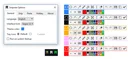
Snipaste 官方文档把主要工作分为截图、图片标注和 Paste。默认按 F1 可以进入截图,选择屏幕区域后复制、保存,或将内容贴到屏幕上;在图片窗口按 Space 可开始标注。F3 默认把剪贴板中的受支持内容显示为置顶图片窗口,适合在参考资料、表格或设计稿之间临时对照。Snipaste 需要留在后台运行,才能响应全局快捷键;实际按键可在设置中调整。
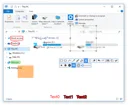
图为开发者网站提供的界面示例,不是本站对当前版本的实测截图。
Snipaste 下载与安装:按系统选择安装包
- 打开 Snipaste 官方下载页,核对当前稳定版和操作系统。
- Windows 下载页列出 x64、x86 和 ARM64 包;Microsoft Store 版本标注适用于 Windows 10/11。macOS 提供 Universal 包,Linux 提供 x86_64 AppImage。官网没有在该列表中为每个包写出完整的最低系统要求,旧设备请先核对当前页面。
- 如果选择 ZIP 包,先解压到自己有写入权限的文件夹,再启动其中的程序;通过 Microsoft Store 安装时,按商店提示完成安装。不要把商店入口与独立安装包直链混为一谈。
- 启动后可先用默认 F1 截图、F3 贴图;若快捷键与其他软件冲突,在 Snipaste 设置中更改。这里整理官方步骤,未下载、安装或运行程序。
下载按钮进入官网版本选择页;本文没有验证安装包文件或签名。
Snipaste 2.11.3 更新日志:快捷键与文字提取
官网将 Snipaste 2.11.3 标为 2026 年 1 月 18 日发布。更新说明列出两项 PRO 功能:自定义部分应用内快捷键,以及文字提取支持 Tencent 与 OCR.space API;同时提到“其他改进和错误修复”,但没有逐项列明,因此这里不推测具体修复内容。若使用 OCR,请自行查看相应服务的隐私条款,并确认当前版本中的功能选项。
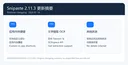
官网还列有 Windows、macOS 和 Linux 的 2.11.3 下载项;各平台具体包型不同,下载前应再次核对。
Snipaste 许可说明:个人免费与商业 PRO
Snipaste EULA 区分 1.x 与 2.x:2.x 可免费用于个人非商业用途;企业或其他商业用途需要购买 PRO 许可。不要把“可以免费下载”理解为商业场景也免费,也不要把旧版 1.x 条款自动套用到 2.x。团队部署前,应由实际使用者根据组织用途阅读官网当前 EULA 与 PRO 说明。
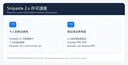
本文只转述开发者公开的许可区分,不提供法律意见,也未购买或验证 PRO 授权。
Snipaste 常见问题 FAQ:快捷键、后台运行与贴图
F1 没有反应怎么办? 先确认 Snipaste 正在后台运行,再检查 F1 是否被其他软件占用;也可点击托盘图标启动截图,或在偏好设置中更换全局快捷键。
为什么 F3 没有贴出图片? Snipaste 按剪贴板内容决定可贴出的对象;先复制一张图片或受支持的文本,再按 F3。不同剪贴板格式的显示结果可能不同。
程序必须一直开着吗? 官方 FAQ 说明 Snipaste 作为 Paste 工具需要留在后台运行,之后才能响应截图和贴图快捷键。
商业用途能否使用免费版? 对 Snipaste 2.x,官网 EULA 要求商业用途购买 PRO;请按组织使用方式核对现行授权条款。
需要 Snipaste 下载与安装帮助时,先核对官网版本和平台,再确认快捷键与许可范围;这样更容易排查截图、贴图和剪贴板问题。
English
Snipaste captures and annotates screenshots, then pins clipboard images. This guide covers download, setup, v2.11.3 notes, licensing, shortcuts, and fixes.
What Snipaste does: capture, annotate, and pin images
Snipaste documents three main tasks: Snip, Image Annotation, and Paste. F1 opens the snipping workflow by default. After selecting an area, you can copy it, save it, or paste it onto the screen; Space starts annotation on an image window. F3 normally turns supported clipboard content into a topmost image window, which is useful when comparing references, tables, or design work. Snipaste must remain in the background to respond to global shortcuts, and the shortcuts can be changed in Preferences.
This is an example image from the publisher's site, not a screenshot captured or tested by RJ.
How to download and install Snipaste
- Open the official Snipaste downloads page and check the current stable version and operating system.
- The Windows list includes x64, x86, and ARM64 packages; the Microsoft Store version is labeled for Windows 10/11. macOS has a Universal package, while Linux has an x86_64 AppImage. The page does not give a complete minimum OS requirement for every package, so check it before using an older device.
- If you choose a ZIP package, extract it to a folder where you have write access and start the program from there. For the Microsoft Store edition, follow the Store's installation prompts. A Store listing and a standalone installer are different download routes.
- Try the default F1 and F3 shortcuts after launch. If another app uses one of them, change the global shortcut in Snipaste Preferences. This guide summarizes the publisher's instructions; the package was not downloaded, installed, or run.
The download button leads to the publisher's version-selection page; no installer or signature was verified here.
Snipaste 2.11.3 release notes: shortcuts and text extraction
The publisher lists Snipaste 2.11.3 as released on January 18, 2026. Its notes name two PRO features: customizing some in-app shortcuts and text extraction support for the Tencent and OCR.space APIs. The notes also mention other improvements and bug fixes without listing each one, so this guide does not infer their details. If you use OCR, review the relevant service terms and the options in your current build.
The publisher lists version 2.11.3 for Windows, macOS, and Linux, with different package formats; recheck the correct platform before downloading.
Snipaste license: personal use and PRO for business
The Snipaste EULA separates versions 1.x and 2.x. Snipaste 2.x is free for personal, non-commercial use; business or other commercial use requires a PRO license. A free download does not automatically mean that commercial use is free, and the older 1.x terms should not be applied to 2.x. Organizations should review the current EULA and PRO terms for their intended use.
This section summarizes the publisher's public terms; it is not legal advice, and no PRO license was purchased or verified.
Snipaste FAQ: shortcuts, background use, and paste
Why does F1 do nothing? Confirm that Snipaste is running in the background, then check whether another app has claimed F1. You can also click the tray icon or assign a different global shortcut in Preferences.
Why does F3 not show an image? Snipaste chooses what to display based on clipboard content. Copy an image or supported text first, then press F3; results depend on the clipboard format.
Does Snipaste need to stay open? The official FAQ says it must remain in the background as a Paste tool so it can respond to capture and paste shortcuts.
Is business use free? Under the Snipaste 2.x EULA, business or commercial use requires PRO. Check the current terms for your organization's use.
For Snipaste download and setup, check the current official version and platform, then review the shortcuts and license terms that apply to your use.