
批量整理文件:重命名、时间与元数据
为成批照片和文档统一名称、整理时间字段并检查附带的元数据。收录Ant Renamer、ExifCleaner、KRename等站内已有工具,按实际用途选择适合自己的应用。

NewFileTime 是 SoftwareOK 提供的 Windows 免费便携文件时间修改工具。本文介绍批量设置创建、修改、访问时间,绝对日期与相对偏移、8.31 更新、备份与核对方法。 NewFileTime portable timestamp editor guide.
別名:NewFileTime、New File Time、NewFileTime 8.31、文件时间修改工具
作者:RJ.tools Editorial
AI支援コンテンツ
ソフトウェアの基本情報と提供元を確認できます
Freeware; the official page says free for personal and office users. Read the license notice shown at startup.
NewFileTime 是 SoftwareOK 提供的 Windows 免费便携文件时间修改工具。本文介绍批量设置创建、修改、访问时间,绝对日期与相对偏移、8.31 更新、备份与核对方法。 NewFileTime portable timestamp editor guide.
NewFileTime 下载与运行指南:批量修改 Windows 文件时间,了解 8.31 更新、备份与常见问题。 NewFileTime 8.31 download guide: edit file timestamps, set up the portable app, and check changes.
NewFileTime 是适用于 Windows 的免费便携文件时间修改工具,可批量调整文件与文件夹的创建、修改和访问时间。本文介绍 NewFileTime 下载与运行步骤、绝对日期和相对时间偏移的区别、8.31 版更新及常见问题,并说明操作前如何备份、限定导入范围和核对结果,帮助你在有权限的文件上准确整理时间戳。
NewFileTime 由 SoftwareOK 提供,用于调整 Windows 文件系统中的创建时间、修改时间和访问时间。官网介绍支持多文件与批量处理,也能把文件夹作为目标;适合在经过授权的资料整理工作中修正时间戳,或为一组测试文件设置可控的日期。
先明确要更改的是哪一类日期。文件系统时间与照片内部的 EXIF 拍摄时间、文档内部的作者信息并非同一字段;调整文件属性不能据此推定图片内容或文档内部元数据也已改变。修改后的时间戳也不能作为文件真实创作、访问或发生事件的独立证明。
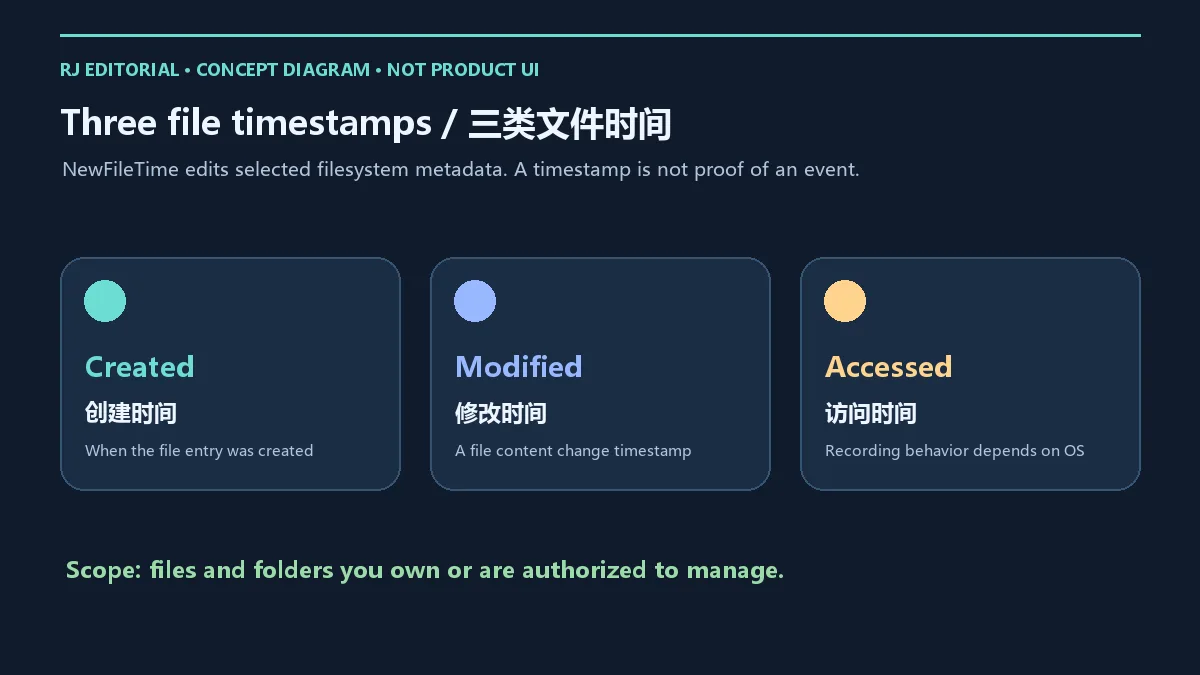
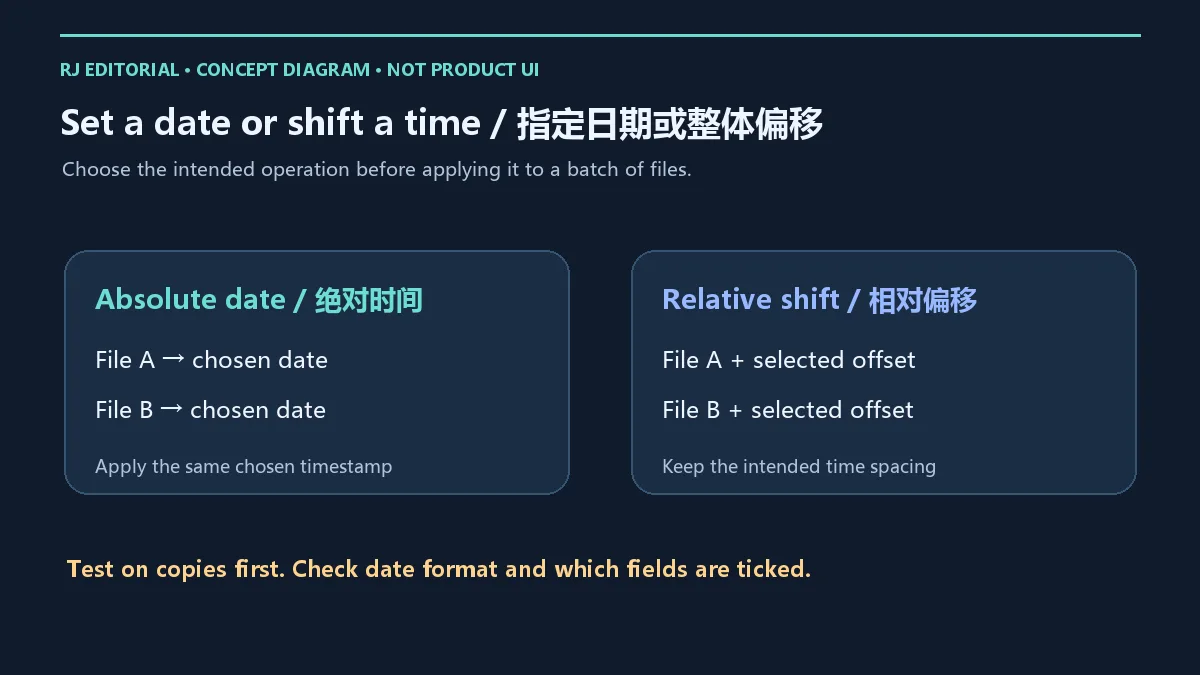
官网列出直接指定日期与按相对时间偏移的方式。前者适合把所选字段统一设置为一个目标时间;后者适合按同一偏移量调整一批文件,保留你希望维持的时间间隔。具体操作前先用少量副本确认当前模式、日期格式和勾选字段。
可通过拖放导入,也可使用 Import 导入目录,并选择是否包含子目录、文件或文件夹。批量操作前检查列表是否混入原件、系统目录或并不需要调整的文件。官方还介绍 Explorer 菜单和 Excel/Calc 导入等辅助方式;首次使用时,直接拖入可控样本更容易核对目标。
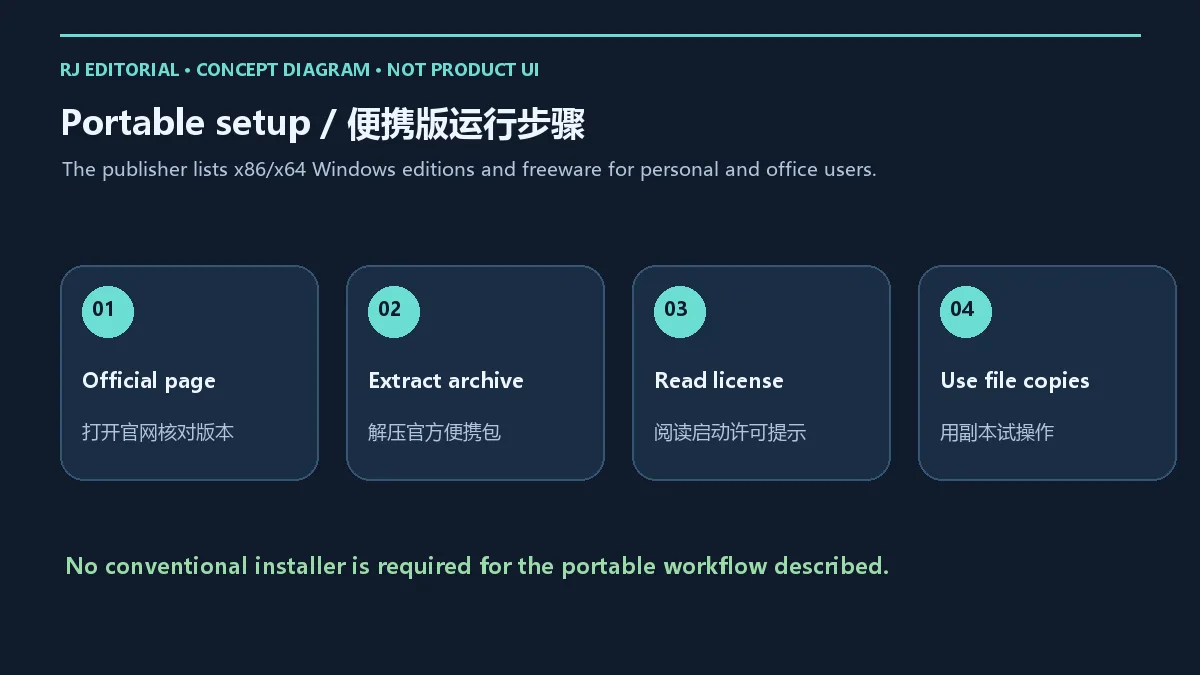
官方将本工具描述为便携软件,并注明免费供个人和办公用户使用。产品页列出 x86/x64 及 Windows 11、10、8.1、7 和多个 Windows Server 版本;请按自己的系统选择官方包。页面标示容量为 153 KB,仅作为发布页资料,不代表本站已核验某个压缩包的大小。
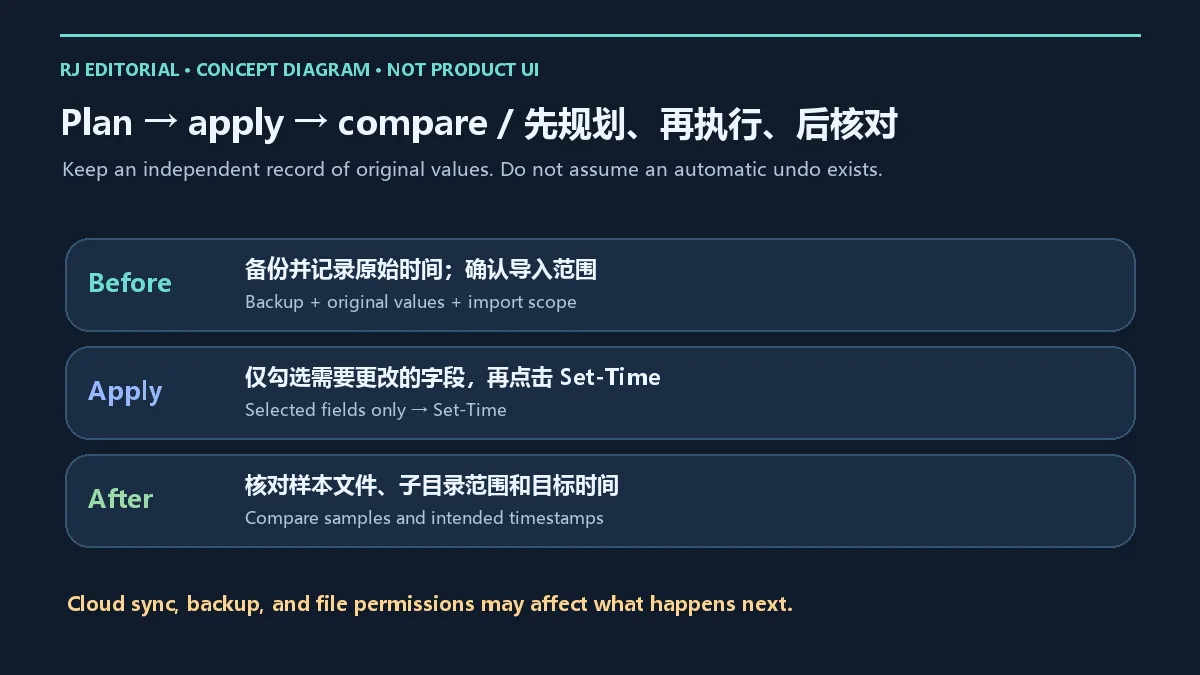
执行前保留原文件的独立备份,并记录需要恢复时会用到的原始时间值;备份是否保存这些元数据取决于所用工具,应先抽样确认。当前核验资料没有证明工具具备自动还原旧时间的功能,因此不要把关闭窗口、删除程序或重新导入当成撤销操作。
修改失败时,先核对路径、所选字段和目标范围,再检查文件是否由其他程序占用、是否只读,以及当前账户是否有写入该文件的权限。关闭正在使用文件的应用后,可在自己可写的测试目录用副本复查。同步目录和备份软件可能再次更新文件状态;批量处理后应比较样本,并观察关联工作流是否按预期运行。不要为了修改日期绕过组织的权限或审计要求。
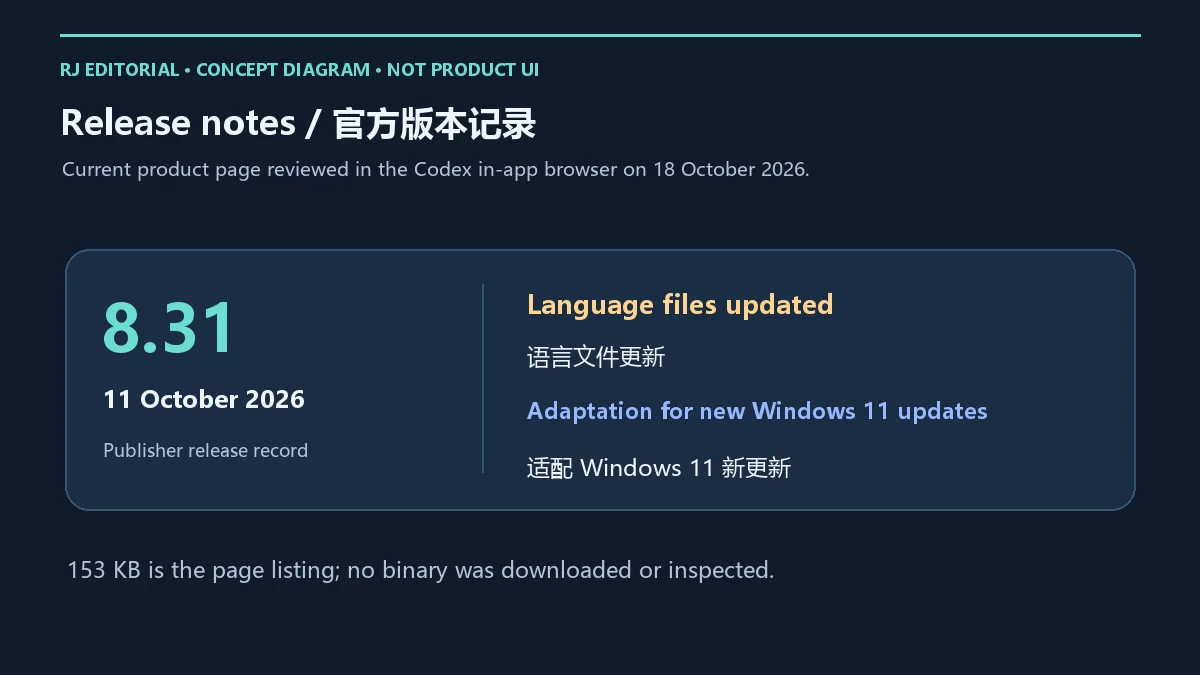
2026 年 10 月 18 日核验的官方页面显示 NewFileTime 8.31,更新时间为 2026 年 10 月 11 日。对应版本记录列出语言文件更新,以及对 Windows 11 新更新的适配。这里按官方已公布条目概括,不将“适配”延伸为所有系统环境下的兼容保证。
官方历史记录还列出 8.28(2026 年 6 月 12 日):更新语言文件,并对全部 Windows 做微调。这是历史版本信息,不能替代 8.31 的当前记录。今后升级前应重新查看官网说明、保留备份,并用样本确认新版本的实际行为。
NewFileTime 下载应选择哪个来源? 使用本文链接的 SoftwareOK 官方产品页,核对产品、版本和系统架构后再选择下载项。旧榜单镜像的文件名不能证明它是当前版本。
NewFileTime 安全吗? 可以确认本文链接的发布来源和官方功能说明;本站未下载、执行或扫描二进制文件,不能据此给出无风险保证。获取文件后按自己的设备策略检查。
修改后能自动恢复原日期吗? 已核验页面没有证明存在自动还原旧时间的功能。需要恢复时,依据事前记录的原值重新设置,或使用确认能保留元数据的备份。
会同时更改照片拍摄日期吗? 不应这样假定。文件系统时间与 EXIF 等文件内部字段不同,需用对应工具分别核对。
不想保留程序时怎么办? 退出便携程序后可移除它所在的文件夹;删除程序不会恢复已修改的文件时间。
使用 NewFileTime 下载入口后,先在副本上完成一次导入、设置和核对,再将同样步骤应用于授权文件;准备原值记录比事后猜测时间更可靠。
NewFileTime 8.31 is a portable Windows timestamp editor. Learn official download, setup, batch date changes, backup checks, release notes, and common fixes.
NewFileTime, provided by SoftwareOK, adjusts filesystem creation, modification and access timestamps. The publisher describes multiple-file and batch processing, including folders. It can help correct dates during authorized file organization or prepare test files with controlled timestamps.
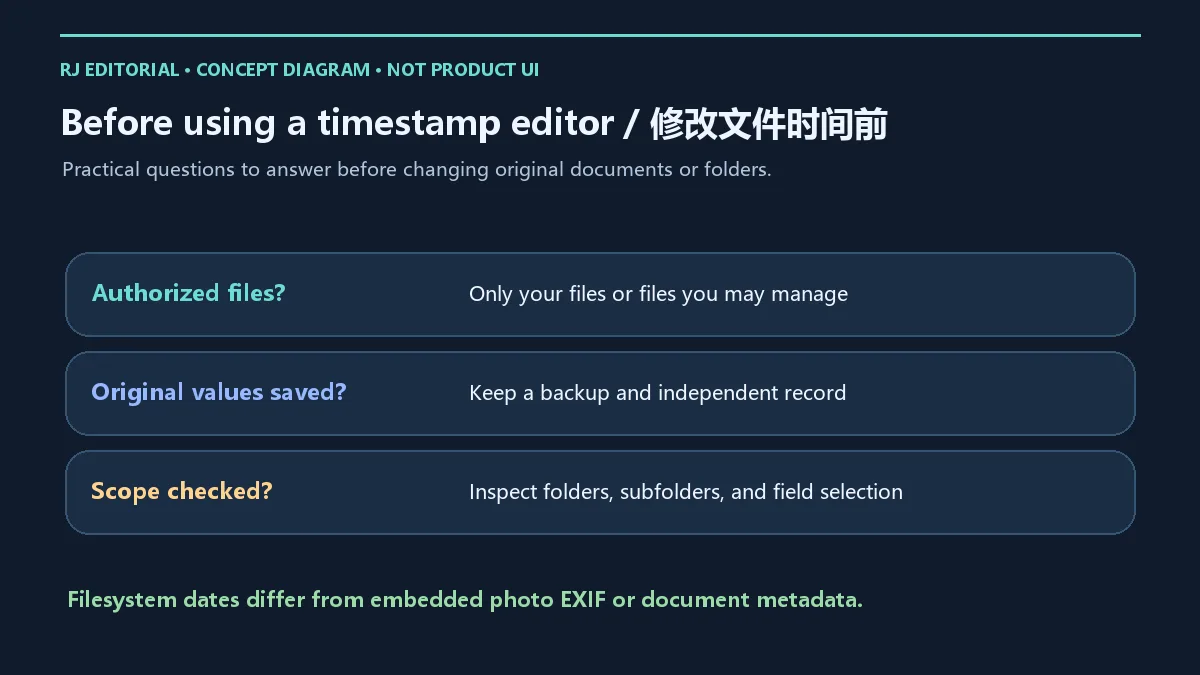
Identify the field you need first. Filesystem dates are separate from embedded photo EXIF capture dates and document author metadata. Changing file properties does not establish that those internal fields changed. An edited timestamp is also not independent evidence of when a document was created, read or involved in an event.
The official page describes setting an absolute date and applying a relative time offset. A fixed value suits a batch that should share the same selected timestamp. An offset suits files whose intended time spacing should remain while dates move by the selected amount. Test the active mode, date format and ticked fields on a few copies first.
Files can be dragged into the list, and Import can load a directory with choices for subfolders, files and folders. Inspect that scope before a batch operation so originals, system directories or unrelated files are not included by accident. The publisher also describes Explorer menu and Excel/Calc import helpers; a small drag-and-drop sample is easier to review on a first run.
SoftwareOK describes a portable application that is free for personal and office users. The page lists x86/x64 Windows support, including Windows 11, 10, 8.1, 7 and several Windows Server releases. Choose the official package for your system. The page displays 153 KB; that is publisher listing data, not a size independently measured by this site.
Keep an independent backup of original files and record original timestamp values before applying changes. Whether a backup preserves those metadata fields depends on the tool, so check a sample. The reviewed material does not establish an automatic restore of previous timestamps. Closing the app, deleting its folder or importing the file again should not be treated as undo.
If a change fails, check the path, selected fields and import scope, then look for another program holding the file, a read-only attribute or insufficient write permission. Close applications using it and try a copy in a folder you can write to. Sync and backup tools can change file state again; compare samples after a batch and observe any connected workflow. Do not bypass organization permissions or audit requirements to alter a date.
The official page reviewed on 18 October 2026 identifies NewFileTime 8.31, updated on 11 October 2026. Its version entry lists updated language files and adaptation for new Windows 11 updates. These are the published items; adaptation is not a compatibility guarantee for every environment.
The history also lists version 8.28, dated 12 June 2026, with language-file updates and small adjustments for all Windows versions. That is historical context, not a substitute for the current 8.31 entry. Before a later upgrade, review the official notes again, retain backups and check behavior on a sample.
Where should I download NewFileTime? Start at the linked SoftwareOK product page and check the product, version and architecture. A legacy mirror filename is not proof of the current release.
Is NewFileTime safe? This guide verifies the publisher source and documented functions. No binary was downloaded, executed or scanned, so that evidence cannot establish that a file is risk-free. Follow your device policy when checking a downloaded file.
Can it automatically restore old dates? The reviewed page does not establish an automatic restore feature. Restore recorded original values deliberately, or use a backup that you have confirmed preserves the required metadata.
Will it change a photo capture date too? Do not assume so: filesystem timestamps and embedded EXIF fields are different. Inspect them with the appropriate tool.
How do I remove the portable app? Close it and remove its program folder. Removing the application does not restore timestamps already edited.
After using the official NewFileTime download route, complete one import, change and comparison on copies before working on authorized originals. Keeping original values is more reliable than guessing dates afterward.
情報確認日:2026年10月18日
初回公開:2026年10月18日· 編集部による更新:2026年10月18日
使用 SoftwareOK 官方产品页,核对版本与架构。 / Use the official SoftwareOK page and check version and architecture: https://www.softwareok.com/?seite=Microsoft/NewFileTime
已核验资料没有证明自动还原功能;先记录原始值并准备可保留元数据的备份。 / No automatic restore was established. Record original values and check backup metadata preservation before editing.
不要将文件系统时间与照片内部 EXIF 混为一谈,应分别核对。 / Filesystem timestamps and embedded EXIF dates are separate fields; inspect each with the appropriate tool.
2026-10-11 官方记录列出语言文件更新和对 Windows 11 新更新的适配。 / The official 11 October 2026 entry lists updated language files and adaptation for new Windows 11 updates.

HxD 下载适合需要查看文件字节、比较二进制差异或检查磁盘结构的 Windows 用户。这款十六进制编辑器提供搜索、校验和与数据解释功能,并分别提供安装包和便携包。本页说明官方版本、部署步骤及编辑前的备份方法,帮助你区分插入与覆盖、理解校验值的用途,在文件副本上完成检查,避免把磁盘写入操作当作普通文本修改。 HxD download guide for Windows hex editing: choose installer or portable packages, inspect bytes, compare files, and review backup steps before making changes.

DNS Jumper 是 Sordum 发布的免费便携 Windows DNS 切换工具。本文核对 v2.3、IPv4/IPv6、恢复默认解析器、版本修复和文件校验方法,并说明切换 DNS 对隐私与网络策略的影响。 DNS Jumper v2.3 setup and troubleshooting guide.

Windows 便携卸载工具,官网当前为 1.6.0.200。介绍个人免费授权、解压运行、残留判断、ARM64 与更新日志,区分付费 Uninstall Tool。 A bilingual guide to personal-use terms, portable setup, leftover review and uninstall troubleshooting.

Sideloadly 是 Windows/macOS 桌面 IPA 侧载工具,可将兼容 IPA 安装到 iPhone、iPad、Apple Silicon Mac 和 Apple TV;官网列出 Wi-Fi 侧载与自动刷新。 | Sideloadly is a Windows/macOS IPA sideloading utility for iPhone, iPad, Apple Silicon Mac and Apple TV, with Wi-Fi sideloading and automatic refresh features listed by the publisher.

DiskGenius 6.2:官方安装器与便携版、免费和专业版权限、当前更新及数据恢复位置检查。 / Official v6.2 package choices, Free/Professional differences, release notes and recovery-destination guidance.

读取DPC、ISR与硬缺页定位音频中断线索,区分7.31修复、家庭版许可与当前Windows驱动阻止限制。 / Interpret DPC, ISR and pagefault reports with v7.31 notes, Home Edition licensing and current Windows driver-policy limits.
PowerToys 是 Microsoft 提供的 Windows 实用工具集合,帮助用户自定义 Windows 并简化日常任务;资料列出的版本为 v0.102.3001。

Process Lasso 是 Bitsum 的 Windows 进程管理与自动化工具,提供 ProBalance、Performance Mode、进程规则和硬件监控。稳定版 18.4.0.48 支持 Windows 10、11 与 Windows Server;免费版可长期使用,部分高级功能需要 Pro。 / Process Lasso is Bitsum’s Windows process-management and automation utility, with ProBalance, Performance Mode, process rules and hardware monitoring. Stable version 18.4.0.48 supports Windows 10, 11 and Windows Server; some advanced features require Pro.

TrafficMonitor Windows 网速与资源监控:1.86 Lite 架构选择、任务栏设置、版本变更和零读数排查。 / TrafficMonitor v1.86 Lite package selection, taskbar setup, release changes and troubleshooting for network readings.