
旧程序运行环境与兼容工具
为旧软件准备所需运行组件,或了解区域模拟和跨平台兼容环境。收录.NET Framework 3.5、Locale Emulator、Winlator等站内已有工具,按实际用途选择适合自己的应用。
.NET Framework 3.5 Windows 下载与安装说明:启用可选功能、使用匹配安装介质离线部署,并排查 0x800f081f。 / Microsoft-supported Windows installation guide for the legacy runtime.
Alias: Microsoft .NET Framework 3.5、.NET 3.5 runtime、NETFX3
Contenido asistido por IA
Consulta la información básica del software y sus fuentes
Store or vendor terms apply; this research does not grant redistribution rights.
.NET Framework 3.5 Windows 下载与安装说明:启用可选功能、使用匹配安装介质离线部署,并排查 0x800f081f。 / Microsoft-supported Windows installation guide for the legacy runtime.
.NET Framework 3.5 下载与安装指南:解释此旧版 Windows 应用运行组件的用途,演示 Windows 功能启用、匹配安装介质离线安装与 0x800f081f 排查,并说明 Windows 11 26H1 的独立安装器规则,帮助你避开来源不明的 CAB 文件并按系统版本选择安装方法。
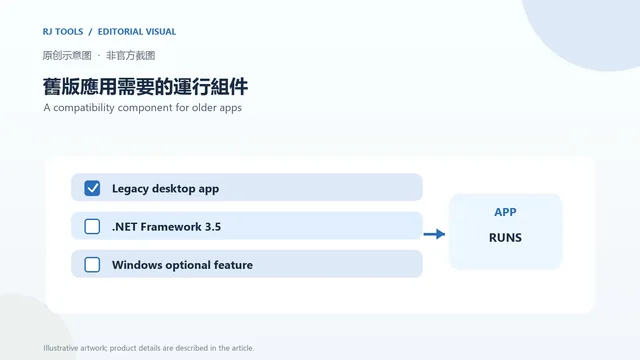
.NET Framework 3.5 是微软运行时组件,不是普通的独立桌面应用。部分旧程序明确依赖它;Windows 自带的 .NET Framework 4.x 不能替代所有面向 1.1–3.5 的应用。微软说明该版本发布于 2008 年,并建议优先寻找已更新到较新 .NET 版本的软件。如果确实要运行旧程序,应先确认它要求的框架版本,再按 Windows 版本选择启用方式。
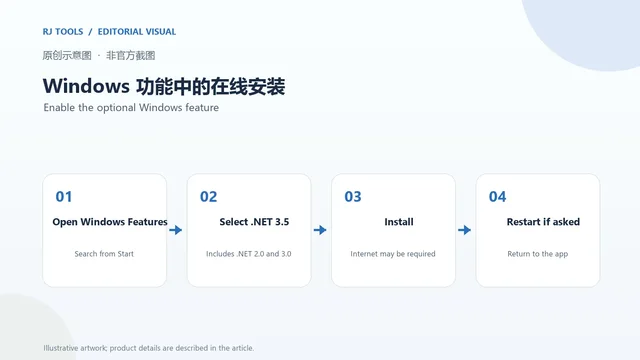
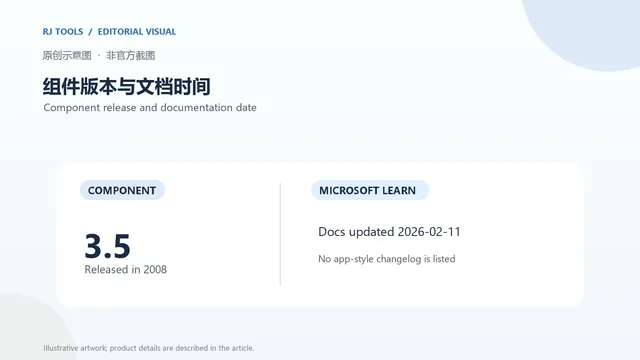
微软 Learn 说明 .NET Framework 3.5 于 2008 年发布。本次核对的安装文档最后更新于 2026 年 2 月 11 日;这是文档日期,不是组件新版本发布日期。页面没有给出类似桌面应用的逐项“最新版本更新日志”。在 Windows 10/11 上,它通常作为可选功能通过 Windows 功能和 Windows servicing 获取;不要把文档更新时间误写成软件版本更新。
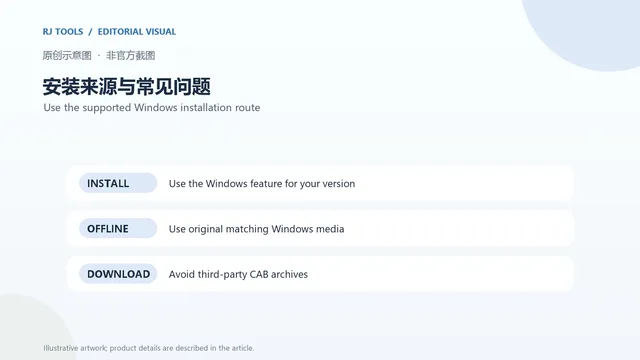
没有网络或在线安装失败时,微软建议使用与目标系统版本匹配的原版 Windows 安装介质,并按官方 DISM 部署说明指定介质中的 CAB 源。来自不同 Windows 版本的组件源可能造成版本不匹配或后续维护问题。Windows 11 26H1(build 28000)及更高版本有单独规则:.NET Framework 3.5 改为使用适用于该 Windows 版本的独立安装器,不能套用其他构建的安装包。
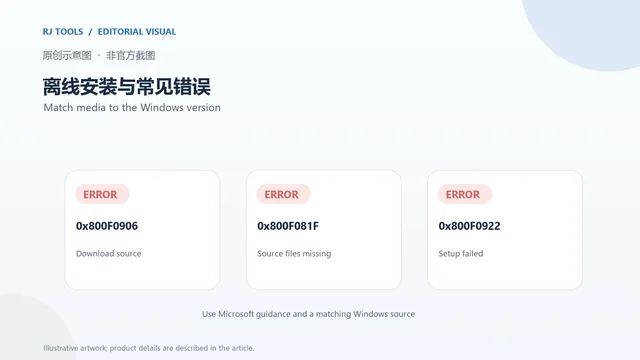
安装出现 0x800f0906、0x800f0907、0x800f081f 或 0x800F0922 时,先记下错误码与 Windows 版本,再查看微软的错误排查文档;0x800f081f 常见于安装源文件无法匹配或不可用。不要从第三方站点下载任意 CAB 压缩包,也不要混用其他系统版本的介质。
Windows 10/11 需要单独下载 EXE 吗? 多数 Windows 10 和 Windows 11 25H2 及更早版本应通过“启用或关闭 Windows 功能”安装;按需下载由系统和 Windows Update 处理。旧版 Windows 的 .NET Framework 3.5 SP1 离线安装器见微软官方页面。
Windows 11 26H1 应如何安装? 微软从 build 28000 起改为专用独立安装器;请从 Windows 11 官方说明页进入对应下载,并确认目标构建。该安装器只适用于指定 Windows 版本。
为什么不能使用网上随处可见的 CAB 包? 微软要求离线源来自相同的 Windows 版本。错误来源可能导致安装失败,或形成不匹配且难以维护的系统组件。
错误 0x800f081f 怎么处理? 确认安装源与 Windows 构建匹配;在线安装可检查 Windows Update 和网络,离线安装则参考官方 DISM 指南。若仍失败,保留完整错误码和日志并查阅微软支持说明。
.NET Framework 3.5 下载请从微软 Learn 选择匹配 Windows 版本的安装途径;Windows 功能、原版离线介质和 26H1 专用安装器不可混用,避免安装第三方 CAB 包。
Windows .NET Framework 3.5 download: use Microsoft’s Windows Features or matching media, check Windows 11 26H1 rules, and troubleshoot 0x800f081f errors.
.NET Framework 3.5 is a Windows runtime component, not a standalone desktop application. Some older programs explicitly depend on it, and the .NET Framework 4.x included with Windows does not replace every app targeting versions 1.1 through 3.5. Microsoft says version 3.5 was released in 2008 and recommends using an updated app when one is available. If the older program is still required, confirm its framework target and choose the method for your Windows version.
Microsoft Learn says .NET Framework 3.5 was released in 2008. The installation article checked here was last updated February 11, 2026; that is the documentation date, not a component release date. The page does not provide an app-style changelog for a newly released 3.5 build. On Windows 10 and most Windows 11 releases, the runtime is enabled as an optional feature and serviced through Windows. Do not present the Learn page's date as a software update.
When online setup is unavailable, Microsoft directs users to original Windows installation media that matches the target operating-system version and to its DISM deployment instructions for the CAB source. A source from a different Windows release can create a mismatch or fail installation. Windows 11 26H1 (build 28000) and later follows a separate rule: .NET Framework 3.5 uses a standalone installer built for that Windows version, not the older Windows component route.
For 0x800f0906, 0x800f0907, 0x800f081f, or 0x800F0922, record the error and Windows build before troubleshooting. Error 0x800f081f can occur when the required source files are missing or do not match. Avoid third-party CAB archives and media from another Windows version.
Do Windows 10 and 11 need a separate EXE? Most Windows 10 and Windows 11 25H2 or earlier systems use Windows Features, with Windows Update obtaining the feature files when needed. The legacy .NET Framework 3.5 SP1 offline installer for older Windows versions is linked from Microsoft's download page.
How do I install it on Windows 11 26H1? Microsoft uses a dedicated standalone installer starting with build 28000. Follow the Windows 11 Learn page and select the installer for that exact version.
Why should offline files match the Windows release? Microsoft warns that files from another Windows version can fail or leave an unsupported, unserviceable component source. Use the original matching media and the documented DISM steps.
What does error 0x800f081f mean? Check that Windows can access a valid feature source for its current build. Review Microsoft's installation error guidance and retain the full error code if the problem continues.
For a .NET Framework 3.5 download, start with Microsoft's instructions for your exact Windows version. Windows Features, matching offline media, and the Windows 11 26H1 installer are distinct installation routes.
Información verificada: 20 oct 2026
Publicado por primera vez: 20 oct 2026· Revisión editorial: 20 oct 2026

Sideloadly 是 Windows/macOS 桌面 IPA 侧载工具,可将兼容 IPA 安装到 iPhone、iPad、Apple Silicon Mac 和 Apple TV;官网列出 Wi-Fi 侧载与自动刷新。 | Sideloadly is a Windows/macOS IPA sideloading utility for iPhone, iPad, Apple Silicon Mac and Apple TV, with Wi-Fi sideloading and automatic refresh features listed by the publisher.

DiskGenius 6.2:官方安装器与便携版、免费和专业版权限、当前更新及数据恢复位置检查。 / Official v6.2 package choices, Free/Professional differences, release notes and recovery-destination guidance.

读取DPC、ISR与硬缺页定位音频中断线索,区分7.31修复、家庭版许可与当前Windows驱动阻止限制。 / Interpret DPC, ISR and pagefault reports with v7.31 notes, Home Edition licensing and current Windows driver-policy limits.
PowerToys 是 Microsoft 提供的 Windows 实用工具集合,帮助用户自定义 Windows 并简化日常任务;资料列出的版本为 v0.102.3001。

Process Lasso 是 Bitsum 的 Windows 进程管理与自动化工具,提供 ProBalance、Performance Mode、进程规则和硬件监控。稳定版 18.4.0.48 支持 Windows 10、11 与 Windows Server;免费版可长期使用,部分高级功能需要 Pro。 / Process Lasso is Bitsum’s Windows process-management and automation utility, with ProBalance, Performance Mode, process rules and hardware monitoring. Stable version 18.4.0.48 supports Windows 10, 11 and Windows Server; some advanced features require Pro.

TrafficMonitor Windows 网速与资源监控:1.86 Lite 架构选择、任务栏设置、版本变更和零读数排查。 / TrafficMonitor v1.86 Lite package selection, taskbar setup, release changes and troubleshooting for network readings.