Windows短动图录屏与逐帧编辑,包含7.7更新、PNG叠加、输出体积选择及MP4系统条件。 / Portable Windows GIF recording and frame editing with v7.7 notes, PNG overlays, output-size choices and MP4 requirements.
中文
GifCam 是 Windows 免费 GIF 录屏工具,可框选桌面区域、编辑帧延迟,并在 7.7 版中添加 PNG 叠加图或导出 MP4。本文整理 GifCam 下载、免安装启动、更新日志与压缩设置,说明动图没有声音、MP4 的系统条件以及录制空白时的检查思路,便于制作步骤演示,在清晰度、帧数和文件大小之间作出选择。
GifCam 下载前:适合短步骤演示的录屏与逐帧编辑
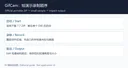
GifCam 由 BahraniApps 的 Isa 提供,录制框保持在桌面上方,可移动和缩放到要演示的区域。Rec 连续录制,Frame 获取单帧,Edit 用于删除帧和调整延迟。对于展示一组菜单操作或界面变化,先确定要表达的动作,再裁小范围,通常比录制整块桌面更容易让读者看清重点。
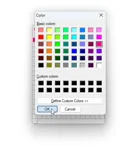
软件会比较连续帧,对相同画面增加延迟并利用透明区域减少重复数据;保存体积仍取决于运动、分辨率、帧率和色彩。GIF 的色彩与透明表达有格式限制,画面变化大或渐变丰富的长视频不一定适合转成 GIF。不要把作者某个压缩示例的节省比例当作所有素材的承诺。
GifCam 安装步骤:解压单文件并先录一小段
- 访问 作者官方页面,使用 GifCam.zip 7.7 下载入口。作者标示约 741 KB,压缩包内为单个 EXE,免安装;本页记录入口,没有下载或执行程序。
- 把 ZIP 完整解压到可写文件夹后启动。不要把来源不明的“增强版”“安装器”当成作者提供的包。官网列出 Windows 11、10、8、7、Vista、XP,但 MP4 导出另有更高的系统条件。
- 把录制框移动至目标区域,选择所需帧率与是否捕获光标,先录几秒。需要隐藏的账号、聊天或密钥应先移出录制范围,避免录完才发现每一帧都包含它们。
- 停止后打开 Edit,删除多余开头和结尾,检查帧延迟,再用保存菜单输出 GIF。先在浏览器中打开这个小样,确认画面、时长和大小,再录完整步骤。
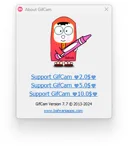
GifCam 免费使用,作者接受捐赠;这不是必须购买激活码的试用版。免费价格也不能推导源代码开放或无限再分发权利。官方页面的无捆绑声明属于作者说明,本页没有独立扫描安装文件。
GifCam 7.7 更新日志:PNG 叠加与 MP4 导出
作者于 2024 年 7 月 7 日发布 7.7。该版新增 Colormaps Editor,可配合 Shift 更改相同颜色;支持添加 PNG 图片叠加,设置缩放与 alpha;新增 MP4 导出,使用 Windows 7 及以后系统的 Microsoft Media Foundation H.264 编码器,无须单独提供外部编码器。
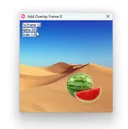
该版还扩充自定义颜色窗口的每像素位数、色彩吸附、透明度和帧采样选项,用滑块替代内存设置文本框,增加透明色拾取;修复或改进内存占用、画面伪影、AVI 编码与打开 GIF 时尺寸错误,并为 Windows 11 圆角造成的录制边缘裁切添加三像素边距。上述是 7.7 日志,不能因此承诺兼容所有后续 Windows 更新。
GifCam 常见问题 FAQ:大小、声音与空白画面
GIF 太大,先改哪个设置? 先缩小录制区域、删去无用时长,再降低帧率或输出尺寸,最后比较减色选项。每次只改一项并检查文字边缘与动作连续性;减色越激进并不意味着画质越好。
为什么动图没有声音?MP4 会自动带声音吗? GIF 不承载音轨。官方为 GifCam 说明的是画面录制与视频导出,没有据此保证系统音频录制。不要把另一个 BahraniApps 产品 VClip 的回环音频能力写入 GifCam。
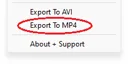
Windows XP 能用,为什么没有可用的 MP4 导出? 官网一般兼容列表与单项功能条件不同。7.7 的 MP4 导出依赖 Windows 7 起提供的 Media Foundation H.264 编码能力,不能把该功能承诺给 XP 或缺少所需媒体组件的环境。
录出来是黑屏或范围不对怎么办? 先记录 Windows 版本、缩放比例、屏幕布局和目标程序,尝试单屏、短时、小区域的普通桌面窗口以缩小范围。官网列出系统兼容不代表所有新构建与图形渲染场景均已验证;若仍异常,把可复现条件反馈作者,避免盲目反复改动系统设置。
选择 GifCam 下载时先确认作者的免安装包。把演示压缩成短而清楚的步骤,录制后逐帧检查,按需要选择 GIF 或满足条件时导出 MP4,再分享给读者。
English
GifCam download guide: record Windows GIFs, edit frames, use v7.7 PNG overlays and MP4 export, and balance image clarity, frame rate, and file size with care.
Before downloading GifCam: plan a short visual explanation
GifCam by Isa at BahraniApps keeps a movable recording frame above the desktop. Rec captures continuously, Frame captures a single frame, and Edit lets you delete frames and change delays. For a menu sequence or a small interface change, first decide what the viewer needs to see and crop the area around that action.
The program compares successive frames, adds delay for unchanged images, and uses transparent areas to avoid repeated content. Resulting size still depends on motion, dimensions, frame rate, and colors. GIF has format limits for colors and transparency; long footage with gradients or continuous motion may be better suited to video. A percentage saved in one publisher example is not a promise for every recording.
How to install GifCam: extract the portable file and record a sample
- Use the GifCam.zip v7.7 route on the author's official page. It is described as approximately 741 KB with a single EXE and no installation. This page records the route without downloading or running the program.
- Fully extract the ZIP into a writable folder before opening it. Do not treat an unrelated installer or enhanced repack as the author's package. The general compatibility list includes Windows 11, 10, 8, 7, Vista, and XP; MP4 export has a separate minimum requirement.
- Position the frame, choose the desired frame rate and cursor option, and record a few seconds. Move account details, chats, or keys out of the area before capturing so they do not appear throughout the recording.
- Stop, open Edit, remove unnecessary opening and ending frames, and inspect delays. Save a GIF through the save menu and open the small sample in a browser to check its picture, duration, and size before recording the full explanation.
GifCam is free and donations are optional, rather than a mandatory activation purchase. Free pricing does not establish that source code is open or redistribution unrestricted. The author's no-bundle statement is a publisher claim; no independent binary scan was performed here.
GifCam v7.7 release notes: PNG overlays and MP4 export
Version 7.7 was published on July 7, 2024. It adds a Colormaps Editor with Shift-based changes to identical colors, PNG image overlays with scale and alpha controls, and MP4 export using the Microsoft Media Foundation H.264 encoder supplied with Windows 7 and later, without a separate external encoder.
Other additions expand custom color controls for bits per pixel, color snapping, transparency, and frame sampling; replace the memory text box with a slider; and allow transparent-color picking. Fixes and improvements cover memory consumption, artifacts, AVI encoding, incorrect dimensions when opening GIFs, and three-pixel margins for recording edges affected by Windows 11 rounded corners. These are v7.7 notes rather than a guarantee for all later Windows builds.
GifCam FAQ: large files, sound, and blank captures
What should I change first when a GIF is too large? Reduce the recorded area and unnecessary duration, then compare a lower frame rate or output size before trying more aggressive color reduction. Change one factor at a time and check text edges and motion. Smaller palettes do not automatically mean acceptable quality.
Why is there no sound, and does MP4 automatically include audio? GIF has no audio track. GifCam's official material describes screen frames and video export without establishing system-audio capture. Do not transfer loopback-audio features from the separate BahraniApps product VClip to GifCam.
Why does XP support not establish MP4 availability? General application compatibility and feature requirements differ. The v7.7 MP4 route needs Media Foundation H.264 encoding from Windows 7 onward. It cannot be promised for XP or an environment missing required media components.
What can I check for black or misplaced captures? Record the Windows build, scaling, display arrangement, and target application. Try a short, small capture of an ordinary desktop window on one display to narrow the problem. The compatibility list does not validate every new build or graphics path. Report reproducible conditions to the author if it persists rather than changing unrelated system settings.
For a GifCam download, choose the author's portable package, keep demonstrations short, and review the resulting frames. Use GIF for a compact visual sequence or MP4 where the system supports the required encoder, then check the saved result before sharing.