
软件卸载与电脑维护工具
卸载不再使用的软件,检查残留并完成日常电脑维护。收录Geek Uninstaller、HiBit Uninstaller、联想电脑管家 / Lenovo PC Manager等站内已有工具,按实际用途选择适合自己的应用。
Windows 便携卸载工具,官网当前为 1.6.0.200。介绍个人免费授权、解压运行、残留判断、ARM64 与更新日志,区分付费 Uninstall Tool。 A bilingual guide to personal-use terms, portable setup, leftover review and uninstall troubleshooting.
Aliases: GeekUninstaller、Geek Uninstaller Free、Geek 卸载工具
Author: RJ.tools Editorial
AI-assisted content
Learn about the software and its sources
Free for personal use only; no support. 免费版仅限个人使用且不提供支持;商业用途需先确认许可。 Uninstall Tool is a separate paid product.
Windows 便携卸载工具,官网当前为 1.6.0.200。介绍个人免费授权、解压运行、残留判断、ARM64 与更新日志,区分付费 Uninstall Tool。 A bilingual guide to personal-use terms, portable setup, leftover review and uninstall troubleshooting.
Geek Uninstaller 下载指南:了解个人免费版、Windows 便携安装、ARM64 支持、残留清理与更新日志。 Download guide for official setup, personal-use terms, leftovers and uninstall troubleshooting.
Geek Uninstaller 下载指南介绍 Windows 便携卸载工具,帮助你区分个人免费版与付费产品,按步骤解压并启动,理解残留扫描和强制删除的使用边界。本文核对官网版本、ARM64 支持与更新日志,提供卸载失败、程序打不开及微软商店应用的排查建议,方便你在移除软件前检查目标、保留设置,决定处理残留。
Geek Uninstaller 官网将它定位为 Windows 卸载工具:Clean Removal 用于卸载后的残留处理,Force Removal 面向难以移除的程序,并支持 Microsoft Store 应用。它采用可移植的单个 EXE,适合临时检查和移除不再需要的软件。选择目标时,应同时核对程序名称、安装位置与自己要保留的数据;卸载工具能够列出项目,并不表示每个项目都适合删除。
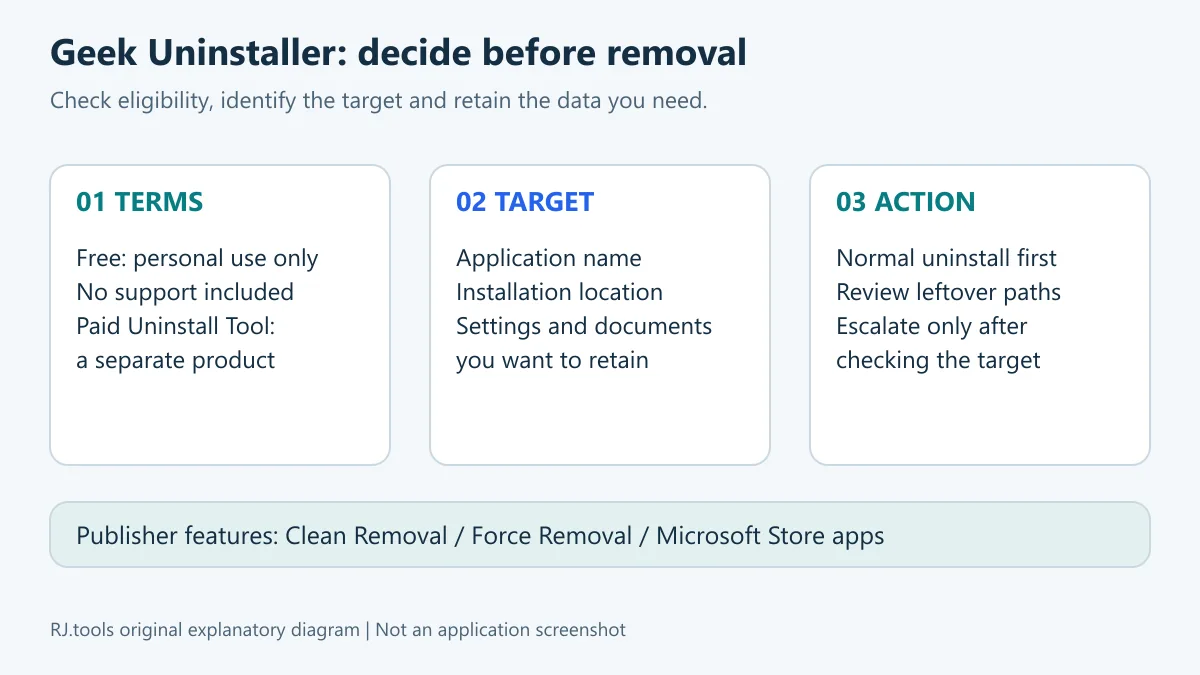
官方下载页明确把 Free 限定为个人使用,且不提供支持。公司或其他商业场景不能从“免费下载”推断已有使用授权;应先确认发行方的适用许可。页面介绍的付费 Uninstall Tool 是另一款产品,不应将其功能、支持承诺或许可写成 Geek 免费版自带。免费也不等于开源,本文没有确认可再分发安装包的许可。
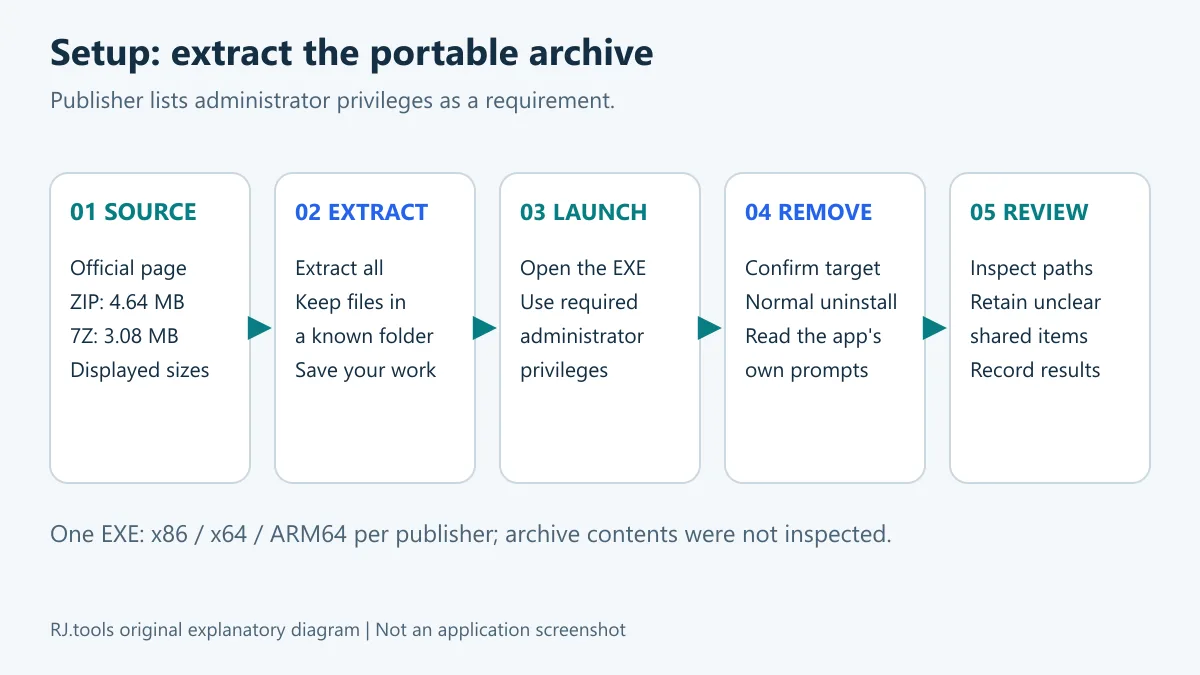
官网列出的系统为 Windows 11、10、7、8、8.1,支持 32/64 位,并包括 Windows 10/11 on ARM;运行要求管理员权限。下载页显示 ZIP 为 4.64 MB、7Z 为 3.08 MB,这些是页面标示,不能当作已核对的精确字节数。ZIP 适合先用系统提供的解压功能处理;选择 7Z 时需有能读取该格式的解压工具。
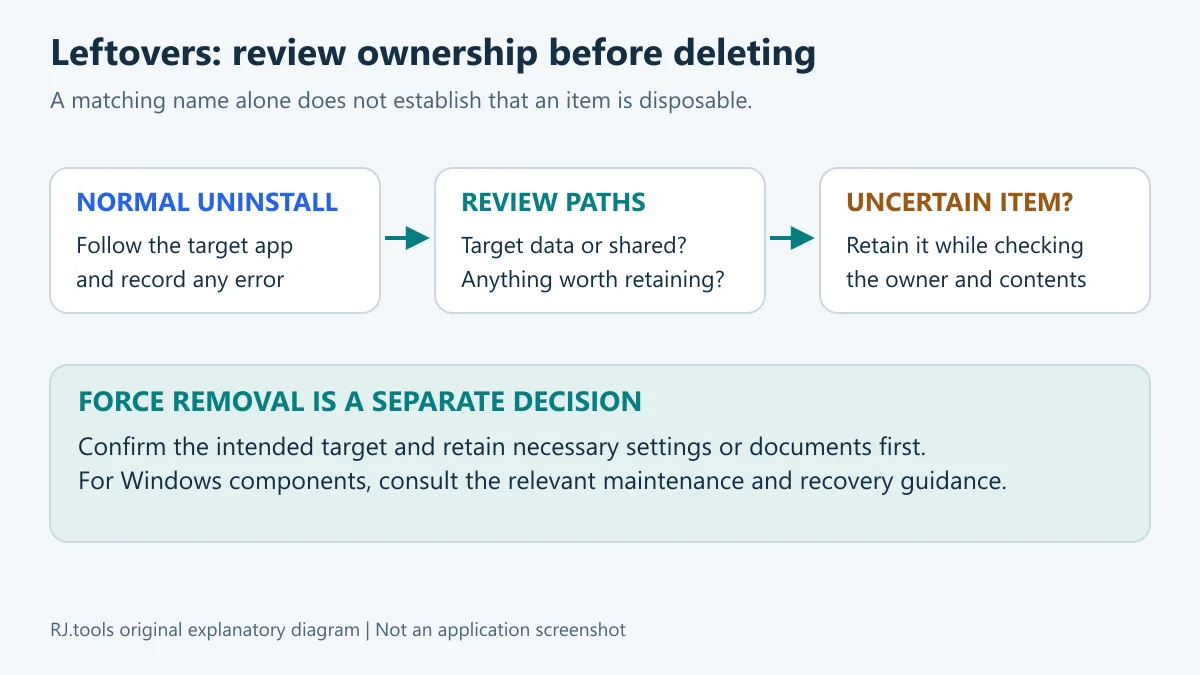
残留文件、设置和仍在使用的数据不是同一回事。看到名称相似的目录时,先判断它是否被其他软件共用、是否保存了项目或个人配置,再决定删除范围。官网提供 Clean Removal 与 Force Removal,但更强的移除方式不能替代目标确认。若正常卸载失败,可先记录报错、关闭目标程序和相关后台进程,按该程序发行方的说明重试;只有确认对象和保留资料后,再考虑强制移除。
对于 Microsoft Store 应用,先与 Windows“已安装的应用”中的名称相互核对,避免把桌面版和商店版当成同一条目。更新日志中提到 Edge 及其配套应用的强制移除调整,只能说明该版本做过相应处理,不能据此推断任意 Windows 组件都适合删除。涉及系统组件时,应先核对微软或设备厂商的恢复与维护说明。
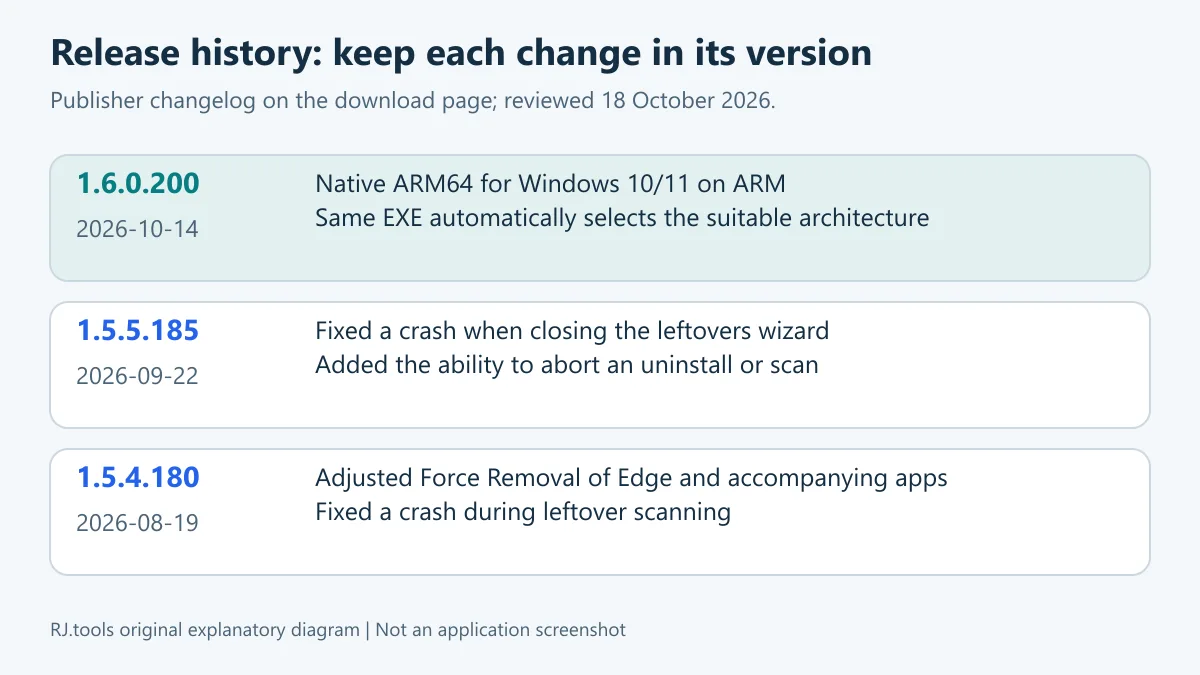
本次核验的官方更新记录将当前版本标为 1.6.0.200,日期为 2026 年 10 月 14 日。主要变化是原生支持 Windows 10/11 on ARM 的 ARM64,并由同一个 EXE 自动启动适配的架构版本。这里描述的是发行方记录;本文未下载文件确认其内部版本或实际架构选择行为。
程序打不开时,先检查自己是否已经完整解压、系统是否在官方支持列表中,以及是否满足管理员权限要求。卸载失败时,应区分“工具没有启动”“目标软件自身卸载器报错”和“残留扫描报错”:前者检查运行条件,中间一类优先查看目标软件的官方处理办法,后者记录软件名称、版本和具体提示,并对照官网更新日志。不要把所有失败都归为同一个问题,也不要靠删除名称相近的目录试错。
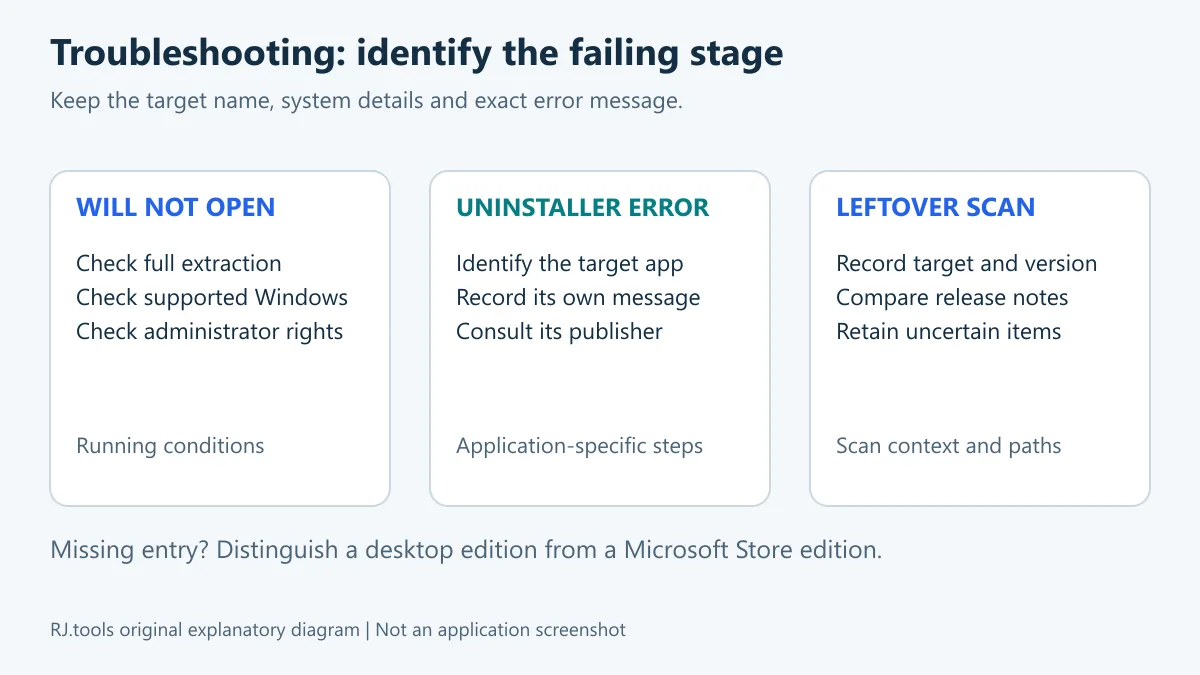
列表找不到某个应用时,先确认安装的是桌面版还是 Microsoft Store 版,并在 Windows 的应用设置中核对它是否仍然存在。需要重启或移除共享组件时,先保存工作并查阅对应软件的说明。个人免费版没有支持服务,因此记录操作步骤、报错与系统信息,比反复执行同一移除动作更有助于继续排查。
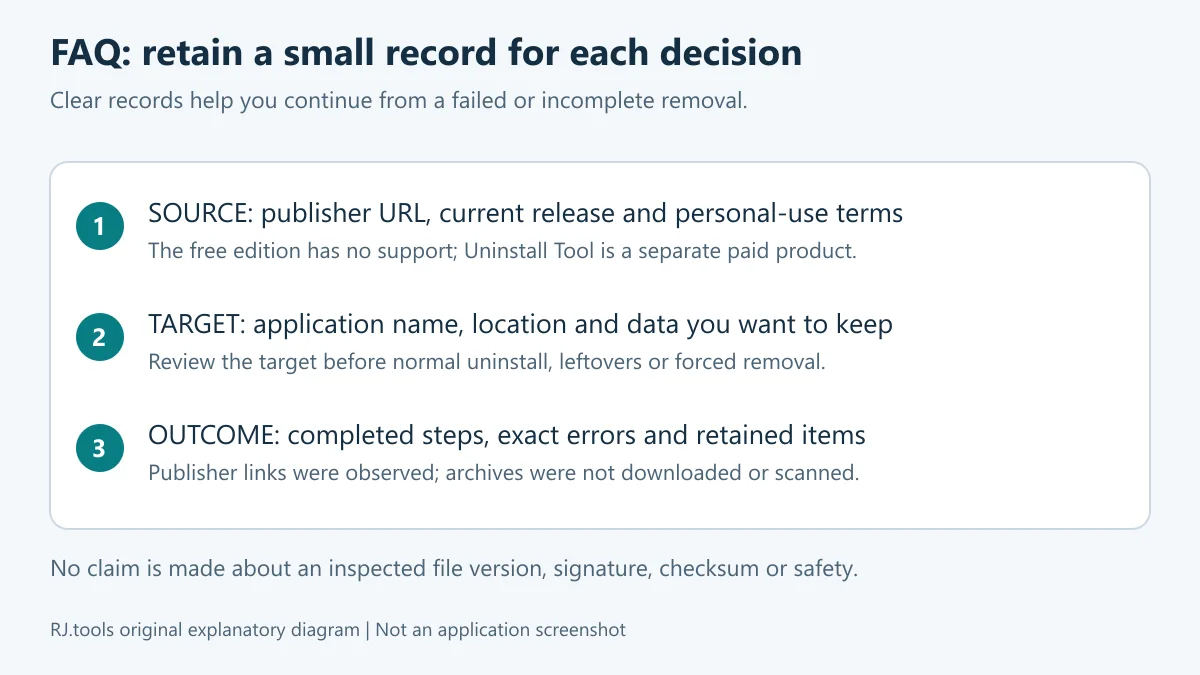
从官网开始 Geek Uninstaller 下载,先确认个人用途与系统条件,正常卸载后逐项判断残留;如需进一步处理,把目标、报错和已保留的数据记清楚,再选择下一步。
Geek Uninstaller download guide for Windows: set up the portable app, check personal-use terms, review leftovers and resolve common uninstall problems.
The official product page describes Geek Uninstaller as a Windows removal utility with Clean Removal, Force Removal and support for Microsoft Store apps. A portable single EXE makes it convenient to keep the utility in a folder and use it when needed. Before choosing an entry, identify the application, its installation location and the data you want to retain. An item appearing in a removal list does not establish that removing it is appropriate for your computer.
The download page limits Free to personal use and states that it comes without support. A workplace or another commercial setting should confirm the applicable license rather than interpreting a free download as permission. Uninstall Tool is a separate paid product; its features, support and license must not be attributed to the free utility. The reviewed material also does not establish an open-source or archive-redistribution license.
The publisher lists Windows 11, 10, 7, 8 and 8.1 in 32/64-bit editions, including Windows 10/11 on ARM, and requires administrator privileges. Its download page labels the ZIP as 4.64 MB and the 7Z as 3.08 MB. These are displayed sizes, not verified byte counts. ZIP can be extracted with the relevant Windows extraction facility; a 7Z archive needs a tool that can read that format.
An abandoned setting, a shared file and a folder containing active work require different decisions. Check ownership and contents before selecting a similarly named directory. Geek Uninstaller offers Clean Removal and Force Removal, but a stronger removal action cannot identify the right target for you. When normal removal fails, record the error, close the application and its related processes, and consult that application's publisher instructions. Consider forced removal only after identifying the target and retaining the data you need.
For Microsoft Store apps, compare the name with Windows' installed-app settings and distinguish a Store edition from a desktop edition. The older release note about Edge and accompanying apps describes a specific Force Removal adjustment. It is not a general recommendation to remove Windows components. Consult the relevant Microsoft or device-vendor maintenance and recovery guidance before changing a system component.
The reviewed official changelog identifies 1.6.0.200, dated 14 October 2026, as the current release. It adds native ARM64 support for Windows 10/11 on ARM and uses the same EXE to launch the suitable architecture version automatically. These are publisher statements; this guide did not inspect an archive or exercise the architecture-selection behavior.
If Geek Uninstaller will not open, check full extraction, the publisher's Windows support list and the required administrator privileges first. Separate a launch failure from an error in the target application's own uninstaller, and from a leftover-scan failure. Check running conditions for the first, consult the application's publisher for the second, and record the target name, version and exact message for the third. Comparing that record with the changelog is more useful than treating every failure as the same fault.
For a missing entry, establish whether the installed application is a desktop or Microsoft Store edition, then check whether Windows still lists it. Save work before any restart and consult the relevant publisher before changing shared components. The personal free edition has no support service, so retain your steps and system details rather than repeatedly attempting the same removal without new information.
Begin your Geek Uninstaller download on the publisher's page, check personal-use eligibility and system requirements, then review each leftover after normal removal. Record the target, error and retained data before choosing any further action.
Information verified: Oct 18, 2026
First published: Oct 18, 2026· Editorial revision: Oct 18, 2026
官网明确 Free 仅限个人使用且不提供支持。公司或其他商业用途需先确认发行方适用许可。
The publisher offers a portable single EXE in ZIP or 7Z. Extract it completely and use the required administrator privileges.
官网 1.6.0.200(2026-10-14)记录新增 Windows 10/11 on ARM 原生 ARM64,同一 EXE 自动启动适配版本;本文未实际运行验证。
No. It is a separate paid product. Do not attribute its features, license or support to Geek Uninstaller Free.
没有。本文未下载、运行、扫描压缩包,也未验证内部版本、数字签名或哈希。官网公开链接本身不构成文件安全保证。
TeamSpeak 是面向游戏、团队、商务和社群的语音通信平台,官方介绍包含消息交流与服务器管理。本条目对应官方列出的 Windows 64 位 TeamSpeak 3 3.6.2。
微软官方 Windows 10 下载页提供媒体创建工具入口和安装介质制作说明,页面将 22H2 标示为最终版本。Windows 10 Home 和 Pro 支持已于 2025 年 10 月 14 日结束;LTSC 版本按各自生命周期执行。

LX Music 洛雪音乐助手桌面版:官方Windows安装包、2.12.6更新、列表备份与播放排查。 / Official desktop packages, release notes, playlist preservation and playback troubleshooting.

EA app(原 EADesktop)Windows游戏客户端:官方安装、EA账号与游戏库、自动更新和故障帮助。 / EA client setup, game library, account checks, automatic updates and troubleshooting.

R2V 是 Able Software 的 Windows 地图与工程图栅格转矢量工具。查看官方 7.5 试用版、安装要求、GIS/CAD 输出与数据检查建议。 R2V converts scanned maps and drawings into GIS/CAD vectors; includes official trial and setup guidance.

Windows磁盘空间分析,解释MFT扫描、实际占用、重复候选限制、4.33更新与个人/商业许可。 / Windows disk space analysis with MFT scanning, allocated space, duplicate limits, v4.33 notes and licensing.

Sideloadly 是 Windows/macOS 桌面 IPA 侧载工具,可将兼容 IPA 安装到 iPhone、iPad、Apple Silicon Mac 和 Apple TV;官网列出 Wi-Fi 侧载与自动刷新。 | Sideloadly is a Windows/macOS IPA sideloading utility for iPhone, iPad, Apple Silicon Mac and Apple TV, with Wi-Fi sideloading and automatic refresh features listed by the publisher.

DiskGenius 6.2:官方安装器与便携版、免费和专业版权限、当前更新及数据恢复位置检查。 / Official v6.2 package choices, Free/Professional differences, release notes and recovery-destination guidance.

读取DPC、ISR与硬缺页定位音频中断线索,区分7.31修复、家庭版许可与当前Windows驱动阻止限制。 / Interpret DPC, ISR and pagefault reports with v7.31 notes, Home Edition licensing and current Windows driver-policy limits.
PowerToys 是 Microsoft 提供的 Windows 实用工具集合,帮助用户自定义 Windows 并简化日常任务;资料列出的版本为 v0.102.3001。

Process Lasso 是 Bitsum 的 Windows 进程管理与自动化工具,提供 ProBalance、Performance Mode、进程规则和硬件监控。稳定版 18.4.0.48 支持 Windows 10、11 与 Windows Server;免费版可长期使用,部分高级功能需要 Pro。 / Process Lasso is Bitsum’s Windows process-management and automation utility, with ProBalance, Performance Mode, process rules and hardware monitoring. Stable version 18.4.0.48 supports Windows 10, 11 and Windows Server; some advanced features require Pro.

TrafficMonitor Windows 网速与资源监控:1.86 Lite 架构选择、任务栏设置、版本变更和零读数排查。 / TrafficMonitor v1.86 Lite package selection, taskbar setup, release changes and troubleshooting for network readings.