FxSound 免费开源 Windows 音效工具:官方稳定版 1.2.16.0、Intel/AMD 与 ARM64 安装器、均衡器预设、输出设备与无声排查。 / Free open-source Windows audio processing with stable release notes, installer choices, equalizer presets and output troubleshooting.
中文
FxSound 是适用于 Windows 电脑的免费开源音效工具,可用均衡器、音效滑杆和预设调整系统声音。本文整理 FxSound 下载与安装步骤、稳定版 1.2.16.0 更新日志、Intel/AMD 与 ARM64 安装包区别,以及耳机切换后无声的排查方法,帮助你选择输出设备、控制增益,并按实际听感保存配置。
FxSound 下载前先了解均衡器和输出设备
FxSound 在 Windows 中处理系统音频,提供均衡器、效果滑杆与预设。它适合希望按耳机、音箱或节目类型调整声音的用户;对话不清、低频过多和不同内容音量差异大,需要分别调整,不能只把所有滑杆拉高。官网图中的 Music 预设和 Headphones 输出设备是示例,不能当作适用于所有耳机的推荐参数。建议先降低设备音量、保留默认设置,再用同一段熟悉的音频逐项比较,避免把更大声误认为更清晰。
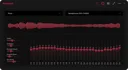
官网示例展示了操作布局;它不是 RJ 对 1.2.16.0 的运行截图。音质变化受原始音源、设备和听力差异影响,没有统一的最佳预设。
FxSound 安装步骤:区分 Intel/AMD 和 ARM64
- 在 Windows 设置的系统信息中确认处理器架构,再打开 FxSound 官方下载页。Intel/AMD x86/x64 与 ARM64 使用不同安装器;不要仅凭电脑品牌选择。
- 选择页面的 Latest 稳定版区域。该页面另列 Beta 与 Legacy,本文使用稳定版 1.2.16.0,不把较新的 Beta 编号写成正式版。
- 获取官方安装器后,由使用者检查发布来源、签名提示及安装许可,再按向导完成安装。项目说明应用依赖 FxSound Audio Enhancer 虚拟音频驱动;从源码编译主程序不能代替驱动安装。
- 启动 FxSound,选择实际正在使用的耳机或扬声器,播放一段音频,先比较开关处理前后的差别,再调整预设和均衡器。若 Windows 或安装器要求重启,保存工作后按提示完成。

官方当前下载页确认 Windows 及两类处理器包,但没有在该页列出完整最低系统配置;较旧系统应先查项目支持信息。本页没有下载安装器、验证其签名或实际安装驱动。
FxSound 1.2.16.0 更新日志与稳定版选择
官方 GitHub 把 1.2.16.0 标为 Latest,发布时间为 2026 年 9 月 17 日。该版明确列出两项变化:切换输出设备时,将播放设备音量设置到捕获设备;增加保加利亚语支持。这里按发布说明保留音量同步的原意,没有将其扩大为修复所有蓝牙、设备切换或爆音问题。

官方页面同时提供 Beta 通道,核实时其编号为 1.2.17.0。Beta 是独立测试通道,本文的安装入口和更新摘要均对应稳定版 1.2.16.0。下载路径中的 latest 标签会随以后发行而变化,获取文件时应再次核对页面标题。
FxSound 常见问题 FAQ:无声、音量与安全
FxSound 安装后没声音怎么办? 先核对 Windows 当前输出和 FxSound 中选择的物理输出设备,确认耳机或扬声器已连接且没有静音;再关闭处理比较原始输出。逐项检查比反复提高增益更容易定位问题。
切换蓝牙耳机后音量变化正常吗? 1.2.16.0 对切换输出设备时的音量处理有调整。切换前先降低音量,重新检查所选设备和应用音量;该更新不是对所有蓝牙环境的兼容保证。
FxSound 支持 macOS、Linux 或手机吗? 官网明确目前只兼容 Windows PC;不要把项目开源理解为已有其他平台安装版。
免费版需要破解吗? 不需要。官网说明 2022 年转为免费、2023 年开源,仓库标注 AGPL-3.0。直接使用官方入口,不应为了安装寻找激活补丁。开源与官方来源本身都不等于独立安全检测。

需要 FxSound 下载与均衡器设置帮助时,先确认 Windows 架构、稳定版本和输出设备,再逐项调整音效;这样更容易保留有用的改变,并找出安装后无声或设备切换的问题。
English
FxSound download and setup guide for Windows: explore its equalizer, choose the correct installer, review v1.2.16.0 changes, and troubleshoot silent output.
Before downloading FxSound: equalizer and output choices
FxSound processes system audio on Windows and provides an equalizer, effect sliders, and presets. It suits users who want different sound settings for headphones, speakers, or types of content. Unclear dialogue, excessive bass, and uneven volume call for different adjustments; raising every control is rarely a useful starting point. The Music preset and Headphones device in the publisher image are examples, not universal settings. Start at a modest playback volume and compare one adjustment at a time using a familiar passage, so a louder result is not mistaken for a clearer one.
This image explains the layout and is not an RJ runtime capture of version 1.2.16.0. Results depend on the source, playback device, and listener; there is no single best preset for everyone.
How to install FxSound for Intel/AMD or ARM64 Windows
- Check the processor architecture in Windows system information, then open the official FxSound download page. Intel/AMD x86/x64 and ARM64 have separate installers; a PC brand alone does not identify its architecture.
- Use the Latest stable section. The same page separately lists Beta and Legacy options. This guide uses stable version 1.2.16.0 and does not label a newer beta as the stable release.
- After obtaining the official installer, review its source, signature prompts and license, then follow its installation wizard. The project explains that FxSound needs the FxSound Audio Enhancer virtual audio driver; compiling the application alone does not replace installing that driver.
- Start FxSound, select the headphones or speakers you actually use, and play a short audio passage. Compare processing on and off before changing a preset or equalizer. If Windows or the installer requests a restart, save your work and follow the prompt.
The current download page confirms Windows and the two processor package groups but does not give complete minimum system requirements there. Check project support information for older systems. No installer was downloaded, its signature checked, or its driver installed for this guide.
FxSound 1.2.16.0 release notes and the stable channel
The official GitHub release marks 1.2.16.0 as Latest, published September 17, 2026. It lists two changes: when the output device changes, playback device volume is set to the capture device; Bulgarian language support is added. This summary keeps the scope of the volume-handling note and does not turn it into a claim that every Bluetooth, switching, or audio-pop issue is fixed.
The publisher also offers a separate Beta channel, numbered 1.2.17.0 when reviewed. The download routes and release summary here refer to stable version 1.2.16.0. A download path containing the latest tag can change with a future release, so recheck the release heading when obtaining a file.
FxSound FAQ: silence, changing devices, and safe sources
Why is there no sound after installing FxSound? Check the selected Windows output and the physical output selected inside FxSound. Confirm the headphones or speakers are connected and not muted, then turn processing off to compare the original output. Checking each stage is more useful than repeatedly increasing gain.
Why does volume change when switching Bluetooth headphones? Version 1.2.16.0 changes volume handling when the output device changes. Lower the volume before switching and check the device and application volume afterward. The change does not guarantee compatibility with every Bluetooth setup.
Does FxSound support macOS, Linux, or phones? The publisher currently states Windows PC compatibility only. An open-source repository does not establish a released installer for another platform.
Does the free edition need an activation patch? No. The publisher says FxSound became free in 2022 and open source in 2023; the repository identifies AGPL-3.0. Use the official route instead of activation patches. Neither an official source nor open-source code is an independent security assessment.
For FxSound download and equalizer setup, confirm the Windows architecture, stable version, and output device first. Then adjust effects one at a time to retain useful changes and identify silence or device-switching problems.