大文件夹迁移与磁盘空间搬家
在不同磁盘之间迁移占空间的目录,并理解目录联接和符号链接的作用。收录FolderMove、FreeMove等站内已有工具,按实际用途选择适合自己的应用。
FolderMove 3.0 通过移动应用或游戏目录并在原路径创建符号链接来调整文件存储位置。本页说明 Windows 与 .NET 要求、便携运行、个人非商业许可、迁移备份和目标不可访问时的检查;官网未列逐项更新日志。 FolderMove portable setup, symbolic-link and recovery-preparation guide.
別名:Folder Move、FolderMove 3.0
作者:RJ.tools Editorial
AI支援コンテンツ
ソフトウェアの基本情報と提供元を確認できます
Official page states free for personal, non-commercial use. No broader business-use or redistribution permission is inferred; verify current publisher terms for other uses.
FolderMove 3.0 通过移动应用或游戏目录并在原路径创建符号链接来调整文件存储位置。本页说明 Windows 与 .NET 要求、便携运行、个人非商业许可、迁移备份和目标不可访问时的检查;官网未列逐项更新日志。 FolderMove portable setup, symbolic-link and recovery-preparation guide.
FolderMove下载与安装指南:核对v3.0、Windows兼容要求、符号链接与目录迁移备份,了解打不开和恢复前检查。 FolderMove download guide: setup, symbolic links, backup, target checks and license limits.
FolderMove 是一款通过符号链接迁移已安装软件或游戏目录的 Windows 便携工具。本页提供 FolderMove 下载入口、v3.0 版本与系统要求,说明管理员运行、迁移前备份、源路径和目标路径核对,以及目标磁盘断开后打不开的检查方法,帮助个人用户理解目录迁移的适用范围、恢复准备和免费许可边界。
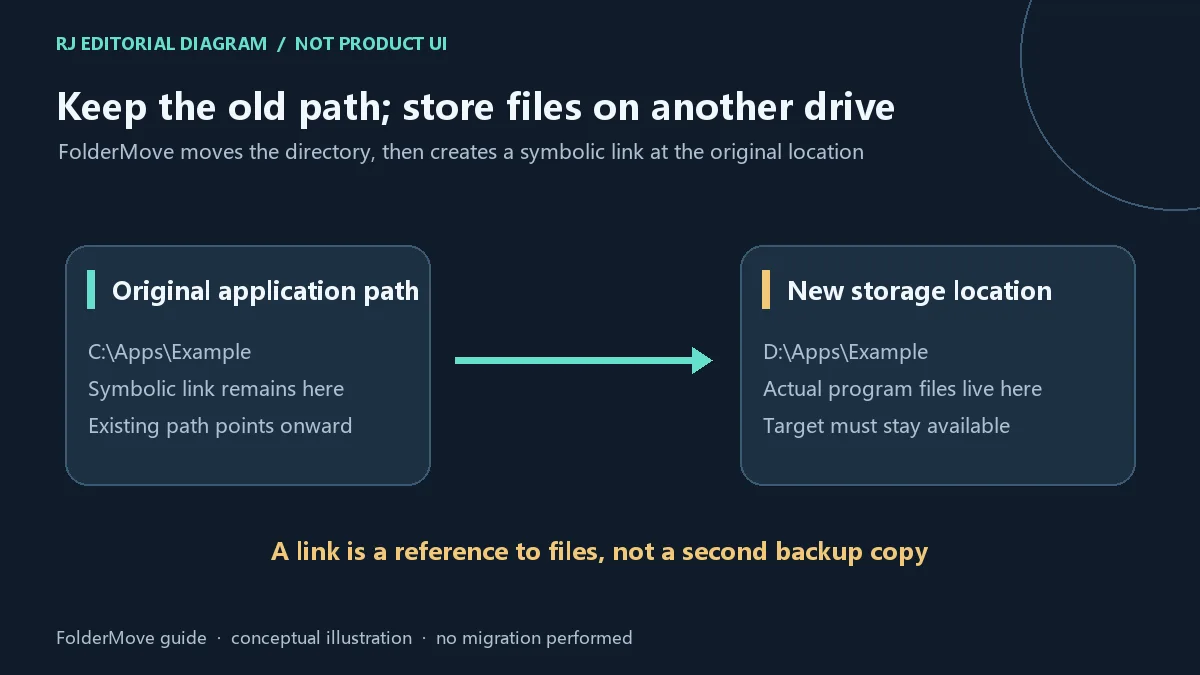
当应用或游戏占用的磁盘空间越来越多时,FolderMove 提供一种目录迁移方式:把已安装程序的文件夹移动到同一台电脑上的其他位置或磁盘,再在原位置创建指向新位置的符号链接。原路径仍可把访问引向目标目录,但文件实际存放在新位置。这个机制不会产生第二份完整备份,也不能据此保证所有程序、启动器和更新器都能正常工作。本文以官网当前列出的 FolderMove 3.0 为对象。
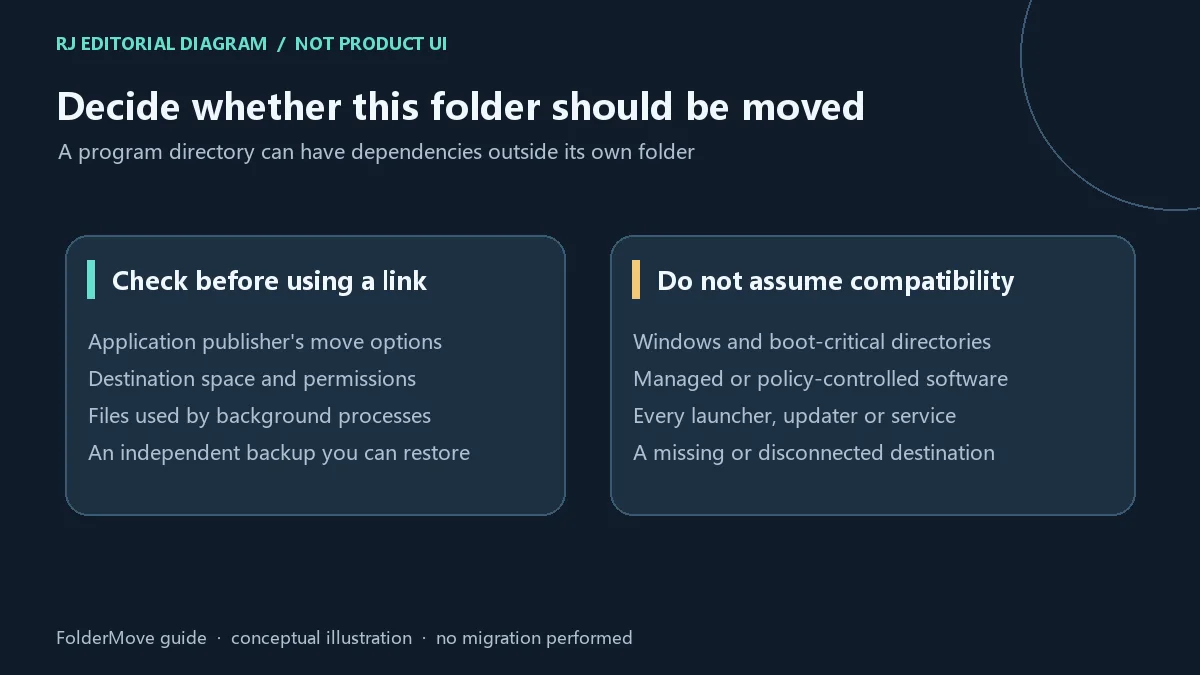
先查看应用发行方或游戏启动器是否已有移动安装位置的功能;这种方式通常更容易与其更新及修复流程保持一致。若要使用 FolderMove,先备份有价值的数据,确认目标磁盘空间、权限和可持续访问性,并退出相关程序及后台进程。应用可能还依赖目录外的服务、配置或其他文件,因此“文件夹成功移动”不等于“应用已通过完整兼容验证”。不要仅因某个目录体积大就选择 Windows、启动相关或不了解用途的系统目录;受单位策略管理的软件应先遵循管理要求。这些是编辑建议,并非官网对所有程序兼容性的承诺。
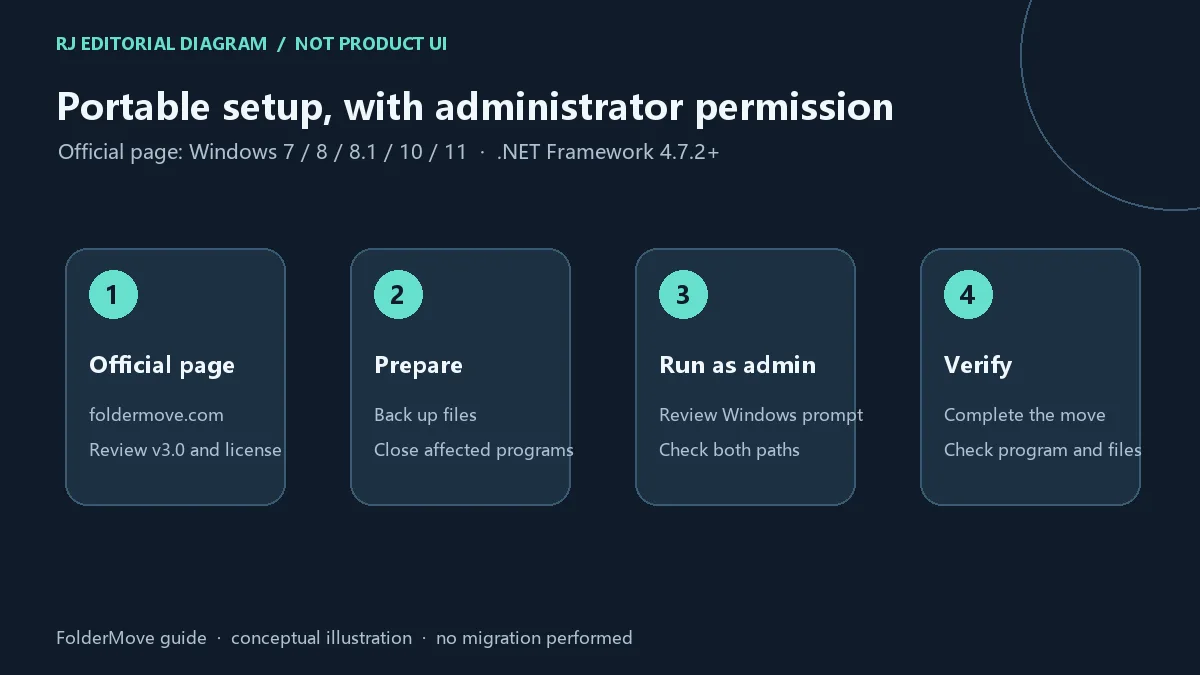
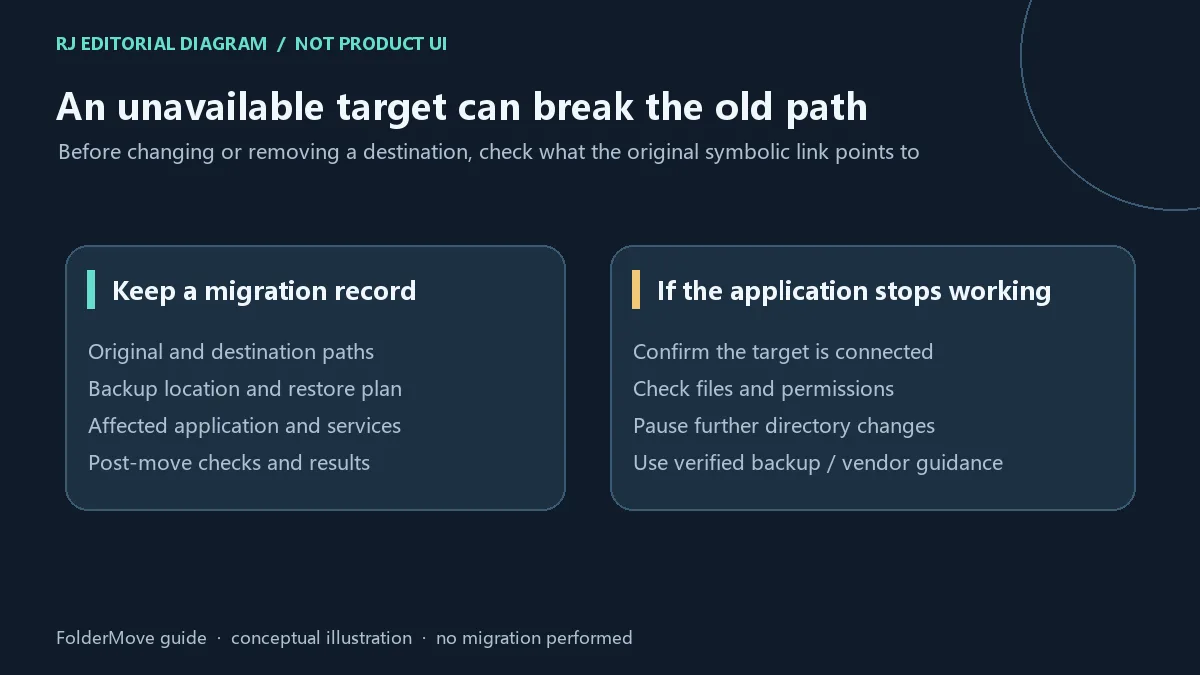
原路径能否继续访问取决于它指向的目标。若目标目录被再次移动、改名、删除,或所在磁盘断开,程序可能无法通过原路径找到文件。先确认目标磁盘连接、目标文件是否存在以及访问权限,再检查原路径与目标路径的对应关系。此时应暂停继续移动目录,避免把问题扩大。官网当前页未提供可据以复现的详细回退步骤,因此本页不编造“一键恢复”功能。需要回退时,先保留现有文件和路径记录,再依据可验证的备份方案或应用发行方指导恢复;不要在未确认链接和真实数据位置前直接删除目录。
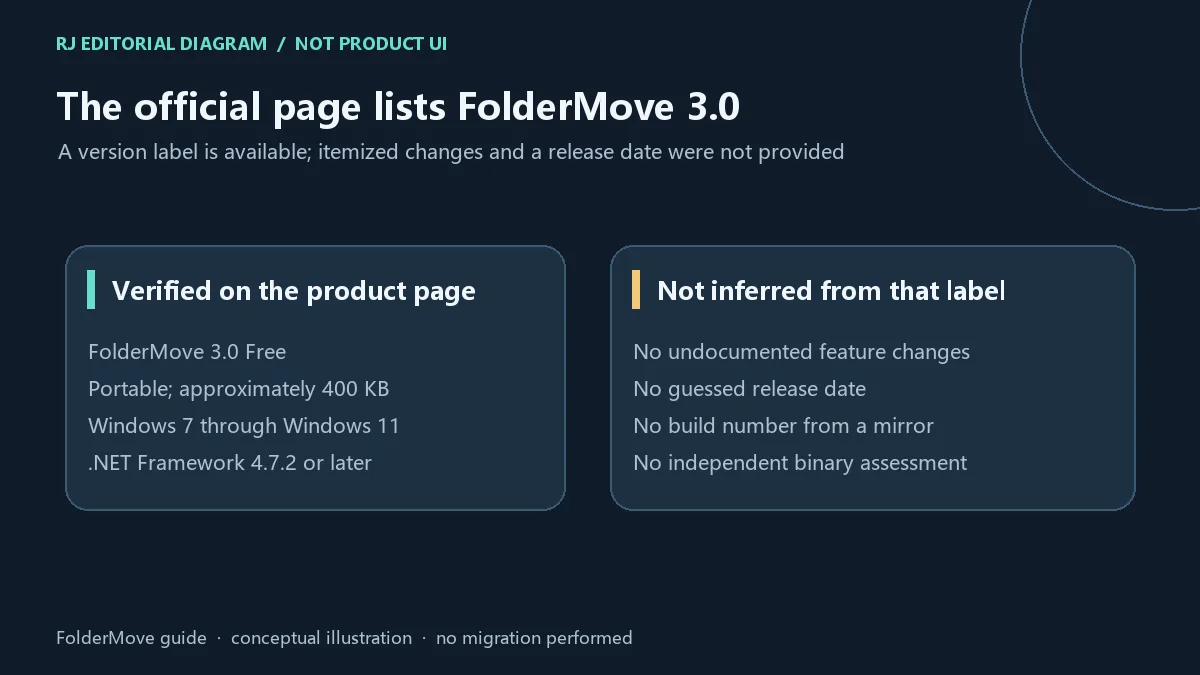
本次核验的官方页面标题为 FolderMove™ 3.0 Free。页面提供版本标示、便携工具说明和系统要求,但没有详细的版本变更日志或可确认的发布日期。因此这里记录当前页面列出的 3.0,不把旧榜单中的文件名当作最新版本证据,也不补写修复、性能提升或新增功能。更新前重新打开官方页面核对版本、运行要求与许可;若网页之后发生变化,以发行方当前说明为准。
FolderMove 从哪里下载,下载安全吗?
从 foldermove.com 官方页面进入当前下载入口。本文未下载、执行、检查签名或扫描二进制文件;官网来源核验不代表独立安全审计。取得文件后,仍应结合 Windows 提示和本机防护结果判断是否运行。
FolderMove 是免费软件吗,能在公司使用吗?
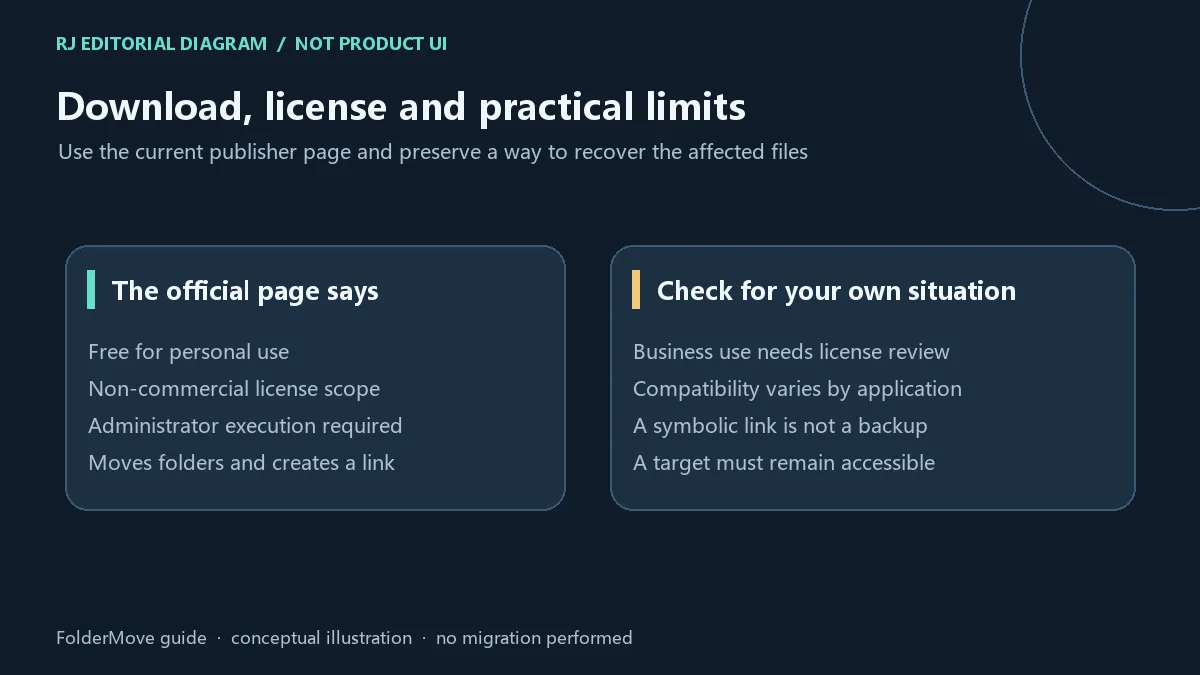
官网注明个人、非商业用途免费。不能据此推断商业或公司环境也免费;此类用途应先核对发行方当前许可或联系发行方。
为什么需要管理员权限?
官网要求以管理员身份运行。迁移目录并在原位置建立符号链接涉及文件系统操作;运行前应确认要操作的目录及自己对这些文件的管理权限。
迁移后可以随时删除目标目录吗?
不应这样做。目标保存实际文件,原位置的符号链接会指向它;目标删除或不可访问后,原路径可能失效。先确定数据位置与恢复计划,再处理链接或目标目录。
不用安装是否意味着没有数据风险?
不是。便携指分发或运行方式,不代表迁移不会影响应用。备份、关闭占用程序、记录路径并检查迁移结果,仍是必要准备。
v3.0 有什么新功能?
官网当前页没有列出逐项更新说明。本页只记录可核实的版本标示,不推测变化。使用 FolderMove 下载入口前,请再次核对官网要求并保留可恢复的备份。
FolderMove download guide: move Windows app folders with symbolic links. Check v3.0, setup, backup, target availability and personal-use license limits.
FolderMove offers a way to relocate a folder containing an installed application or game to another location or drive on the same computer. It then creates a symbolic link at the original location, directing access toward the destination where the actual files now reside. This can be relevant when the current drive has limited space, but the link does not create another full backup copy. The mechanism alone does not establish compatibility with every application, launcher or updater. This guide covers the FolderMove 3.0 label shown on the current official page.
Look for a relocation feature provided by the application publisher or game launcher before choosing a directory-link approach. A supported move workflow is usually easier to coordinate with that product's update and repair features. If you use FolderMove, first back up valuable files, confirm destination capacity and permissions, and close the affected application and background processes. A program can depend on services, settings or files outside its visible installation folder, so a completed folder move does not prove complete application compatibility. Do not select Windows, boot-related or unfamiliar system directories simply because they are large. Follow administrator policies for managed software. These are editorial planning suggestions, not a publisher guarantee for every application.
Continued access through the old path depends on its destination. Moving, renaming or deleting that target again, or disconnecting the drive that contains it, can prevent the application from finding its files through the original path. First check the drive connection, the actual destination files and permissions, then the relationship between the original and destination paths. Pause further moves while investigating. The reviewed official page did not provide a detailed, reproducible rollback procedure, so this guide does not invent a one-click restore feature. If you need to reverse the move, preserve existing files and path records, then follow a verified backup plan or application-vendor guidance. Do not delete directories before identifying the link and actual data locations.
The official page reviewed here is titled FolderMove™ 3.0 Free. It supplies a version label, portable-tool description and system requirements, but no detailed release changelog or confirmed release date. This page therefore records 3.0 as the version displayed by the publisher. It does not treat an old catalog filename as current-release evidence or infer fixes, performance gains or new features. Revisit the official page before updating and check its current version, requirements and license.
Where can I download FolderMove, and is it safe?
Use the current download entry on the official foldermove.com page. This guide has not downloaded, executed, signature-checked or scanned the binary. Reviewing the publisher page is not an independent security audit; review Windows prompts and local protection results before execution.
Is FolderMove free for business use?
The official page says it is free for personal, non-commercial use. That does not establish a free business license. Check the publisher's current terms or contact the publisher before commercial use.
Why does it need administrator permission?
The official page instructs users to run it as administrator. Relocating a directory and creating a symbolic link involves filesystem operations. Confirm the selected directories and your authority to manage them before running the tool.
Can I delete the destination after the move?
The destination holds the actual files and the old path points to it. Deleting or losing access to that destination can make the old path fail. Identify the data and recovery plan before changing either the link or the destination.
Does portable mean that a move has no data risk?
Portable describes distribution or execution, not the effects of moving application files. Back up files, close affected processes, record both paths and check the result.
What is new in version 3.0?
The current publisher page does not provide itemized changes. This guide records the verified version label without inventing release details. Before using the FolderMove download entry, review the live requirements and retain a recoverable backup.
情報確認日:2026年10月18日
初回公開:2026年10月18日· 編集部による更新:2026年10月18日
Use https://foldermove.com/ for the current official download entry. This page has not downloaded, executed or scanned the binary. / 从官方页面进入当前下载入口;本文未下载、执行或扫描程序文件。
The page says free for personal, non-commercial use. Check the publisher's current terms before business use. / 官网限定个人、非商业用途免费;商业用途应核对当前许可。
Check the destination drive, files, permissions and path relationship. Pause further moves and use verified backup or vendor guidance for recovery. / 检查目标磁盘、文件、权限与路径关系,暂停继续迁移并依据已验证备份或厂商指导恢复。
The reviewed official page lists 3.0 but provides no itemized changelog. / 官网列出 3.0,但未提供逐项更新日志。

Sideloadly 是 Windows/macOS 桌面 IPA 侧载工具,可将兼容 IPA 安装到 iPhone、iPad、Apple Silicon Mac 和 Apple TV;官网列出 Wi-Fi 侧载与自动刷新。 | Sideloadly is a Windows/macOS IPA sideloading utility for iPhone, iPad, Apple Silicon Mac and Apple TV, with Wi-Fi sideloading and automatic refresh features listed by the publisher.

DiskGenius 6.2:官方安装器与便携版、免费和专业版权限、当前更新及数据恢复位置检查。 / Official v6.2 package choices, Free/Professional differences, release notes and recovery-destination guidance.

读取DPC、ISR与硬缺页定位音频中断线索,区分7.31修复、家庭版许可与当前Windows驱动阻止限制。 / Interpret DPC, ISR and pagefault reports with v7.31 notes, Home Edition licensing and current Windows driver-policy limits.
PowerToys 是 Microsoft 提供的 Windows 实用工具集合,帮助用户自定义 Windows 并简化日常任务;资料列出的版本为 v0.102.3001。

Process Lasso 是 Bitsum 的 Windows 进程管理与自动化工具,提供 ProBalance、Performance Mode、进程规则和硬件监控。稳定版 18.4.0.48 支持 Windows 10、11 与 Windows Server;免费版可长期使用,部分高级功能需要 Pro。 / Process Lasso is Bitsum’s Windows process-management and automation utility, with ProBalance, Performance Mode, process rules and hardware monitoring. Stable version 18.4.0.48 supports Windows 10, 11 and Windows Server; some advanced features require Pro.

TrafficMonitor Windows 网速与资源监控:1.86 Lite 架构选择、任务栏设置、版本变更和零读数排查。 / TrafficMonitor v1.86 Lite package selection, taskbar setup, release changes and troubleshooting for network readings.