
驱动备份、安装与卸载整理
在换机、重装或排障时管理设备驱动及遗留的驱动包。收录Display Driver Uninstaller (DDU)、Driver Store Explorer、驱动总裁(SysCeo Windows 驱动管理工具)等站内已有工具,按实际用途选择适合自己的应用。
Display Driver Uninstaller(DDU)是 Wagnardsoft 发布的 Windows 显卡驱动清理工具,介绍 18.1.6.1、安全模式、安装准备和清理后的恢复步骤。 This DDU guide covers the current listed version, setup, cleanup choices and recovery.
别名:DDU、Display Driver Uninstaller
作者:RJ.tools Editorial
了解软件的基本信息与来源
Wagnardsoft presents DDU among its free tools. The reviewed release page did not state a separate software license; do not treat this listing as an open-source license claim.
Display Driver Uninstaller(DDU)是 Wagnardsoft 发布的 Windows 显卡驱动清理工具,介绍 18.1.6.1、安全模式、安装准备和清理后的恢复步骤。 This DDU guide covers the current listed version, setup, cleanup choices and recovery.
DDU 显卡驱动清理下载与使用指南:核对 18.1.6.1、Windows 与 .NET 要求,了解安全模式、安装和还原步骤。 Use Display Driver Uninstaller for a planned driver cleanup and check official setup advice.
Display Driver Uninstaller(DDU)是 Windows 显卡驱动清理工具,可在升级显卡或排查安装冲突前移除残留。官网列出版本 18.1.6.1 与 .NET 4.8 要求;本文说明安全模式、备份与清理选项,帮助你从官方页面下载并谨慎使用。请先确认显卡厂商和设备情况,并阅读官网操作建议。
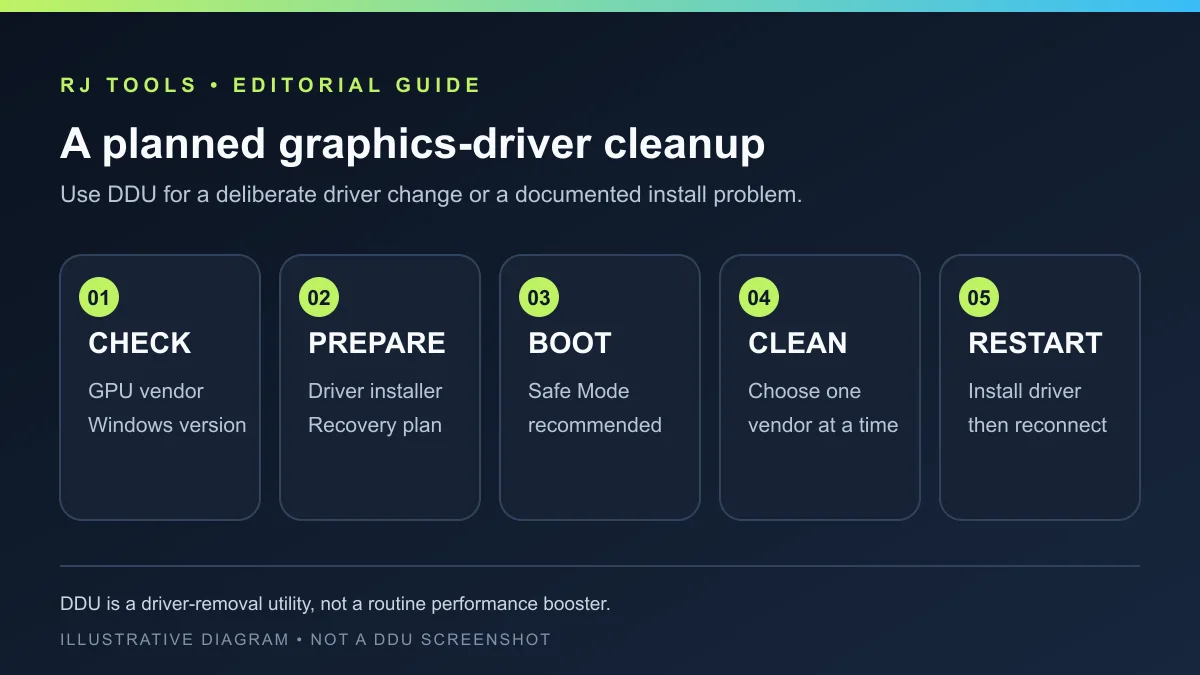
DDU 用于 Windows 显示驱动的卸载与清理。厂商说明,它可以在标准卸载失败,或需要为更换/重装驱动做干净准备时,尝试清理驱动包、驱动存储区和相关文件;这类操作可能移除厂商设置或扩展,因此应当有明确的驱动问题或硬件更换计划。它不是常驻优化器,也不能保证解决所有黑屏、卡顿或安装错误。Wagnardsoft 还明确表示该工具与 NVIDIA、AMD、Intel 等硬件厂商无隶属关系。下面的资源卡片和配图是 RJ.tools 编辑制作的说明图,不是 DDU 官方图标或软件界面截图。
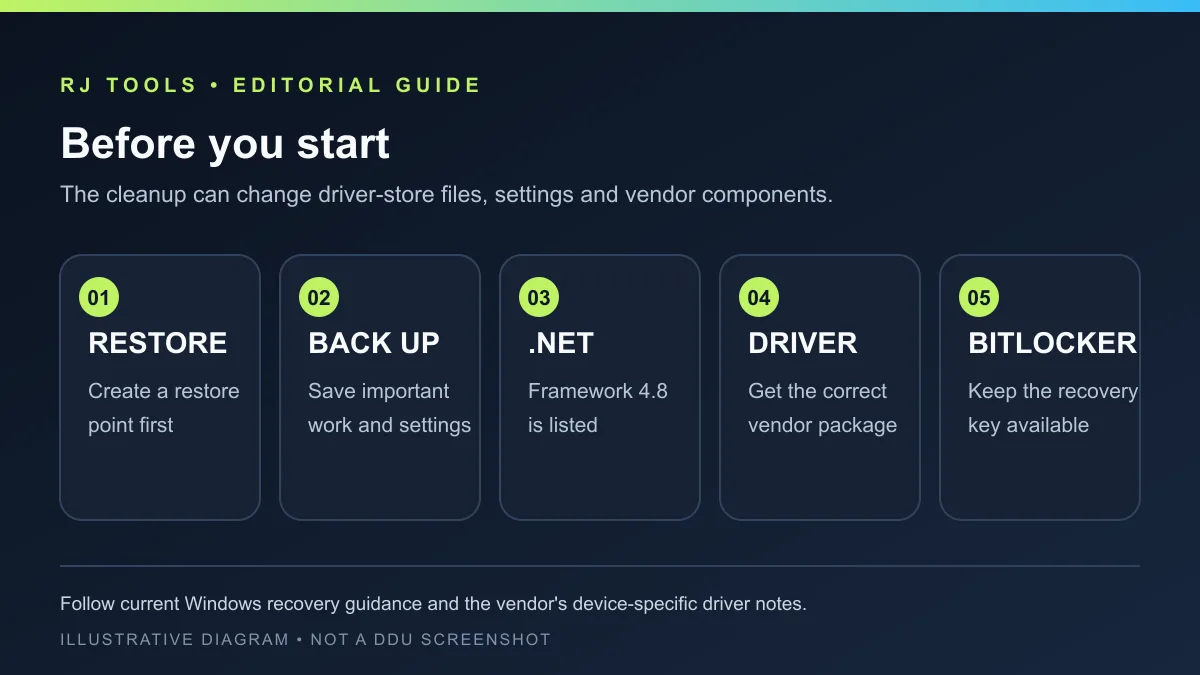
DDU 会清理驱动残留,先保存正在处理的工作,并按 Wagnardsoft 建议创建系统还原点或备份。准备好与显卡型号、Windows 版本相符的新驱动安装包,但暂时不要启动安装程序;如果电脑启用了 BitLocker,按官方教程建议确认能够取得恢复密钥。DDU 当前页面列出 .NET Framework 4.8 和 Windows 7、8、8.1、10、11(32/64 位)要求;实际兼容情况还要结合 OEM 笔记本定制驱动和设备提示判断。不要把未知来源的清理包当成官方版本。
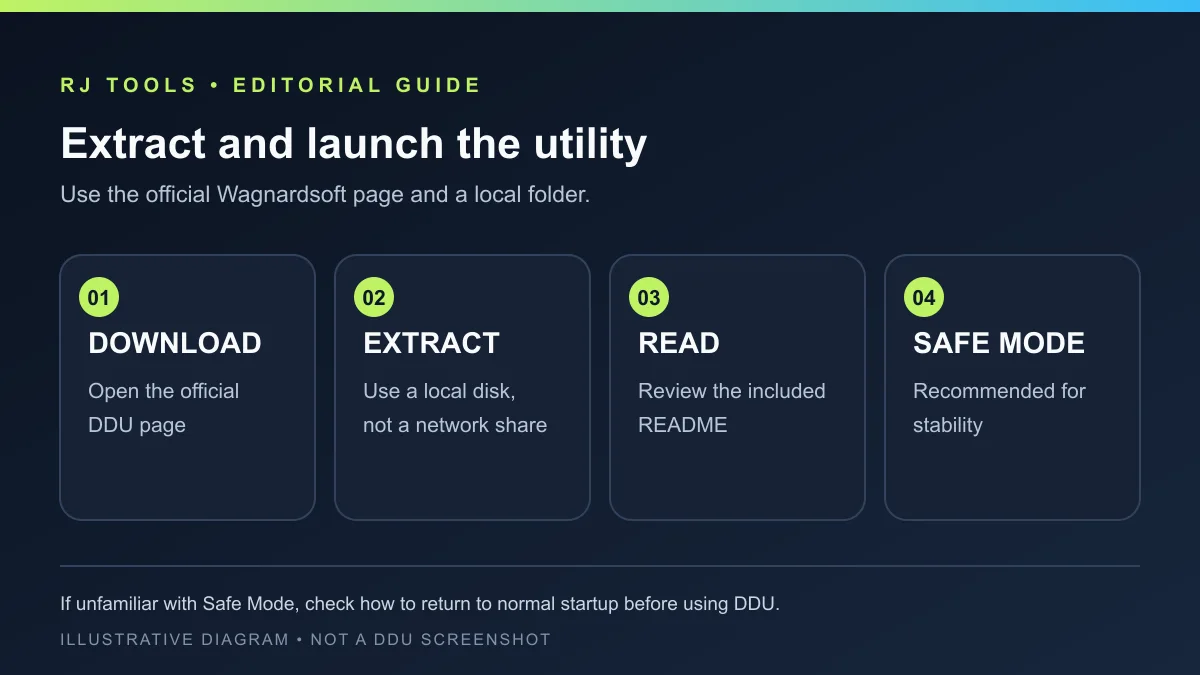
从 Wagnardsoft 官方 DDU 页面查看当前版本和下载说明。官方页上的下载/支持入口会跳到论坛;本次浏览遇到安全验证,因此没有下载、核验或托管安装包。下载时确认网址仍属于 Wagnardsoft,并查看页面当前版本;不要根据榜单中的旧版本号选择镜像包。
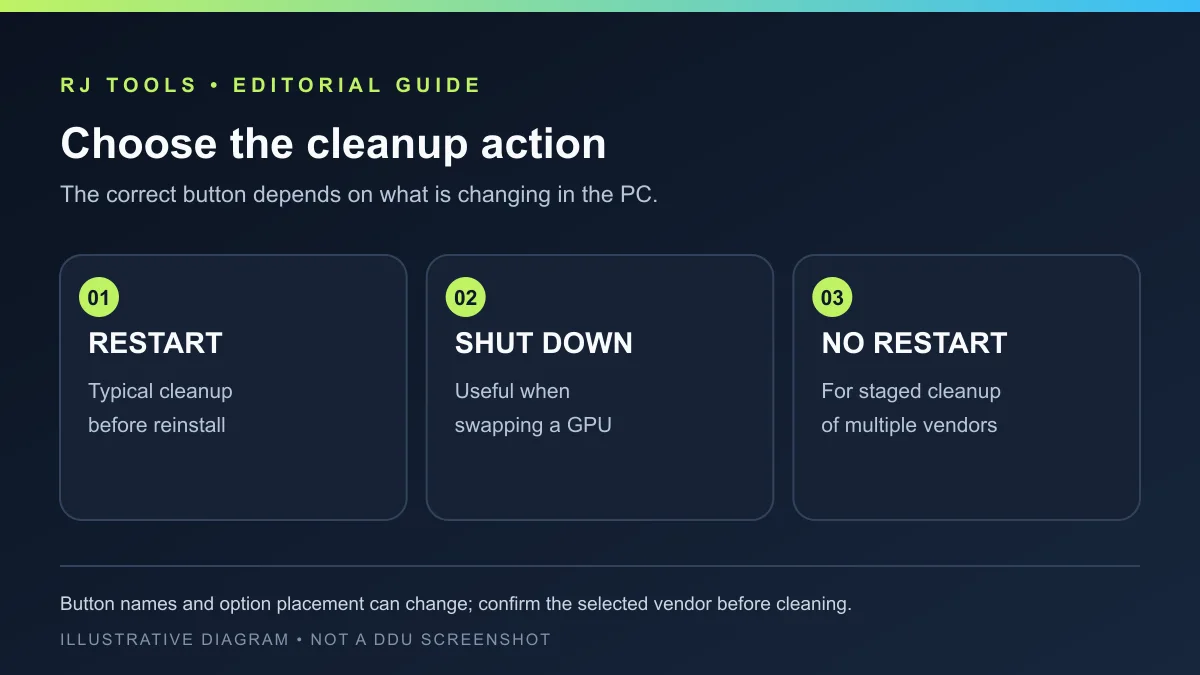
Wagnardsoft 建议优先在安全模式运行 DDU;官方教程也允许普通模式,但建议减少后台程序并按说明处理。进入清理前,在程序中选择要处理的 GPU 厂商,核对机型和目标驱动,不要只凭旧设备名称猜测。常规清理后准备重新安装驱动时,教程把“清理并重启”作为常见选项;准备更换显卡时,可参考“清理并关机”;需要分步处理曾安装过的多个厂商驱动时,教程介绍“不重启清理”。具体按钮和选项可能随版本改变,以当前程序界面及官方教程为准。
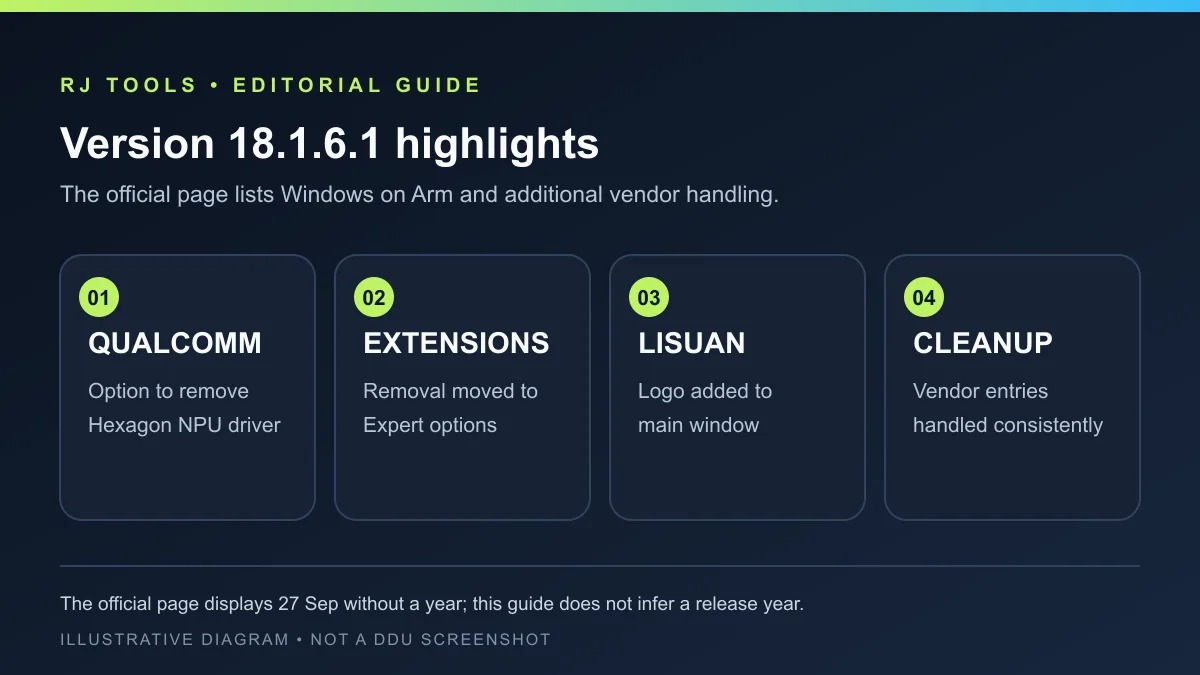
本次核对的 Wagnardsoft 发布页标题列出 DDU 18.1.6.1。更新条目提到 Windows on Arm 下增加移除 Qualcomm Hexagon NPU 驱动的选项,并处理 Qualcomm 驱动安装器记录,以便 Snapdragon 控制面板重新安装而非只显示修复;扩展移除入口移到“专家选项”,并说明如何恢复扩展。发布说明还写明不会移除屏幕自身的扩展(例如色彩配置或 MyASUS Splendid),保留扩展所声明的组件会继续保留相应驱动。此外还包括 Lisuan 标识、统一处理厂商“添加/删除程序”记录、避免 NVIDIA 清理影响无关程序、更新笔记本/Snapdragon 帮助文本、使用后隐藏 Windows Update 按钮,以及俄语文本更新。页面日期只显示“27 Sep”,没有年份,因此不补写发布日期。
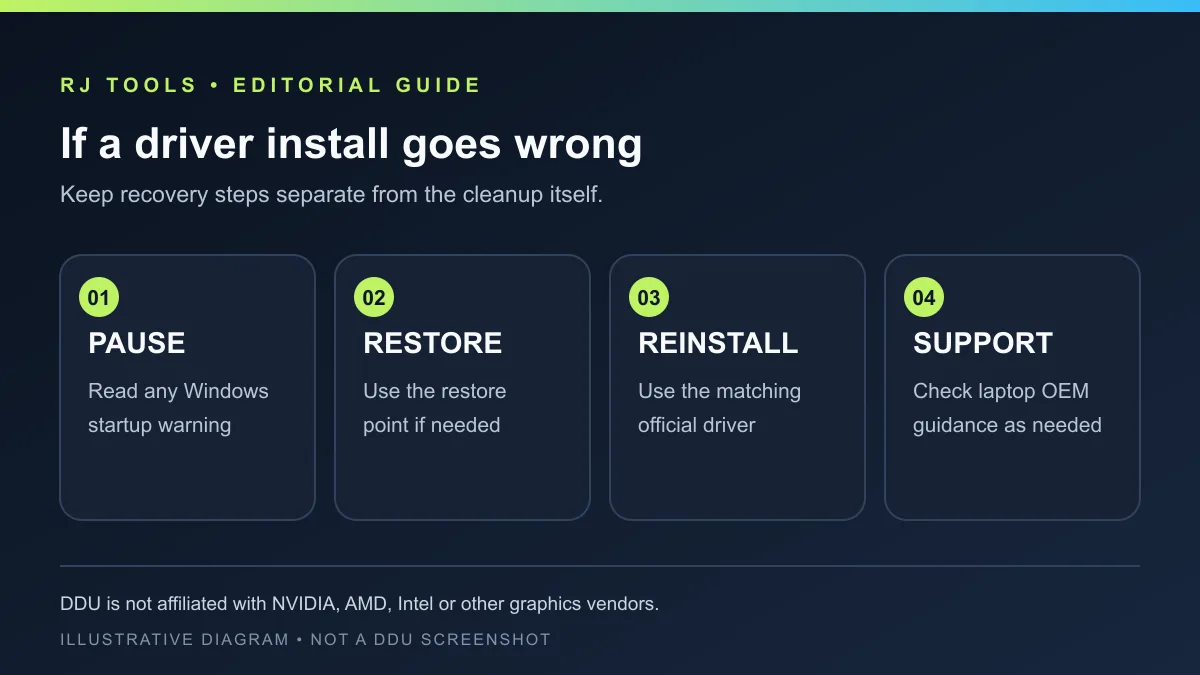
清理完成后按所选操作重启或关机,再运行此前准备的显卡厂商或电脑 OEM 官方驱动安装程序。笔记本和品牌整机可能使用定制硬件 ID,应优先核对制造商页面;不要把通用显卡驱动强装到不匹配的设备。遇到启动问题时先停止重复清理,阅读 Windows 恢复提示,并按已有的还原点、备份和 BitLocker 恢复密钥处理。DDU 的作者不隶属于 GPU 厂商;使用前请评估该工具对系统驱动的影响,本页面不代表独立安全审计或对故障修复结果的保证。
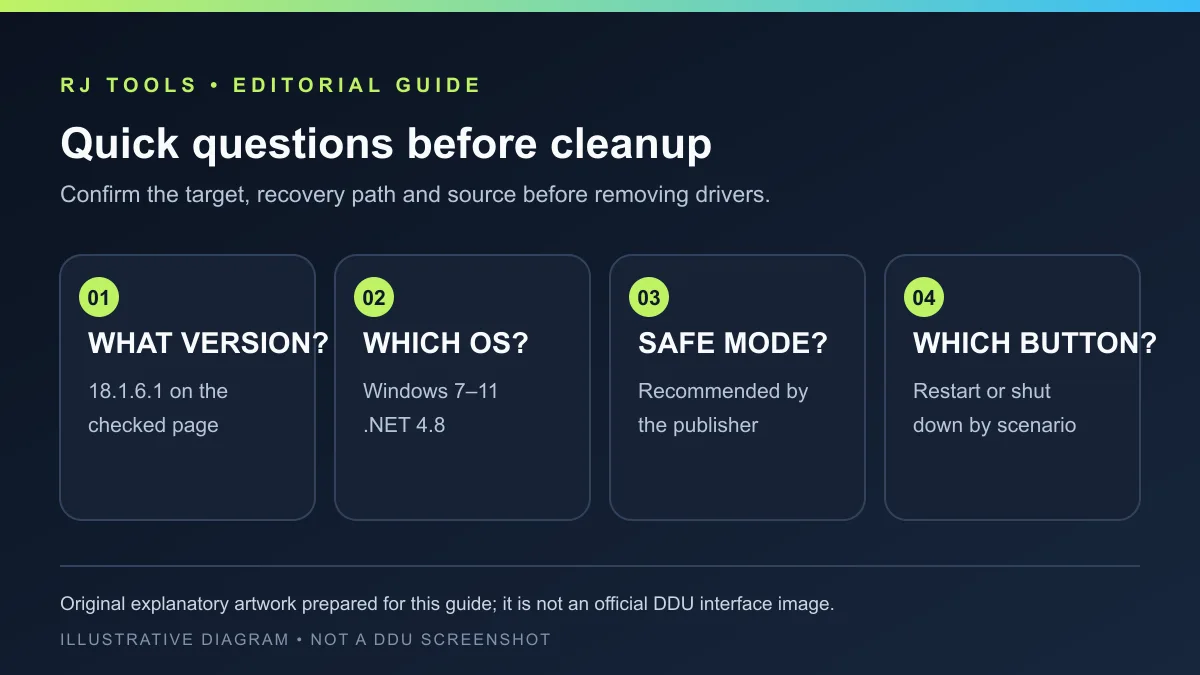
DDU 当前版本是多少? 本次查看的 Wagnardsoft 页面标题列出 18.1.6.1。页面时间戳只显示 27 Sep,未写年份;安装前应再次查看官方页是否更新。
DDU 支持哪些 Windows 版本? 当前发布页列出 Windows 7、8、8.1、10、11(32/64 位)和 .NET Framework 4.8。具体设备与 OEM 驱动的支持情况仍需核对厂商说明。
必须使用安全模式吗? 厂商推荐安全模式以提高稳定性,官方教程也提到普通模式可用但存在不同注意事项。若不熟悉恢复安全模式启动,请先查阅 Windows 官方帮助,不要在没有恢复计划时贸然设置启动选项。
普通清理选哪个按钮? 官方教程把“清理并重启”用于一般重装,把“清理并关机”用于准备更换显卡;多厂商迁移的步骤可能不同。确认当前设备和目标后再选择,版本界面可能变化。
可以只从第三方下载站拿安装包吗? 本文没有核验任何镜像包的签名、哈希或版本;优先从 Wagnardsoft 官方页面进入其当前下载说明,不要用榜单旧版本号判断安装包真伪。
DDU clears Windows graphics-driver leftovers. This guide covers v18.1.6.1, .NET 4.8, Safe Mode, restore points and official download steps before updates.
Display Driver Uninstaller removes display-driver packages and related leftovers on Windows. Wagnardsoft positions it for cases where a normal uninstall fails or a clean driver change is needed. That work can remove vendor settings or extensions, so use DDU for a defined driver issue or hardware change, not as a background optimizer. It cannot guarantee a fix for every black screen, slowdown or installer error. Wagnardsoft also says it is not affiliated with NVIDIA, AMD, Intel or other hardware vendors. The resource tile and illustrations in this guide are original RJ editorial artwork, not the DDU app icon or product screenshots.
Save current work and follow Wagnardsoft’s advice to create a restore point or backup before removing drivers. Have the replacement package for the exact GPU and Windows version ready, but do not run its installer yet. If BitLocker is enabled, make sure you can retrieve the recovery key, as the official guide advises. The current product page lists .NET Framework 4.8 and Windows 7, 8, 8.1, 10 and 11 (32/64-bit); compatibility also depends on OEM laptop drivers and device prompts. Do not treat an unknown mirror as an official DDU package.
Check the current version and download instructions on the Wagnardsoft DDU release page. Its download/support link leads to a forum; the browser session encountered a security-verification page, so no installer was downloaded, hosted or checked. Confirm that the current address remains on Wagnardsoft and verify the version shown there instead of choosing a mirror by an old ranking-sheet version.
Wagnardsoft recommends running DDU in Safe Mode; its guide also discusses Normal Mode with additional precautions. Before cleanup, select the GPU vendor in the program and verify the device and target driver rather than relying on an old device name. For a typical cleanup before reinstalling a driver, the guide describes “Clean and restart.” It associates “Clean and shutdown” with a planned GPU swap and “Clean and do NOT restart” with staged work across multiple vendors. Button wording and options can change, so follow the current interface and publisher guidance.
The Wagnardsoft page checked here lists DDU 18.1.6.1 in its title. Its notes describe a Windows on Arm option to remove Qualcomm Hexagon NPU drivers and handling for Qualcomm installer records so the Snapdragon Control Panel can offer a fresh install instead of Repair. Extension removal moved under Expert options with a note on restoring extensions. The page says a screen’s own extensions, such as colour profiles or MyASUS Splendid, are not removed, and drivers declared by a kept extension remain. Other listed changes include a Lisuan mark, consistent handling of vendor Add/Remove Programs entries, leaving unrelated programs alone during NVIDIA cleanup, rewritten laptop/Snapdragon help, hiding the Windows Update button after use and updated Russian text. The date shown is “27 Sep” without a year, so no release year is inferred.
After cleanup, restart or shut down as selected, then run the GPU vendor’s or PC maker’s official driver installer you prepared. Laptops and prebuilt systems can use custom hardware IDs, so check the manufacturer’s page before forcing a generic package. If Windows does not start normally, stop repeating the cleanup, read the recovery prompt and use the restore point, backup and BitLocker key you prepared. DDU’s author is not part of a GPU vendor; review its system-level effects before use. This page is not an independent security audit and does not promise a repair outcome.
What is the current DDU version? The Wagnardsoft page checked here is titled 18.1.6.1. Its date reads 27 Sep without a year; check the official page again before installing.
Which Windows versions are listed? The product page lists Windows 7, 8, 8.1, 10 and 11 (32/64-bit), plus .NET Framework 4.8. Check device and OEM driver guidance for your specific system.
Do I have to use Safe Mode? The publisher recommends it for stability and also describes Normal Mode with different precautions. If you do not know how to return to normal startup, read current Windows help before changing boot settings.
Which cleanup button should I choose? The official guide describes “Clean and restart” for a typical reinstall and “Clean and shutdown” when changing a GPU. Multi-vendor migration can require a different sequence. Confirm your hardware and the current interface first.
Can I use a package from a third-party download site? This guide did not verify any mirror package, signature or hash. Start from Wagnardsoft’s official page and check its current download instructions instead of using the ranking sheet’s older version number.
资料核验日期:2026年10月18日
首次发布:2026年10月18日· 编辑修订:2026年10月18日
本次核对的 Wagnardsoft 发布页标题列出 18.1.6.1;日期只显示 27 Sep,没有年份。
Wagnardsoft recommends Safe Mode for stability. Read the current guide and make sure you know how to return to normal startup.
The official release page links to its download/support forum. This listing did not host or verify an installer; follow the current publisher instructions.
按厂商建议创建还原点或备份,准备匹配的驱动程序;若启用 BitLocker,确认可取得恢复密钥。
The publisher lists Qualcomm Hexagon NPU cleanup, extension-management changes, Lisuan support-related updates and other fixes; the page date has no year.

Sideloadly 是 Windows/macOS 桌面 IPA 侧载工具,可将兼容 IPA 安装到 iPhone、iPad、Apple Silicon Mac 和 Apple TV;官网列出 Wi-Fi 侧载与自动刷新。 | Sideloadly is a Windows/macOS IPA sideloading utility for iPhone, iPad, Apple Silicon Mac and Apple TV, with Wi-Fi sideloading and automatic refresh features listed by the publisher.

DiskGenius 6.2:官方安装器与便携版、免费和专业版权限、当前更新及数据恢复位置检查。 / Official v6.2 package choices, Free/Professional differences, release notes and recovery-destination guidance.

读取DPC、ISR与硬缺页定位音频中断线索,区分7.31修复、家庭版许可与当前Windows驱动阻止限制。 / Interpret DPC, ISR and pagefault reports with v7.31 notes, Home Edition licensing and current Windows driver-policy limits.
PowerToys 是 Microsoft 提供的 Windows 实用工具集合,帮助用户自定义 Windows 并简化日常任务;资料列出的版本为 v0.102.3001。

Process Lasso 是 Bitsum 的 Windows 进程管理与自动化工具,提供 ProBalance、Performance Mode、进程规则和硬件监控。稳定版 18.4.0.48 支持 Windows 10、11 与 Windows Server;免费版可长期使用,部分高级功能需要 Pro。 / Process Lasso is Bitsum’s Windows process-management and automation utility, with ProBalance, Performance Mode, process rules and hardware monitoring. Stable version 18.4.0.48 supports Windows 10, 11 and Windows Server; some advanced features require Pro.

TrafficMonitor Windows 网速与资源监控:1.86 Lite 架构选择、任务栏设置、版本变更和零读数排查。 / TrafficMonitor v1.86 Lite package selection, taskbar setup, release changes and troubleshooting for network readings.