
硬盘健康与 SSD 读写测试
查看存储设备健康信息,并测量硬盘或 SSD 的读写表现。收录AS SSD Benchmark、CrystalDiskInfo、CrystalDiskMark等站内已有工具,按实际用途选择适合自己的应用。
CrystalDiskMark 是 Windows 存储性能测试工具。This guide explains SSD and HDD benchmarks, setup, 9.0.3 changes, and result troubleshooting.
Apelidos: CrystalDiskMark Disk Benchmark、硬盘测速
Autor: RJ.tools Editorial
Conheça as informações básicas do software e suas fontes
MIT License for the software, according to CrystalMark's license page.
CrystalDiskMark 是 Windows 存储性能测试工具。This guide explains SSD and HDD benchmarks, setup, 9.0.3 changes, and result troubleshooting.
CrystalDiskMark 下载与硬盘测速指南:了解 9.0.3 更新、安装包选择、测试参数及结果波动。 Learn to install CrystalDiskMark, compare SSD and HDD results, and understand MB/s, IOPS, and latency.
CrystalDiskMark 是 Windows 磁盘测速工具,用于测量 HDD、SSD、USB 存储和存储卡的读写表现。本文说明 9.0.3 更新及下载、基准测试参数、结果单位与安装方式,并解释如何统一设置进行 SSD 速度对比,以及测试失败或成绩波动时可先检查哪些条件,同时区分性能测试与硬盘健康检测。
CrystalDiskMark 用读写基准测试观察 HDD、SSD、USB 闪存、存储卡和网络盘的存储性能。它可显示顺序与随机测试结果,并提供 Peak、Real World、Demo 等测试模式,适合在相同条件下比较存储设备的传输表现。它不是 SMART 健康监测、坏道检查或寿命预测工具,单次分数也不能代表所有日常应用的实际速度。
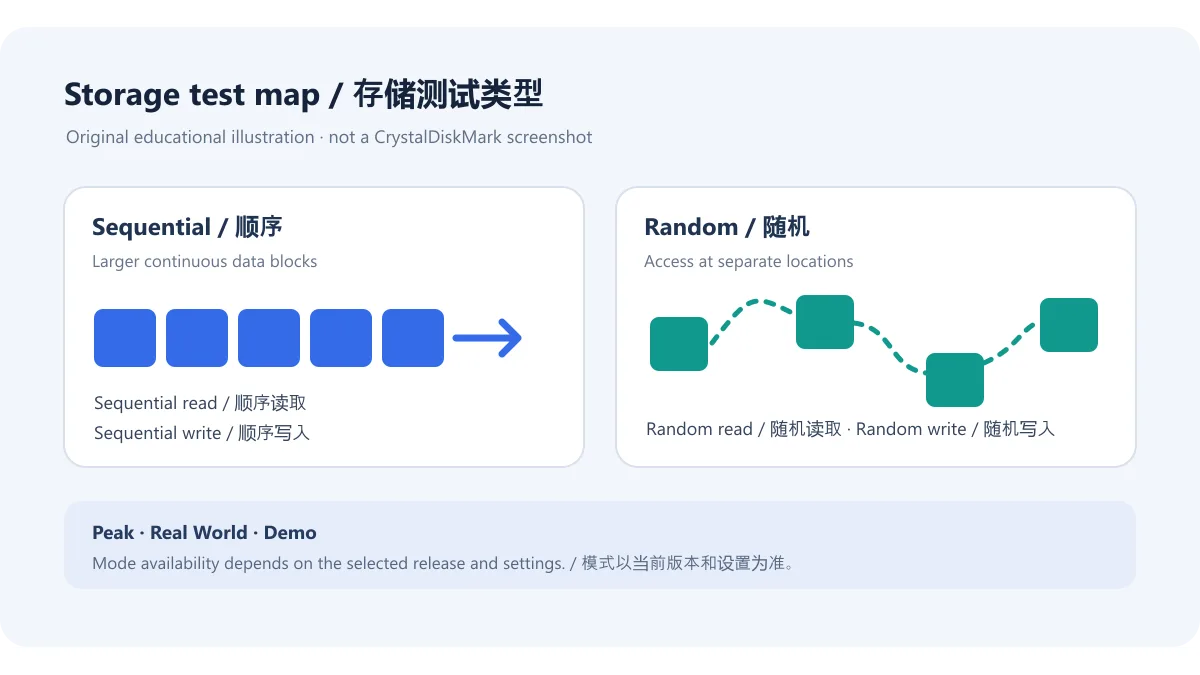
图示是原创概念图,不代表 CrystalDiskMark 的真实界面或实测数据。产品测试支持范围与模式说明见官方产品页及主窗口手册。
官方手册列出 1–9 次测试次数,默认值为 5;测试文件大小范围从 16 MiB 到 64 GiB,默认值为 1 GiB。较大的测试文件可能更适合观察较长时间的传输表现,但会占用目标盘空间并增加读写量;低速 USB 存储或剩余空间有限的设备,可按设备情况选择较小文件和较少轮次。
开始测试前确认目标盘符和测试设置。CrystalDiskMark 会对选定存储执行读写操作;不要把结果目录、临时文件或重要数据误认为不会受写入影响。对 SSD 或 USB 闪存,官方提醒反复基准测试会增加写入并可能缩短介质寿命,建议只在需要时运行。
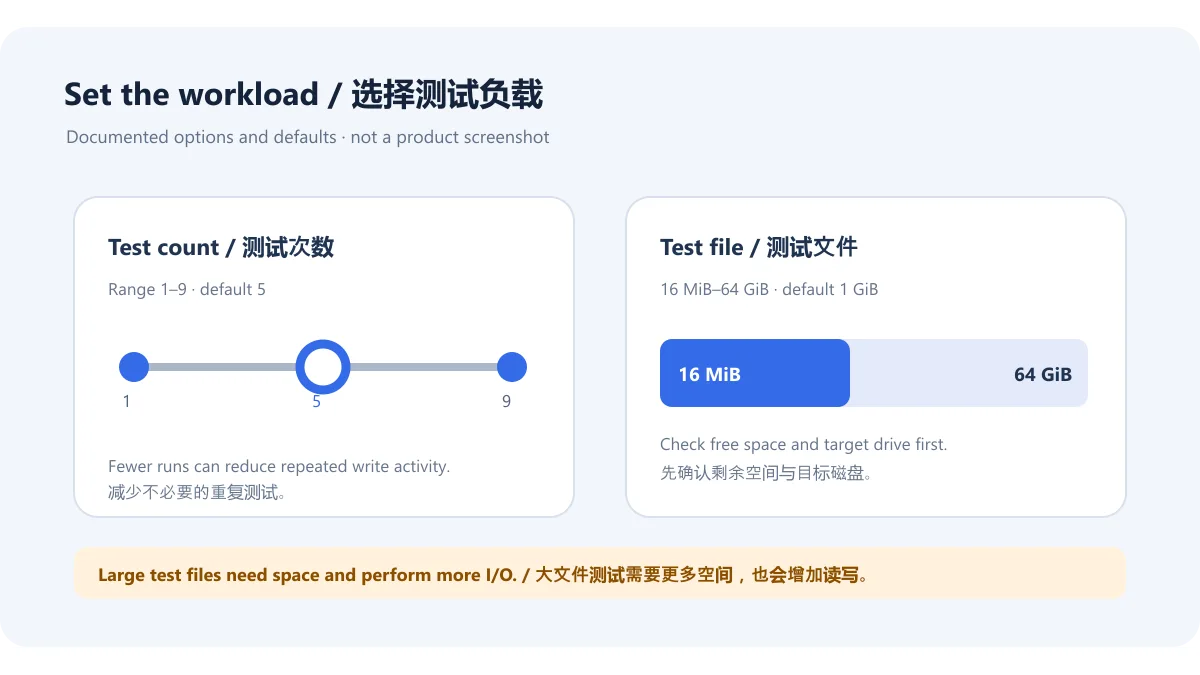
数值是手册列出的选项和默认设置,不是软件截图。低速设备可先用较小测试文件排查流程,再决定是否使用更大的工作集。
顺序读写通常用于观察较连续数据的传输表现;随机读写则反映不同块大小与队列/线程设置下的访问情况。结果可能显示 MB/s 或 GB/s、IOPS 和平均延迟(µs)。这些指标各自描述吞吐量、每秒操作数和响应时间,不能只取一个数字来推断硬盘健康或所有程序的加载速度。
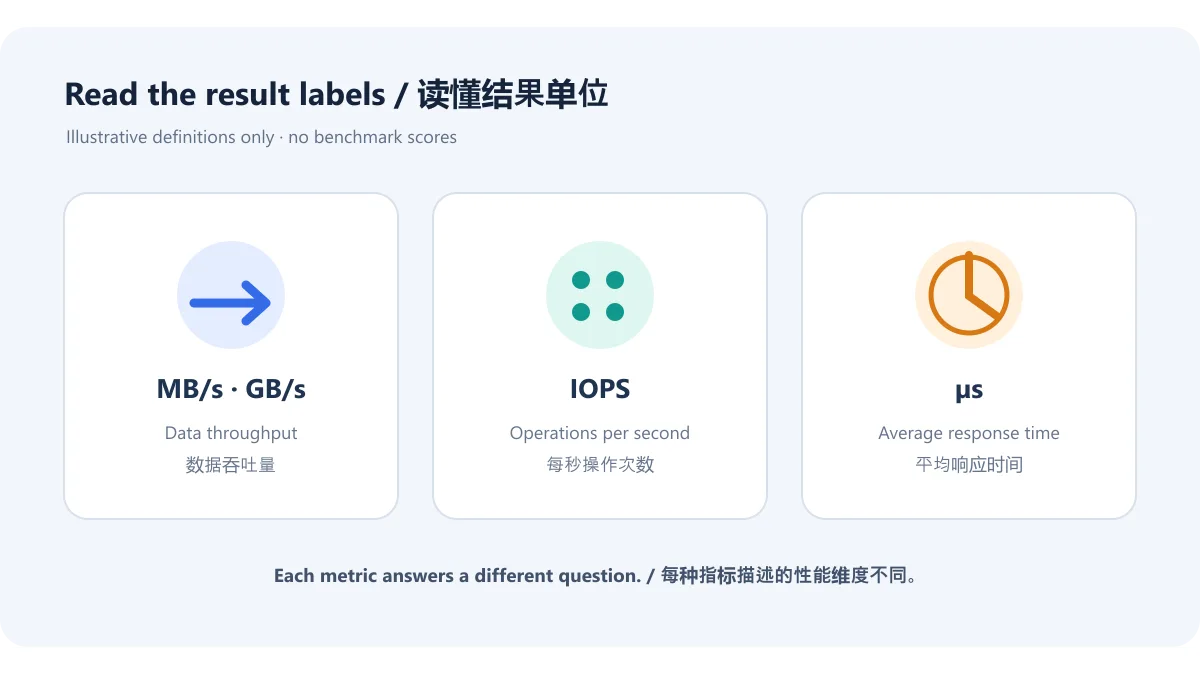
测试文件位置与大小、文件碎片、存储控制器、CPU 和数据模式都可能影响结果。对比两块 SSD 时尽量使用相同版本、同一模式与测试大小,并保持测试目标和运行条件一致;不同主版本的结果不可直接当作同一量尺。示意图中的数值为单位占位,不是性能成绩。
截至 2026-10-17,CrystalMark 官方下载页列出的版本是 9.0.3,发布日期为 2026-05-24。页面提供 Installer 与 ZIP,并另列 Microsoft Store 项目;商店当前显示 US$9.99。选择时要区分官网直接下载包和商店条目,实际价格与可用性应以所在地区的 Microsoft Store 为准。
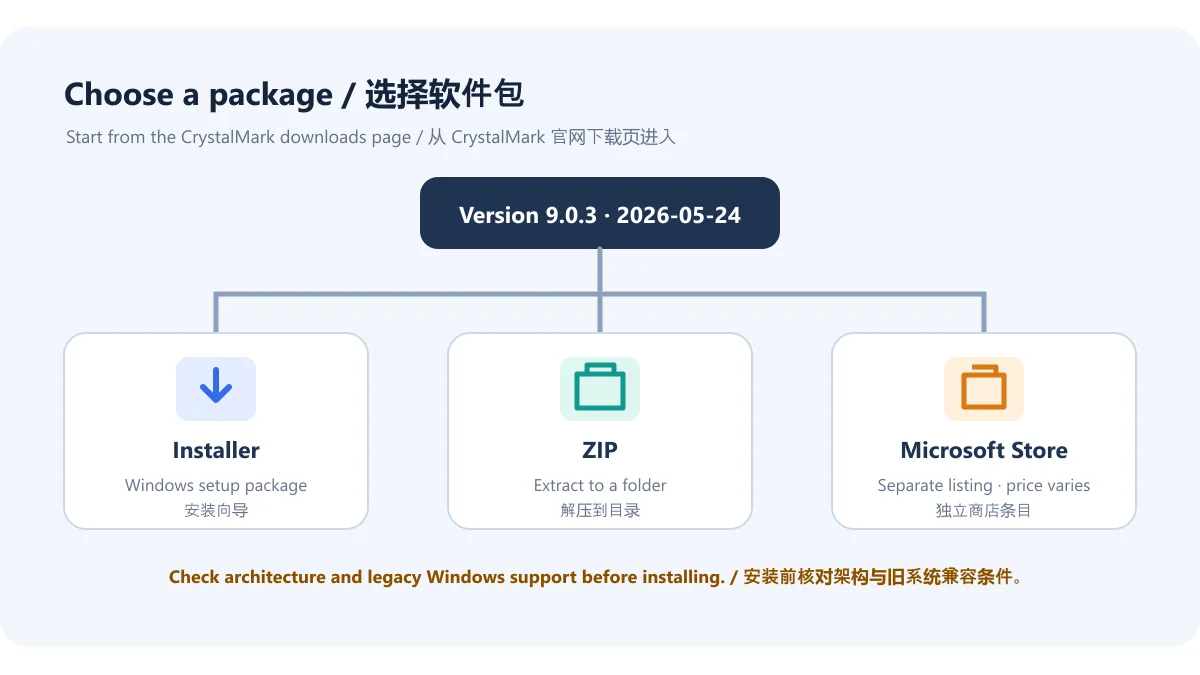
本地没有下载、运行或扫描任何安装包;安装包大小、签名和哈希也未核验。官网 安装与卸载说明含 ZIP 与 Installer 的具体操作。
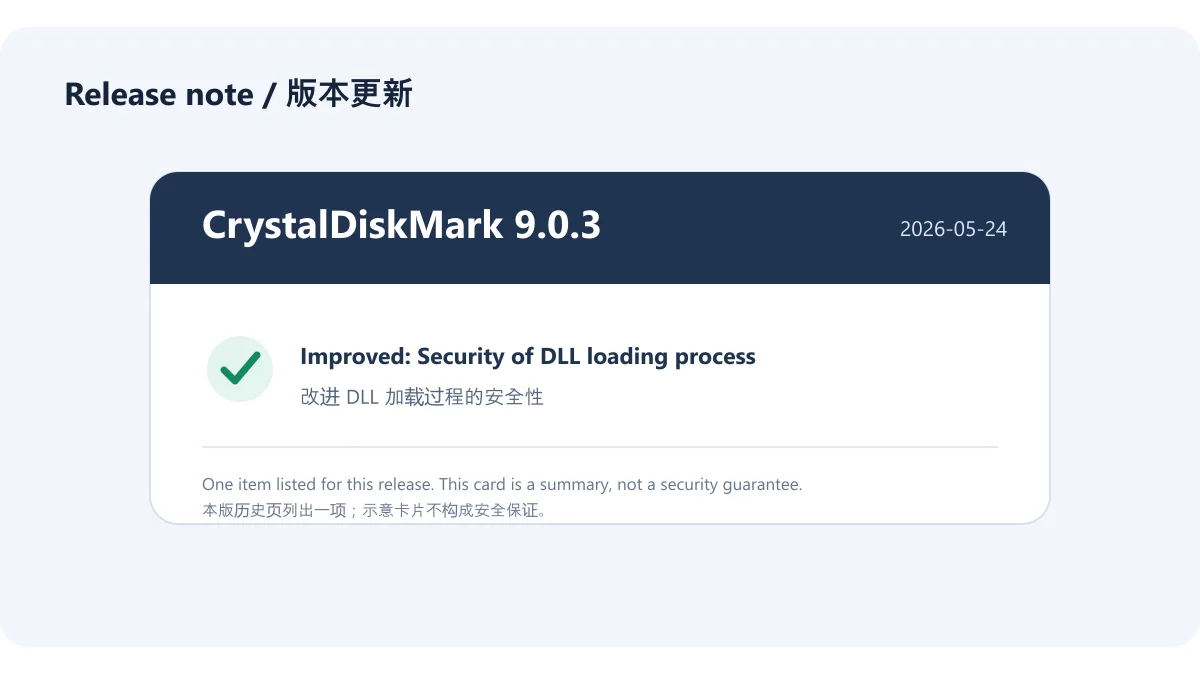
官方版本历史将 9.0.3 标为 2026-05-24,并列出一项更新:改进 DLL 加载过程的安全性(“Improved: Security of DLL loading process”)。本页只概述这条 9.0.3 记录,不把 9.0.2 或 9.0.1 的变更合并进最新版本,也不把“改进安全性”扩写成无法证明的安全保证。
官网历史页还列出 9.0.2(2026-02-17)更新语言文件并移除一项版权持有人记录,以及 9.0.1(2025-06-19)修复某些环境下基准测试无法正常运行的问题。若只想了解当前版更新,请以9.0.3 历史页为准。
为什么两次 SSD 测速差异很大? 测试文件大小、存放位置、碎片、控制器、CPU、数据模式和运行状态都会影响结果。先统一 CrystalDiskMark 版本、模式和测试设置,并避免同时进行大量磁盘读写;不要把不同主版本的分数直接比较。
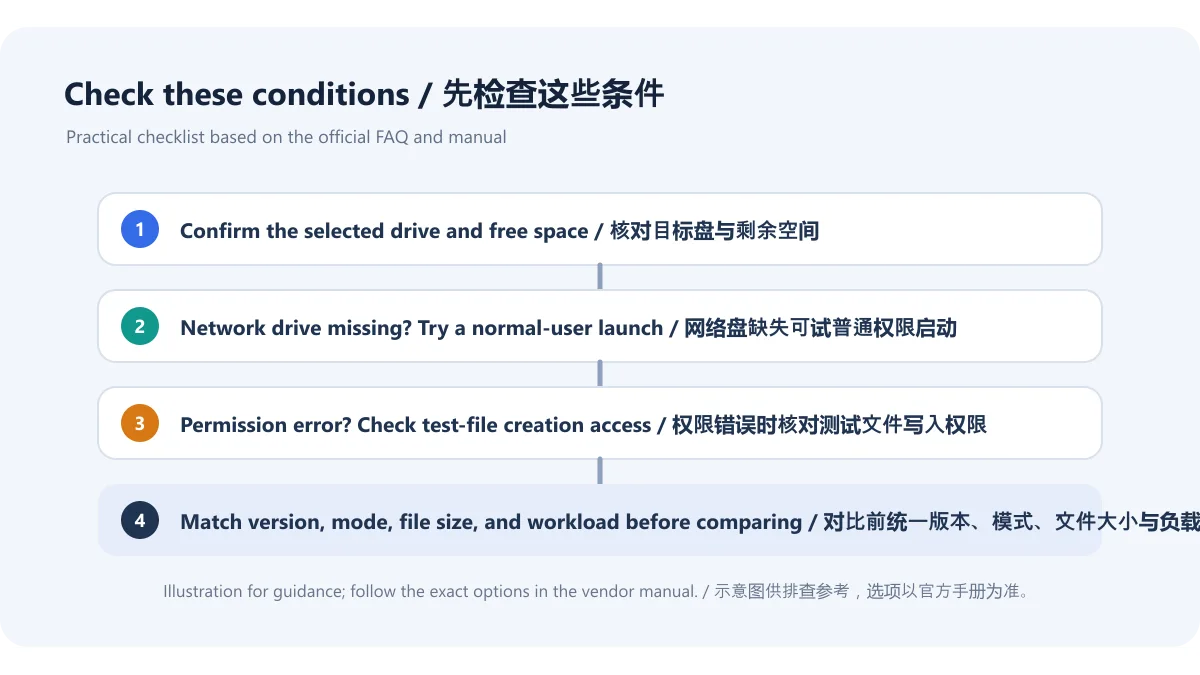
网络盘没有出现在列表里怎么办? 官方 FAQ 提到,网络盘在以管理员身份运行时可能不可见;按官方建议尝试以普通用户权限启动。普通本地磁盘若出现权限错误,可检查目标位置能否创建测试文件,再按官方 FAQ 的权限建议处理。网络盘可见性和本地写入权限是不同问题,不要混为一个设置。
跑分会删除原有文件吗? 本页没有把软件测试描述为文件恢复或清理操作。运行前确认测试目标和官方设置,重要资料先备份;不要对不确定的磁盘或目录盲目进行写入测试。
反复测试会影响 SSD 或 U 盘吗? 官网提醒大量重复测试会增加写入,并可能缩短 SSD 或 USB 存储介质寿命。减少不必要的轮次,完成比较后停止即可;不应宣称测试“完全无损”。
搜索 CrystalDiskMark 下载或 Windows SSD 测速时,请从官方页面确认版本、架构和安装方式。比较读写成绩前统一测试设置,并把基准测试当作性能观察工具,而不是硬盘健康结论。版本与更新记录以 CrystalMark 官方页面为准。
CrystalDiskMark tests Windows storage speed. Learn v9.0.3 changes, downloads, test settings, MB/s and IOPS results, plus checks for inconsistent SSD runs.
CrystalDiskMark benchmarks read and write performance for HDDs, SSDs, USB flash drives, memory cards, and network drives. It reports sequential and random tests and offers Peak, Real World, and Demo modes. Use it to compare storage under matched conditions. It is not a SMART health monitor, bad-sector checker, or lifespan forecast; one score does not predict every application’s everyday performance.
This original diagram is conceptual and does not depict the actual CrystalDiskMark interface or measured data. See the official product page and main-window manual for supported devices and modes.
The official manual lists 1–9 test runs, with 5 as the default. Test sizes range from 16 MiB to 64 GiB, and the default is 1 GiB. A larger test file may help observe longer transfers, but it uses drive space and adds read/write activity. For slower USB storage or a device with limited free space, choose a smaller file and fewer runs based on the device.
Before starting, confirm the target drive letter and test settings. CrystalDiskMark performs read/write operations on the selected storage; do not assume the test area or important data is unaffected by writes. The vendor warns that repeated benchmarks add writes and may shorten the life of SSDs or USB flash media, so run tests only when needed.
The figures summarize documented options and defaults; they are not a product screenshot. A smaller test file can help check the process on slower storage before choosing a larger workload.
Sequential tests generally show transfers of more continuous data, while random tests measure access under different block sizes and queue/thread settings. Results can appear as MB/s or GB/s, IOPS, and average latency in microseconds. These describe throughput, operations per second, and response time; none alone indicates drive health or the loading speed of every application.
Test-file location and size, fragmentation, the storage controller, CPU, and data pattern can affect results. To compare SSDs, use the same CrystalDiskMark version, mode, and test size under similar conditions. Results from different major versions are not directly comparable. Any values in this illustration are unit placeholders, not benchmark scores.
As checked on October 17, 2026, the CrystalMark downloads page lists version 9.0.3 dated May 24, 2026. It offers an Installer and ZIP, and lists a separate Microsoft Store item; the Store page shows US$9.99. Treat the direct downloads and Store listing as separate channels, and check local Store pricing and availability for your region.
No package was downloaded, run, or scanned for this draft; file size, signature, and hash were not checked. See the vendor’s installation and removal guide for exact ZIP and Installer steps.
The official version history dates 9.0.3 to May 24, 2026 and lists one change: “Improved: Security of DLL loading process.” This page summarizes only that 9.0.3 entry; it does not fold 9.0.2 or 9.0.1 changes into the current release or turn the security note into an unsupported guarantee.
The history page also lists 9.0.2 (February 17, 2026), which updated language files and removed a copyright-holder entry, and 9.0.1 (June 19, 2025), which fixed benchmark problems in some environments. For the current update, see the official 9.0.3 history.
Why do SSD scores vary between runs? File size and location, fragmentation, the controller, CPU, data pattern, and system activity can affect results. Match the CrystalDiskMark version, mode, and settings, and avoid heavy concurrent disk activity. Do not compare scores across different major versions as if they used one scale.
Why is my network drive missing? The official FAQ notes that a network drive may not appear when the app runs as administrator; try launching it as a normal user. For a local-drive permission error, check whether the target location allows test-file creation and follow the official FAQ’s permission guidance. These are separate issues.
Will a benchmark delete my existing files? This guide does not describe the benchmark as a recovery or cleanup tool. Confirm the target and documented settings before running a write test, back up important data, and do not benchmark a drive or folder you cannot identify.
Can repeated tests affect an SSD or USB drive? The vendor warns that repeated benchmarks add writes and may shorten the life of SSD or USB storage. Avoid unnecessary runs and stop when the comparison is complete; the test should not be called “completely harmless.”
For a CrystalDiskMark download or Windows SSD speed test, confirm the version, architecture, and package type on the official page. Keep settings consistent when comparing read/write results, and use a benchmark as a performance observation rather than a drive-health verdict. Follow CrystalMark’s pages for current release information.
Informações verificadas em: 18 de out. de 2026
Publicado pela primeira vez: 18 de out. de 2026· Revisão editorial: 18 de out. de 2026
CrystalDiskMark measures storage performance; CrystalDiskInfo reads drive-health and S.M.A.R.T. information.
Use the same test size, count, drive, power mode, and background workload when comparing runs.
Choose the official Installer or ZIP for your architecture, then follow the corresponding setup steps.
No. A performance benchmark is not a health or remaining-life diagnosis.
TeamSpeak 是面向游戏、团队、商务和社群的语音通信平台,官方介绍包含消息交流与服务器管理。本条目对应官方列出的 Windows 64 位 TeamSpeak 3 3.6.2。
微软官方 Windows 10 下载页提供媒体创建工具入口和安装介质制作说明,页面将 22H2 标示为最终版本。Windows 10 Home 和 Pro 支持已于 2025 年 10 月 14 日结束;LTSC 版本按各自生命周期执行。

LX Music 洛雪音乐助手桌面版:官方Windows安装包、2.12.6更新、列表备份与播放排查。 / Official desktop packages, release notes, playlist preservation and playback troubleshooting.

EA app(原 EADesktop)Windows游戏客户端:官方安装、EA账号与游戏库、自动更新和故障帮助。 / EA client setup, game library, account checks, automatic updates and troubleshooting.

R2V 是 Able Software 的 Windows 地图与工程图栅格转矢量工具。查看官方 7.5 试用版、安装要求、GIS/CAD 输出与数据检查建议。 R2V converts scanned maps and drawings into GIS/CAD vectors; includes official trial and setup guidance.

Windows磁盘空间分析,解释MFT扫描、实际占用、重复候选限制、4.33更新与个人/商业许可。 / Windows disk space analysis with MFT scanning, allocated space, duplicate limits, v4.33 notes and licensing.

Sideloadly 是 Windows/macOS 桌面 IPA 侧载工具,可将兼容 IPA 安装到 iPhone、iPad、Apple Silicon Mac 和 Apple TV;官网列出 Wi-Fi 侧载与自动刷新。 | Sideloadly is a Windows/macOS IPA sideloading utility for iPhone, iPad, Apple Silicon Mac and Apple TV, with Wi-Fi sideloading and automatic refresh features listed by the publisher.

DiskGenius 6.2:官方安装器与便携版、免费和专业版权限、当前更新及数据恢复位置检查。 / Official v6.2 package choices, Free/Professional differences, release notes and recovery-destination guidance.

读取DPC、ISR与硬缺页定位音频中断线索,区分7.31修复、家庭版许可与当前Windows驱动阻止限制。 / Interpret DPC, ISR and pagefault reports with v7.31 notes, Home Edition licensing and current Windows driver-policy limits.
PowerToys 是 Microsoft 提供的 Windows 实用工具集合,帮助用户自定义 Windows 并简化日常任务;资料列出的版本为 v0.102.3001。

Process Lasso 是 Bitsum 的 Windows 进程管理与自动化工具,提供 ProBalance、Performance Mode、进程规则和硬件监控。稳定版 18.4.0.48 支持 Windows 10、11 与 Windows Server;免费版可长期使用,部分高级功能需要 Pro。 / Process Lasso is Bitsum’s Windows process-management and automation utility, with ProBalance, Performance Mode, process rules and hardware monitoring. Stable version 18.4.0.48 supports Windows 10, 11 and Windows Server; some advanced features require Pro.
TrafficMonitor Windows 网速与资源监控:1.86 Lite 架构选择、任务栏设置、版本变更和零读数排查。 / TrafficMonitor v1.86 Lite package selection, taskbar setup, release changes and troubleshooting for network readings.